How to do it, click by click
Every picture below is the real SheetVideo editor, with what to click ringed and numbered. The example is SheetVideo’s own demo song (seven parts) over a neutral stand-in clip.
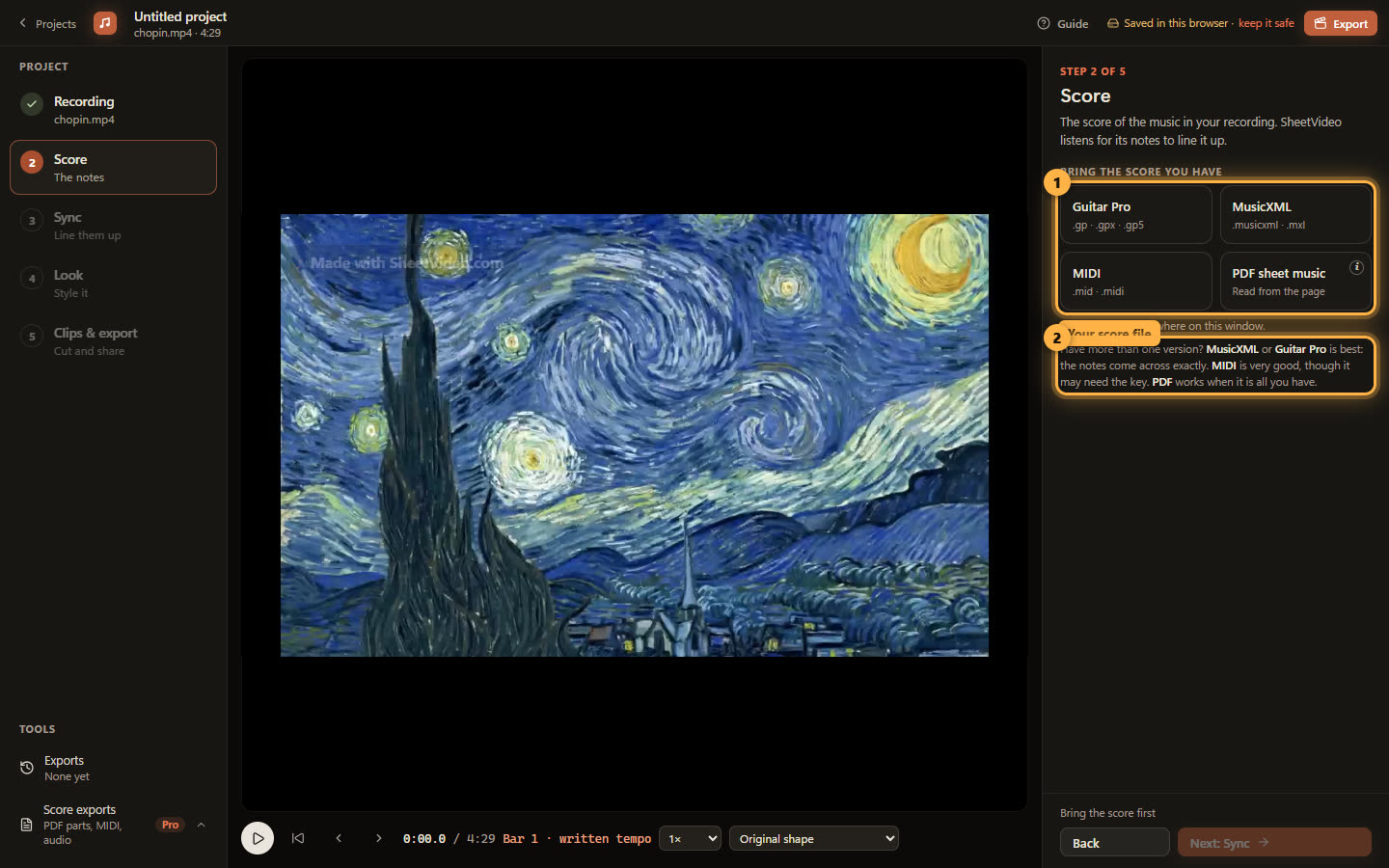
1Bring the score
Step 2 asks for the notes you played: SheetVideo listens for them in the recording, and they are what ends up on the video. Here it is a MIDI file of the Nocturne: click MIDI and pick the .mid. Dropping the file on the window works too.
The score decides how good the sync can be. MusicXML and Guitar Pro carry the notes and the bars exactly. MIDI is very good when it was written in a notation program, and weaker when it was played in or made in a quick online editor. A PDF reads well when it was exported from a notation program.
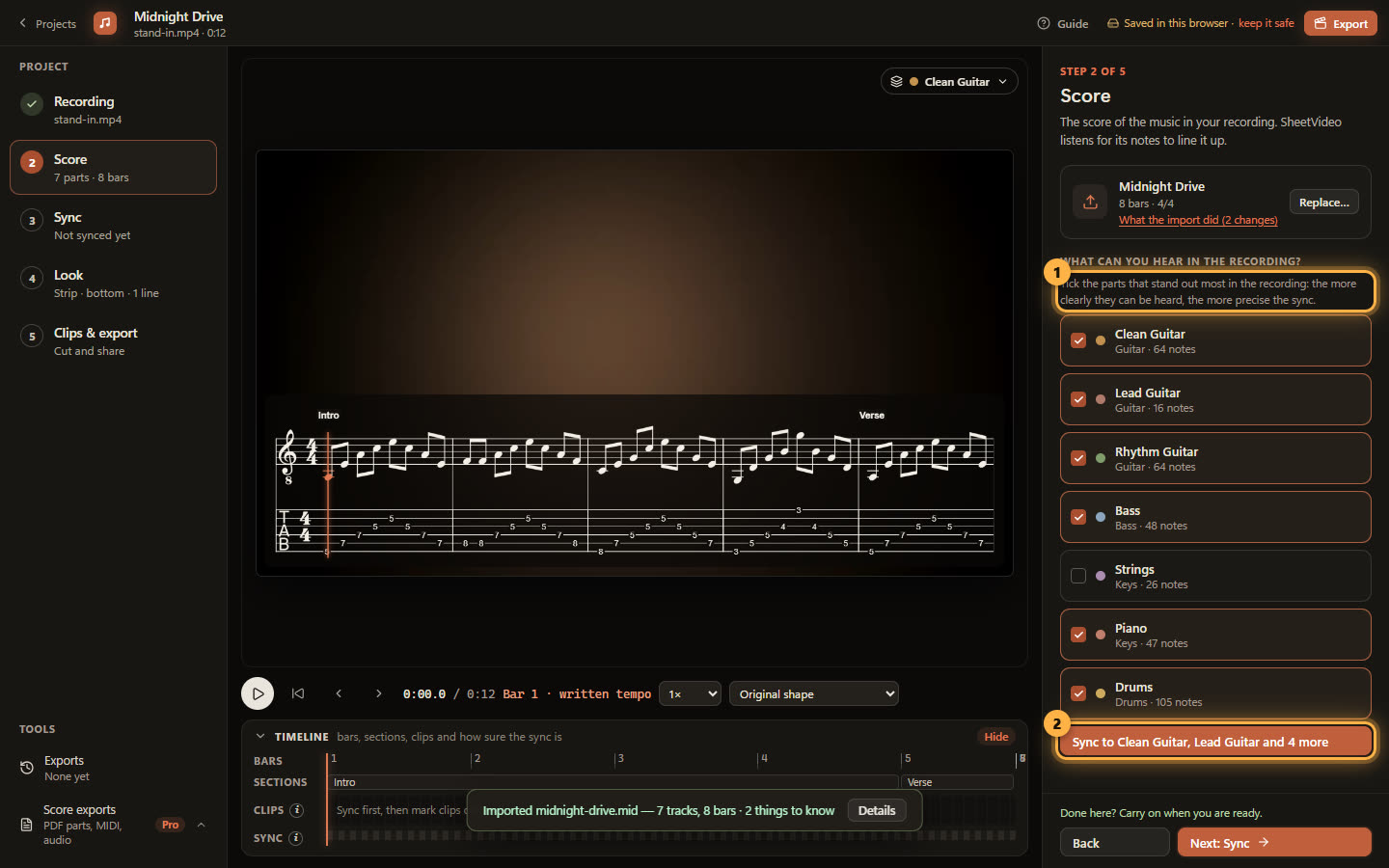
2Tick the parts you can hear best
With several parts, SheetVideo asks what you can hear in the recording, with the likely parts ticked. Keep the ones that stand out most in the recording — the drums, a lead, the melody — and untick anything quiet, doubled or not in the recording at all. The more clearly they can be heard, the more precise the sync.
3If a stretch wanders, try other parts
On the Sync step, Listening for shows the parts it used. Click it, tick or untick a part and sync again — adding the drums, or dropping a part you can hardly hear, is often all it takes. Your hand-placed fixes are kept.