How to do it, click by click
Every picture below is the real SheetVideo editor, with what to click ringed and numbered. The example is a recording of Chopin’s Nocturne in E-flat, Op. 9 No. 2.
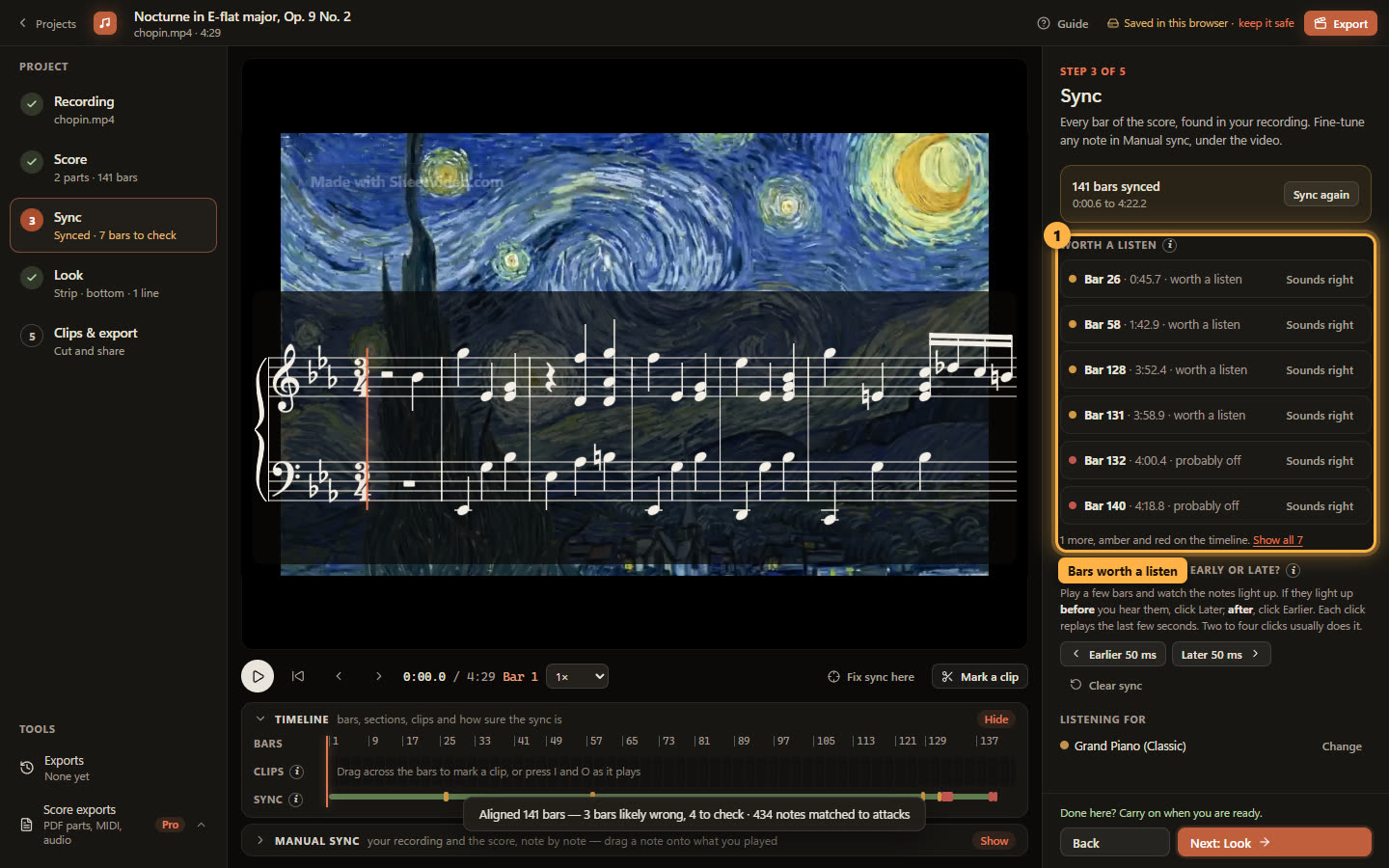
1Look at what it flagged
When it finishes, every bar has a place in the recording. The timeline under the video shows it: green where the sync is sure, amber and red where a bar is worth a listen.
The same bars are listed on the right with their times. Click one to jump there and listen; if it sounds right, click Sounds right and it drops off the list. In the Nocturne most of them sit in the closing bars, where the cadenza is played very freely.
2Mark the part worth posting
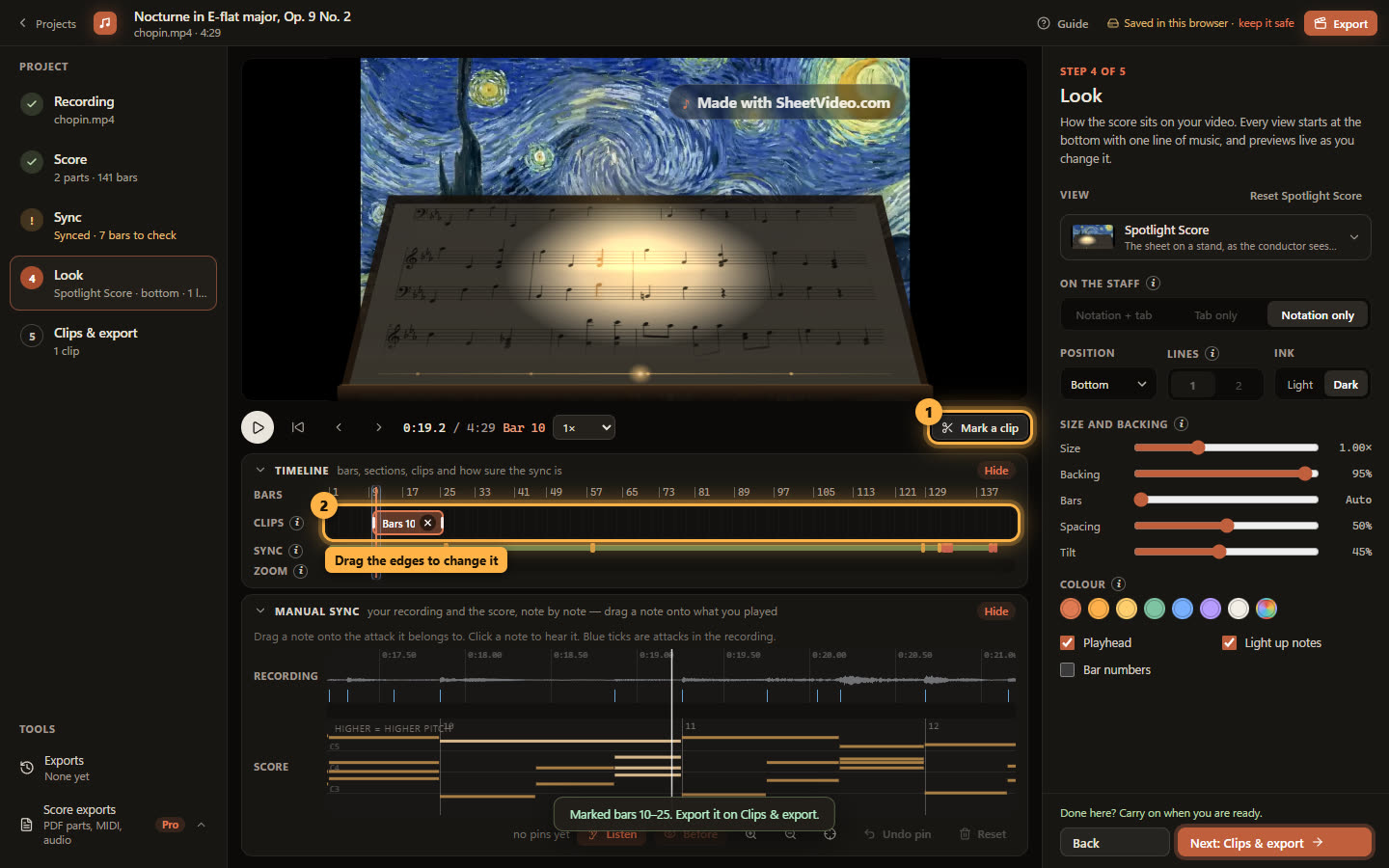
Stop the video at the first bar of the passage you want and click Mark a clip under the video. Then do the same for the next passage.
A clip of about thirty seconds appears on the timeline, starting on that bar — cut on bar lines, so it starts and ends on the music. Drag its edges to change it, or drag across the bars on the timeline to mark another. Every clip you mark is listed on the Clips & export step.
3Pick what to export and its shape
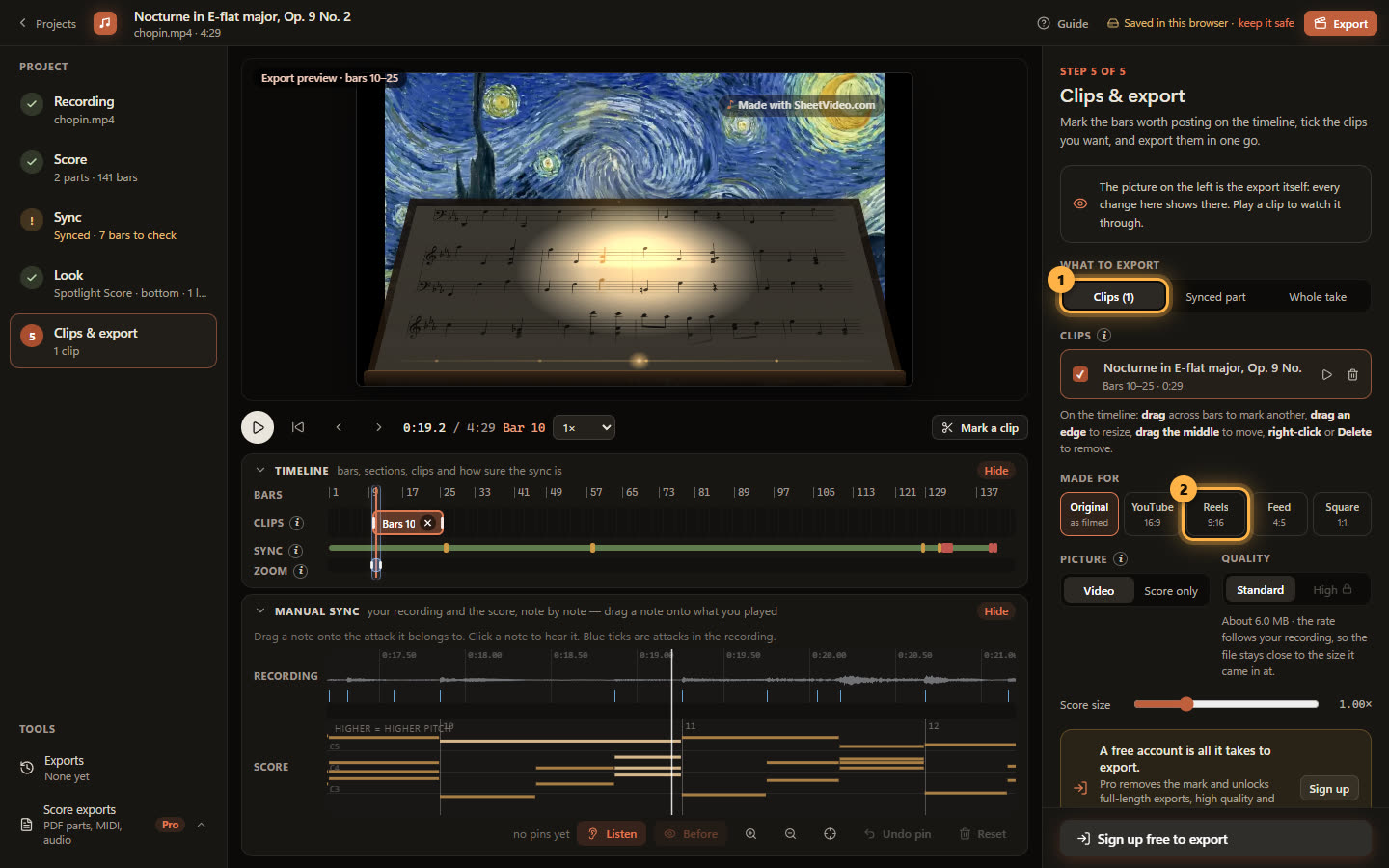
Step 5. What to export: your clips, the synced part, or the whole take. Made for sets the shape: Original (as filmed), YouTube 16:9, Reels 9:16, Feed 4:5 or Square 1:1.
Picture chooses between your video and Score only — your recording’s sound with the score large on a stage of its own. The picture on the left is the export itself, so what you see is what you get.
4Export it upright for Shorts, Reels and TikTok
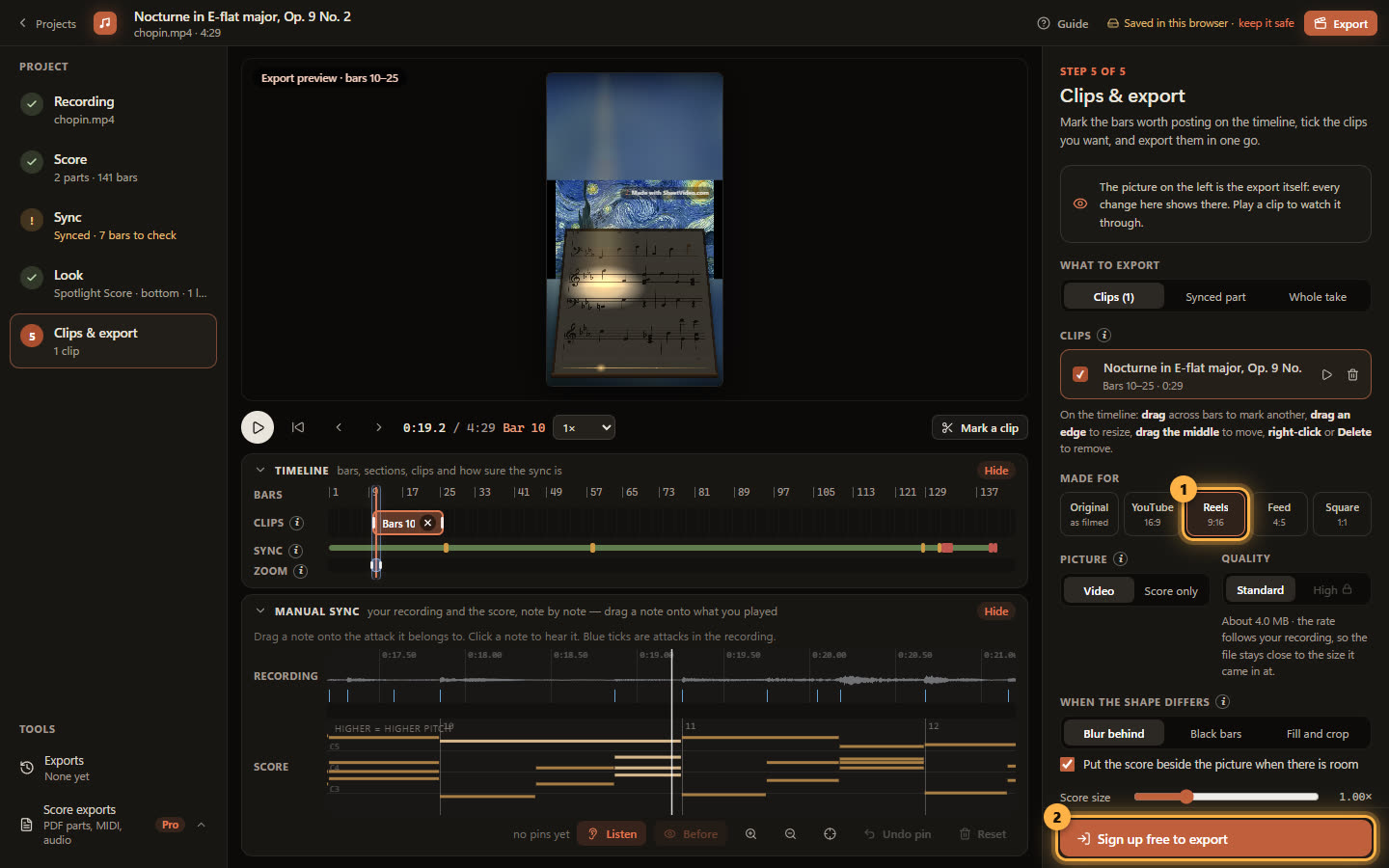
Click Reels 9:16. A landscape video does not get stretched: it sits whole on a blurred copy of itself, or with black bars, or fills the frame with a centre crop — your pick under “When the shape differs”. The score is laid out again for the narrower frame.
Exporting needs a free account — sign up when you get here, and whatever you did as a guest moves into it. Free exports are up to 60 seconds with a small moving “Made with SheetVideo.com” mark; Pro exports the whole take without it.