How to do it, click by click
Every picture below is the real SheetVideo editor, with what to click ringed and numbered. The example is a recording of Chopin’s Nocturne in E-flat, Op. 9 No. 2.
1Start a project and drop in the recording
Open SheetVideo and click Make a free video — there is no account to make first. The steps down the left are the whole job: Recording, Score, Sync, Look, and Clips & export.
Click Choose video or audio and pick the video of your performance, or drop it on the window. MP4, MOV and WebM work, upright phone clips as well as landscape, and so does just the sound (MP3, WAV, M4A). Talking, tuning or silence before the first note is fine: there is nothing to trim.
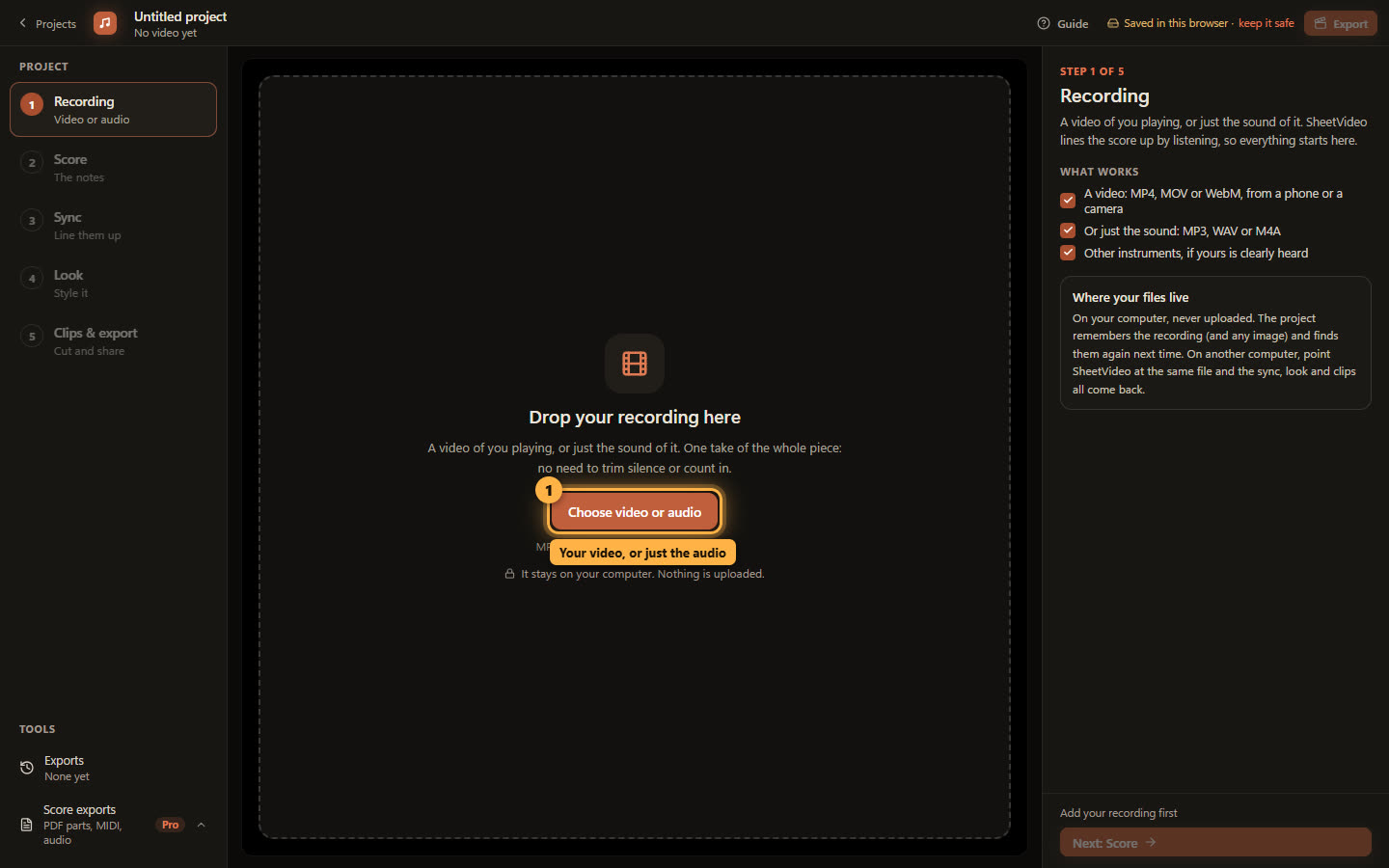
The file stays on your computer. Nothing is uploaded. 2It moves on by itself
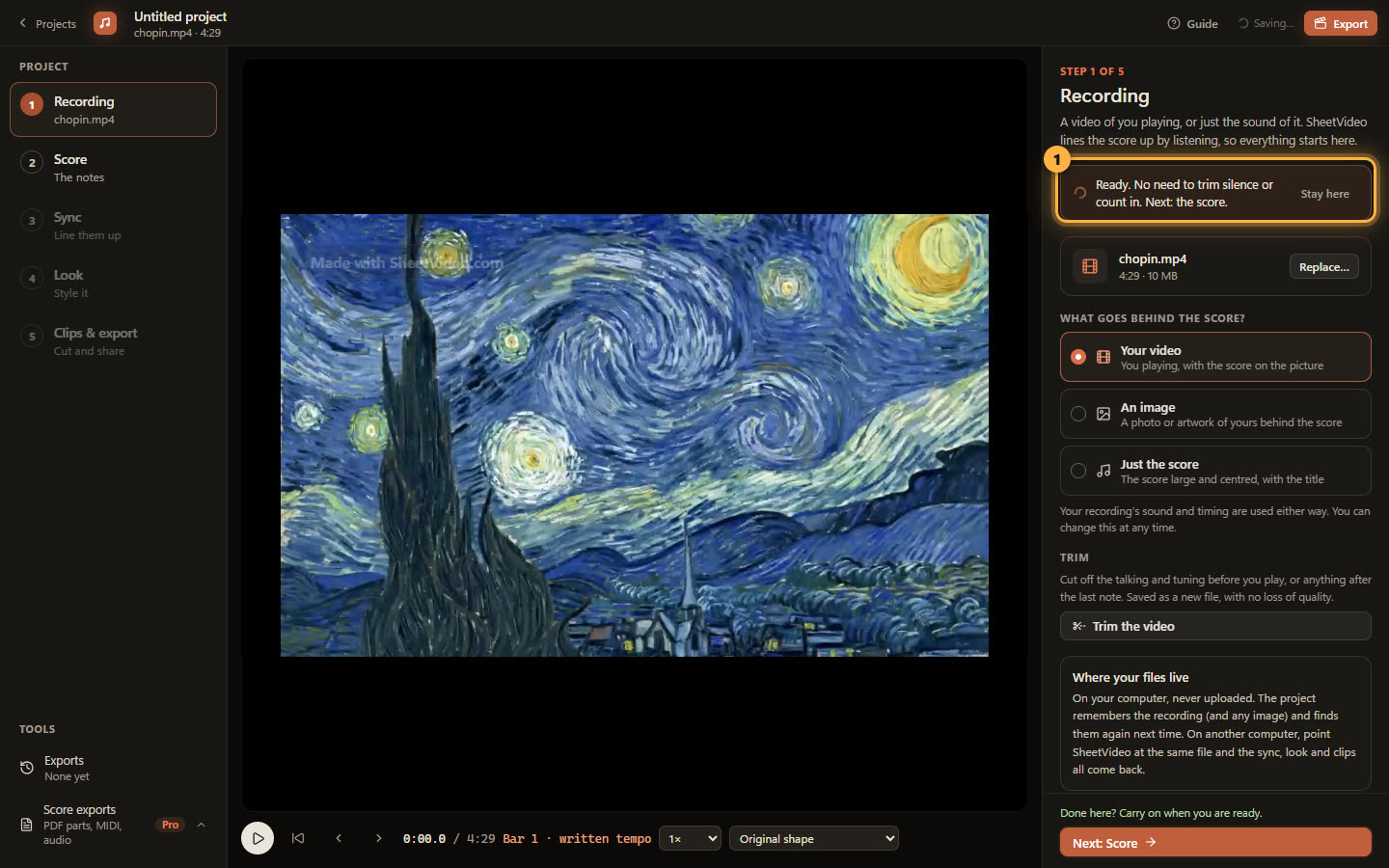
As soon as the video can play, a line at the top of the panel says it is ready and, a moment later, the project moves on to the Score step. A new project does that at every step: once the one thing a step needs is done, it takes you to the next.
Want to stay? Click Stay here and the project stays on this step until you click Next, or another step in the list on the left.
3Bring the score
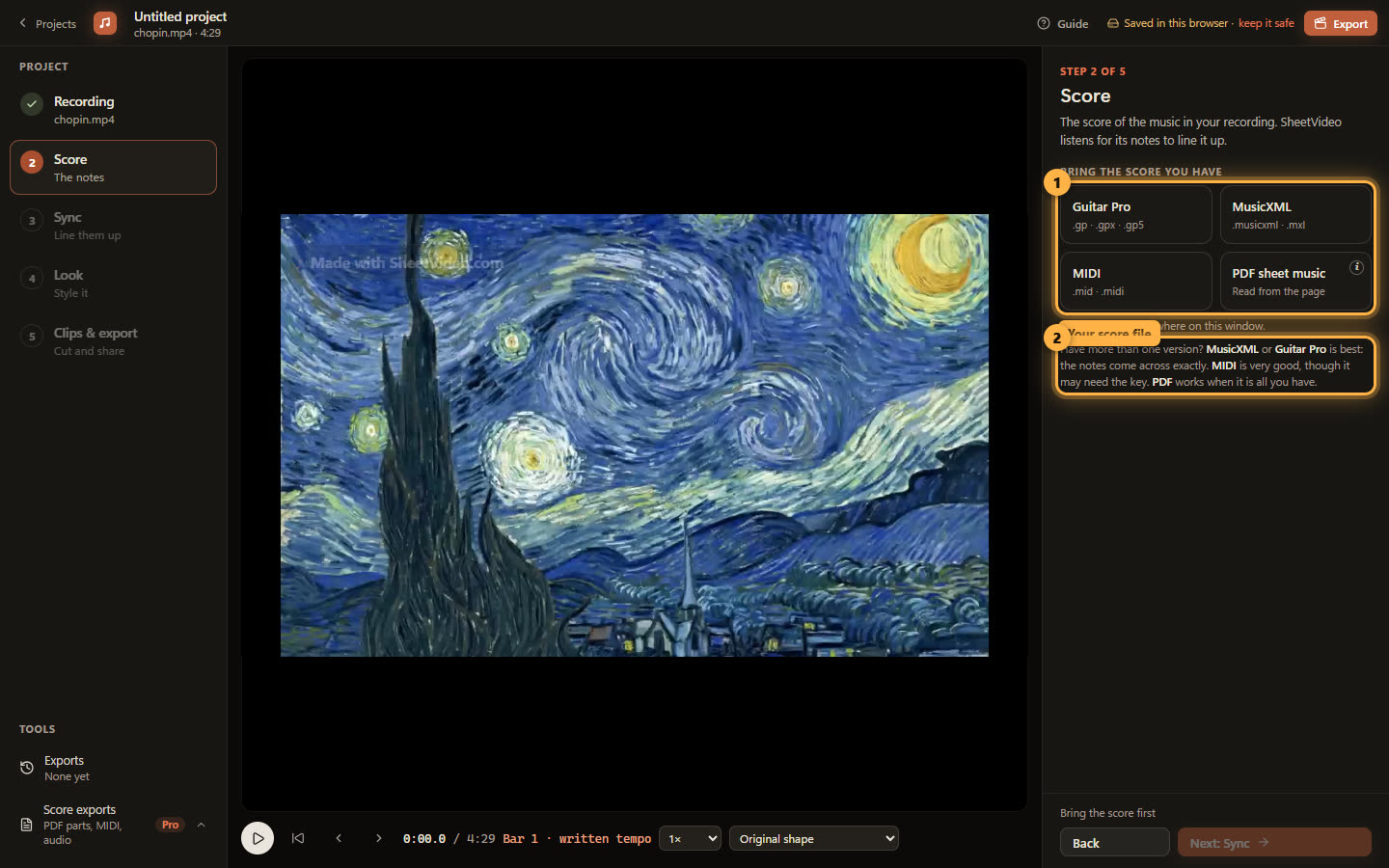
Step 2 asks for the notes you played: SheetVideo listens for them in the recording, and they are what ends up on the video. Here it is a MIDI file of the Nocturne: click MIDI and pick the .mid. Dropping the file on the window works too.
The score decides how good the sync can be. MusicXML and Guitar Pro carry the notes and the bars exactly. MIDI is very good when it was written in a notation program, and weaker when it was played in or made in a quick online editor. A PDF reads well when it was exported from a notation program.
4Say which key it is in (MIDI only)
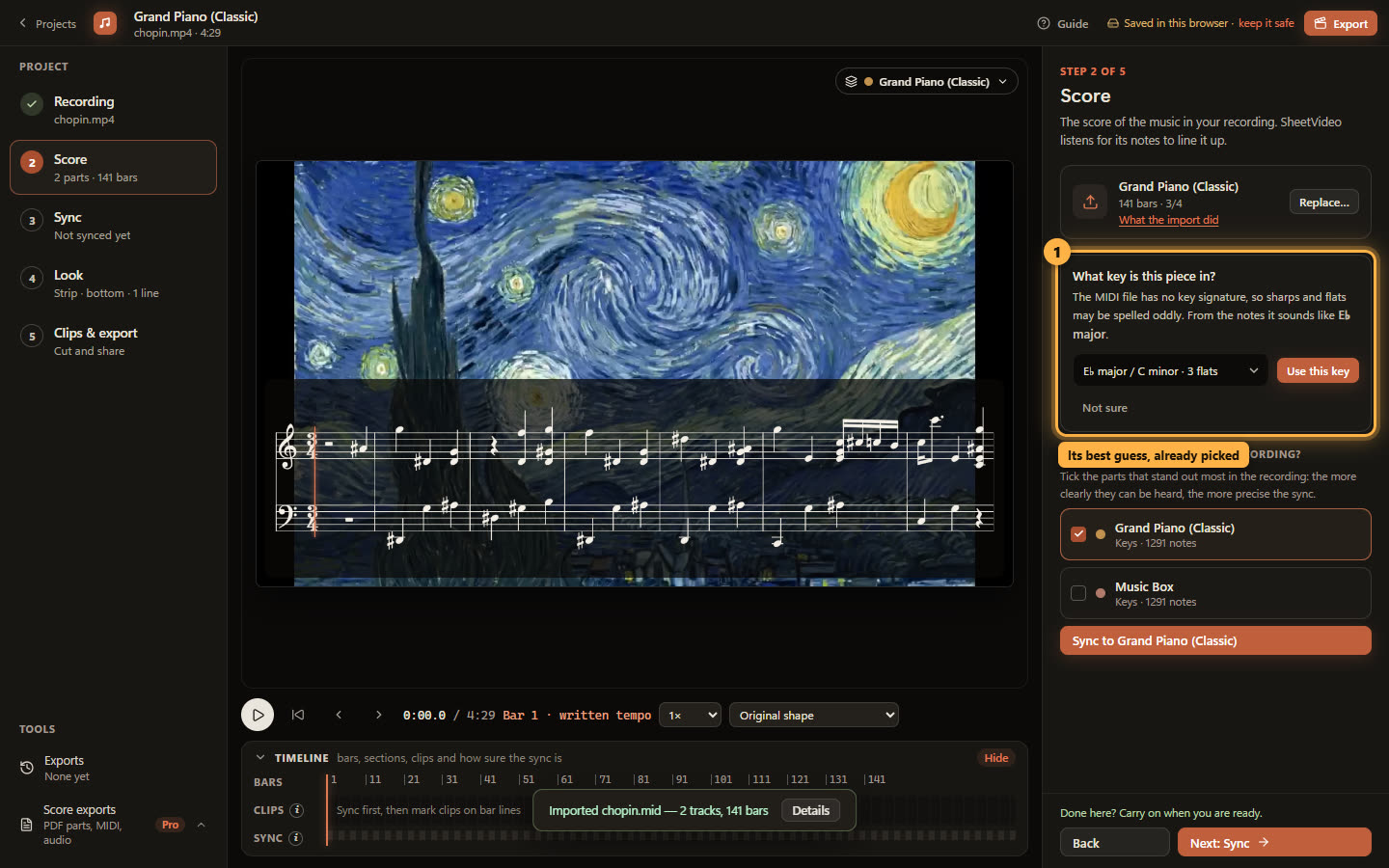
A MIDI file is performance data: it often has no key signature, and then every E♭ is spelled as a D♯. When that happens the Score step asks one question, with the key the notes suggest already picked — E♭ major for the Nocturne.
Click Use this key, pick another if you know better, or Not sure to leave it. Nothing else about the song needs setting now.
5Say what you can hear
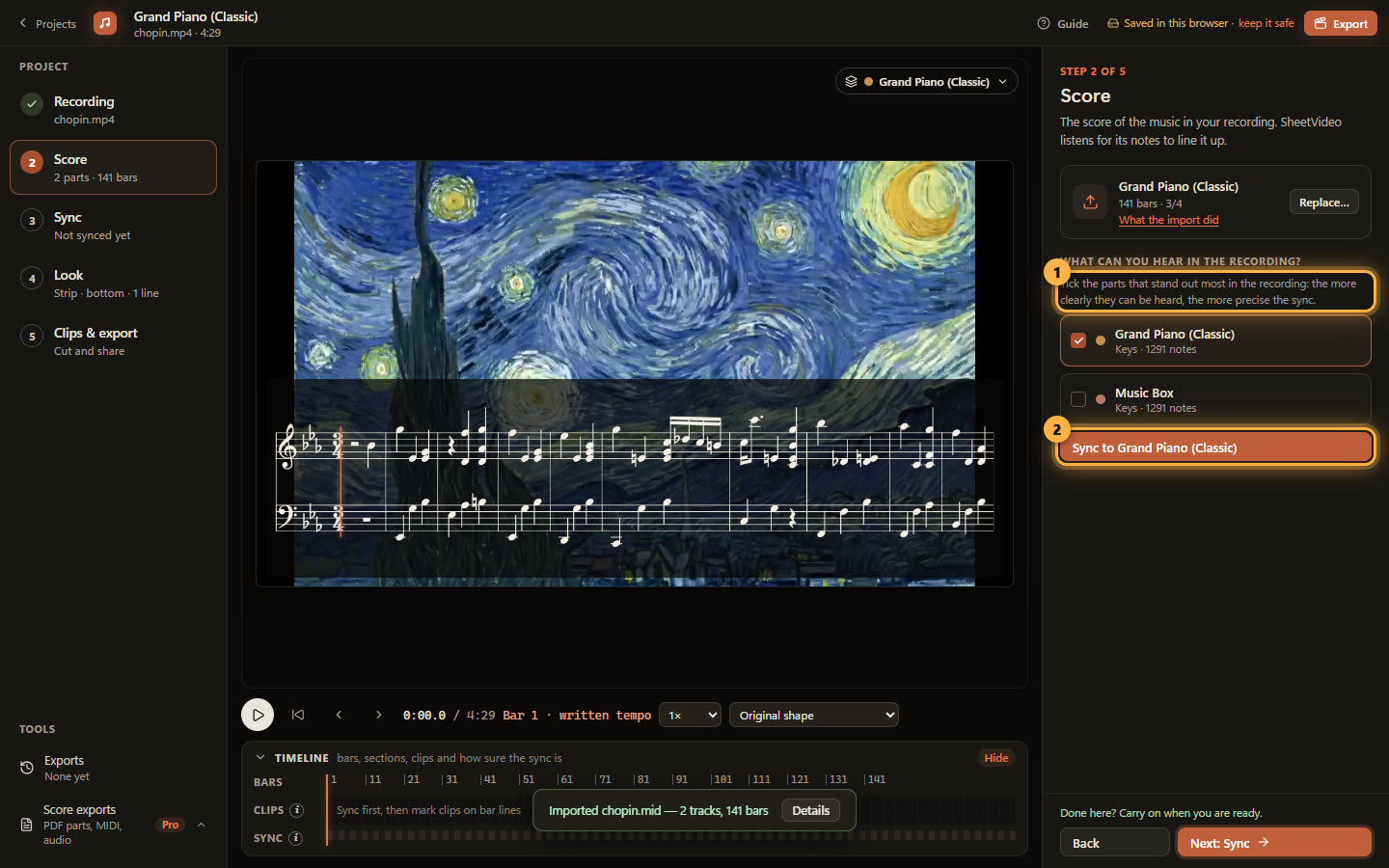
A score with one part — or a piano’s two hands, which count as one — goes straight on. This MIDI has a second part, Music Box, that only doubles the piano, so SheetVideo asks what you can hear in the recording, with the likely parts ticked.
Tick the parts that stand out most in the recording: the more clearly they can be heard, the more precise the sync. Here that is Grand Piano alone. Click Sync to Grand Piano.
6It syncs by itself
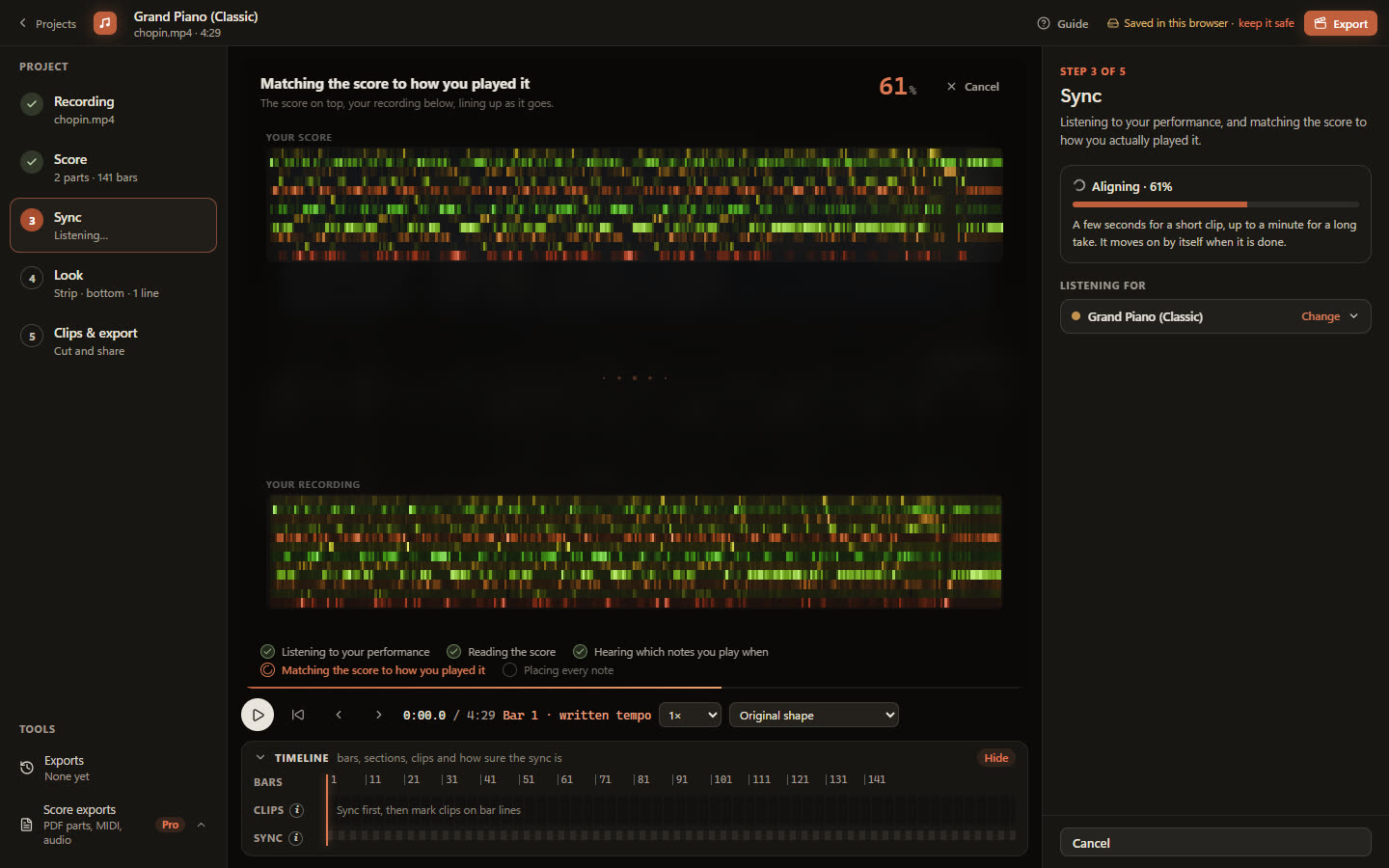
There is no button to press. On the Sync step SheetVideo listens to the recording and matches the score to how you actually played it: the score on top, your recording below, lining up as it goes.
A few seconds for a short clip, up to a minute for a long take; the four-and-a-half-minute Nocturne takes well under a minute. Everything happens on your computer.
7Synced, and on to the look
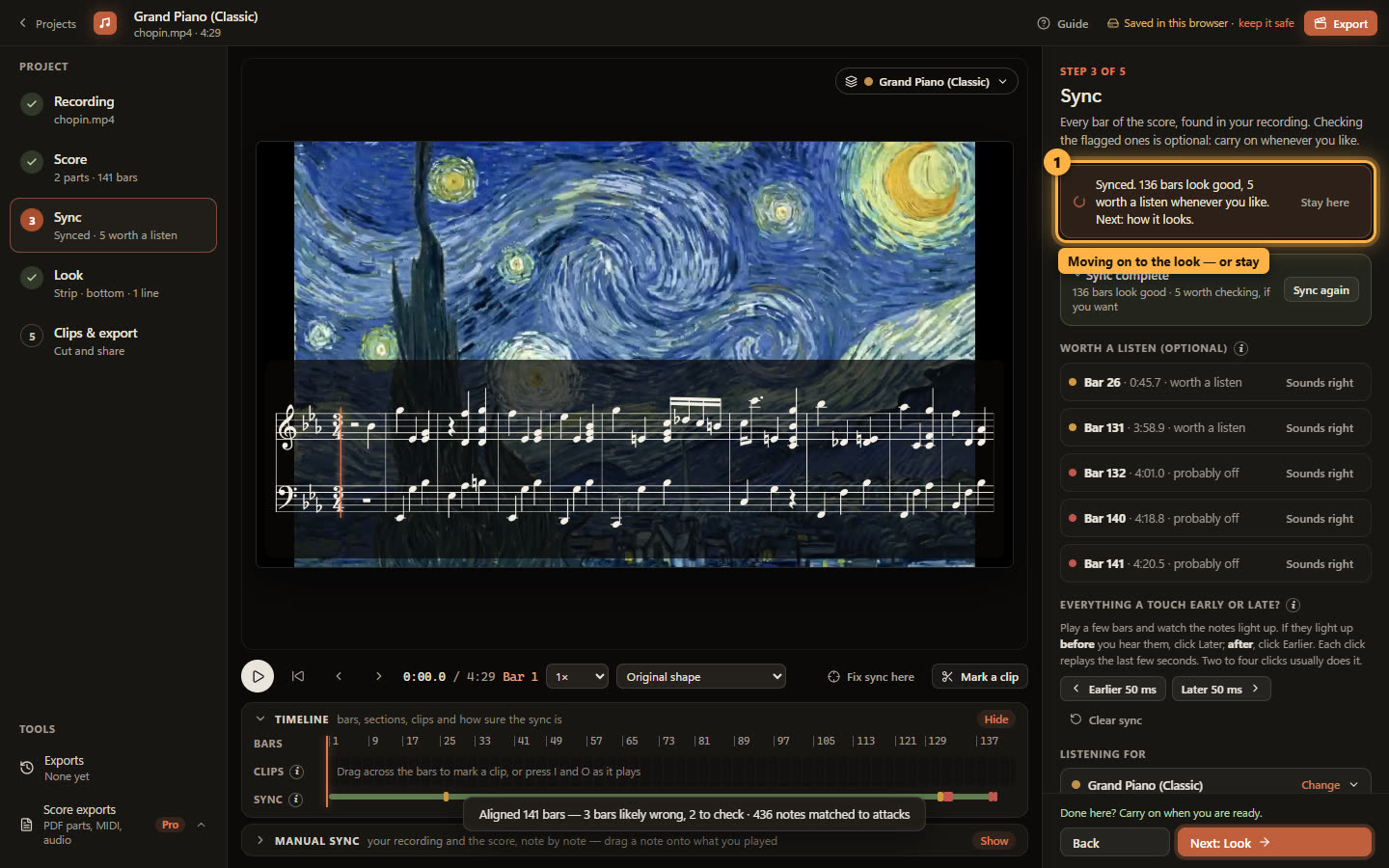
When it is done, the line at the top of the panel says how it went — here 136 bars look good, 5 are worth a listen whenever you like — and a moment later the project moves on to the Look step. Press play at any point to watch the notes light up as they are played.
Want to check the sync first? Click Stay here. The bars worth a listen are optional: nothing needs reviewing before the video is made.
8Pick one of three looks
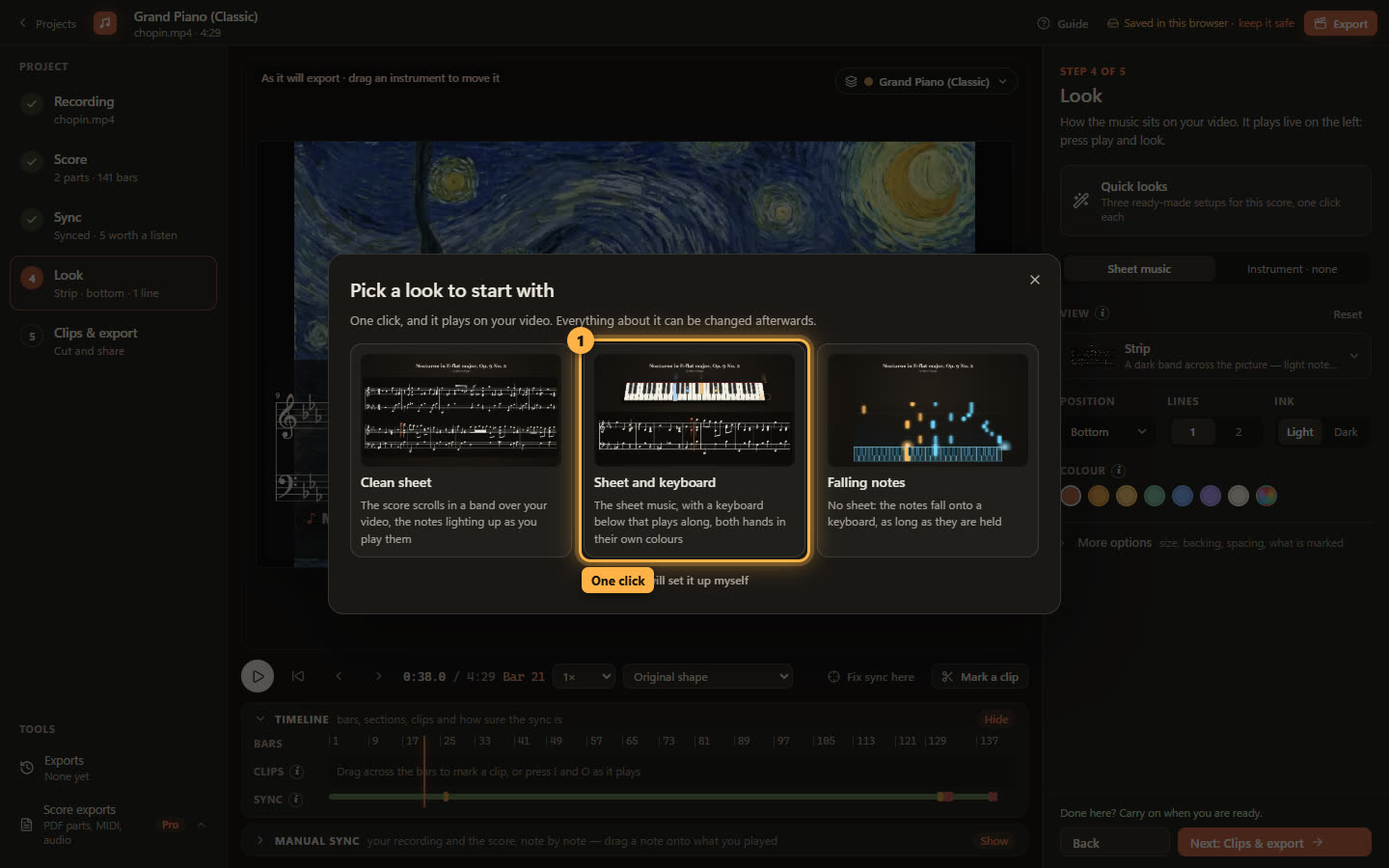
The Look step opens with three ready-made looks for the instrument you played. For piano: Clean sheet (the score in a band over the video), Sheet and keyboard (the score, and a grand piano that plays along), and Falling notes (no sheet, the notes falling onto the keys).
Click one and it is on your video. Here it is Sheet and keyboard. All fourteen views and the other instruments are one click away afterwards.
9The look is on
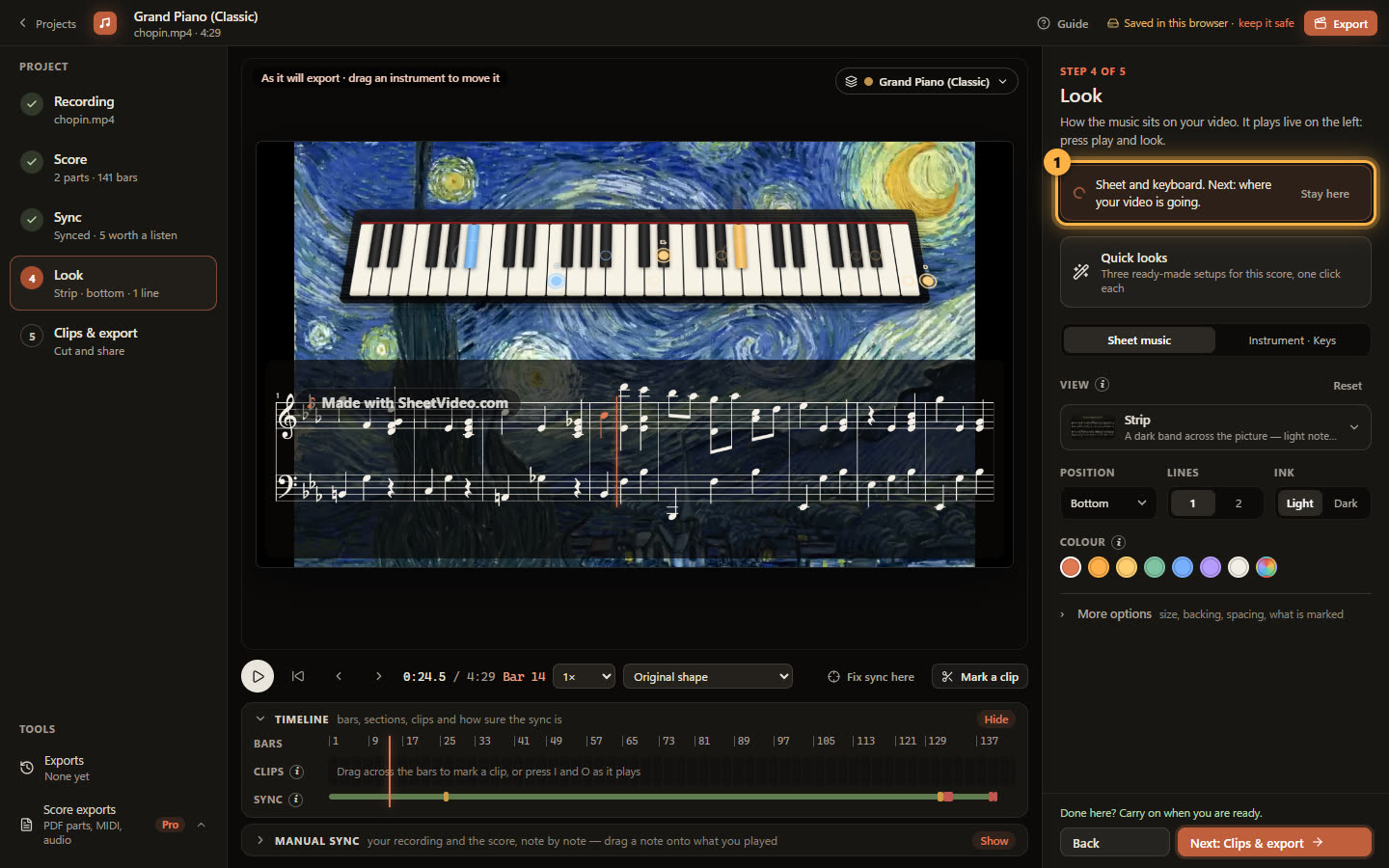
The picture on the left is the export itself, now with the Strip along the foot and a concert grand above it, both hands in their own colours. A moment later the project moves on to Clips & export.
10Say where it is going, and it exports
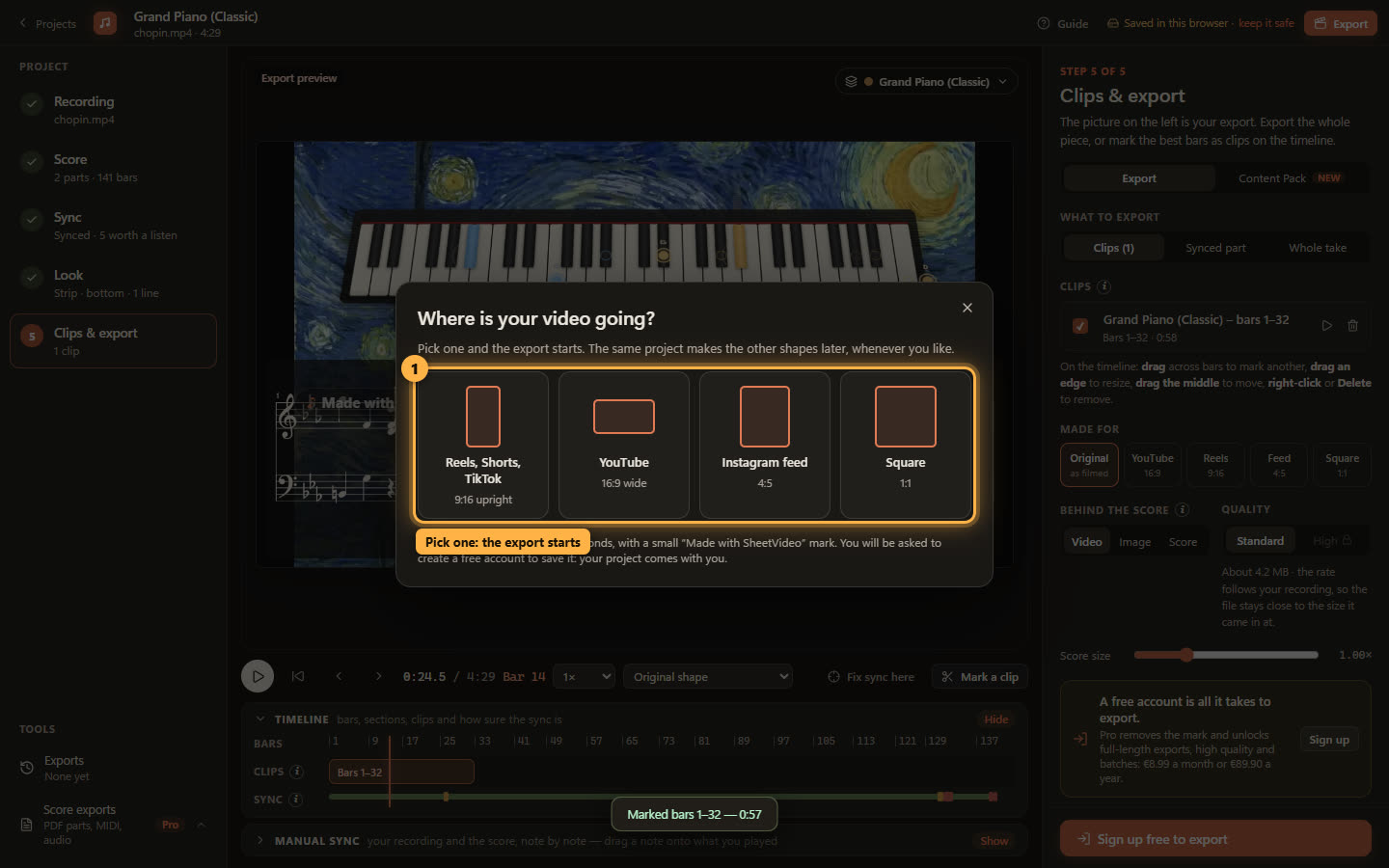
One question on the last step: where is your video going? Reels, Shorts and TikTok (9:16), YouTube (16:9), the Instagram feed (4:5) or square. Pick one and the export starts. The same project makes the other shapes later, whenever you like.
A free export is up to 60 seconds, so the first stretch that fits — here bars 1 to 32, 58 seconds, cut on a bar line — is marked for you. Pro exports the whole take.
11Save it with a free account
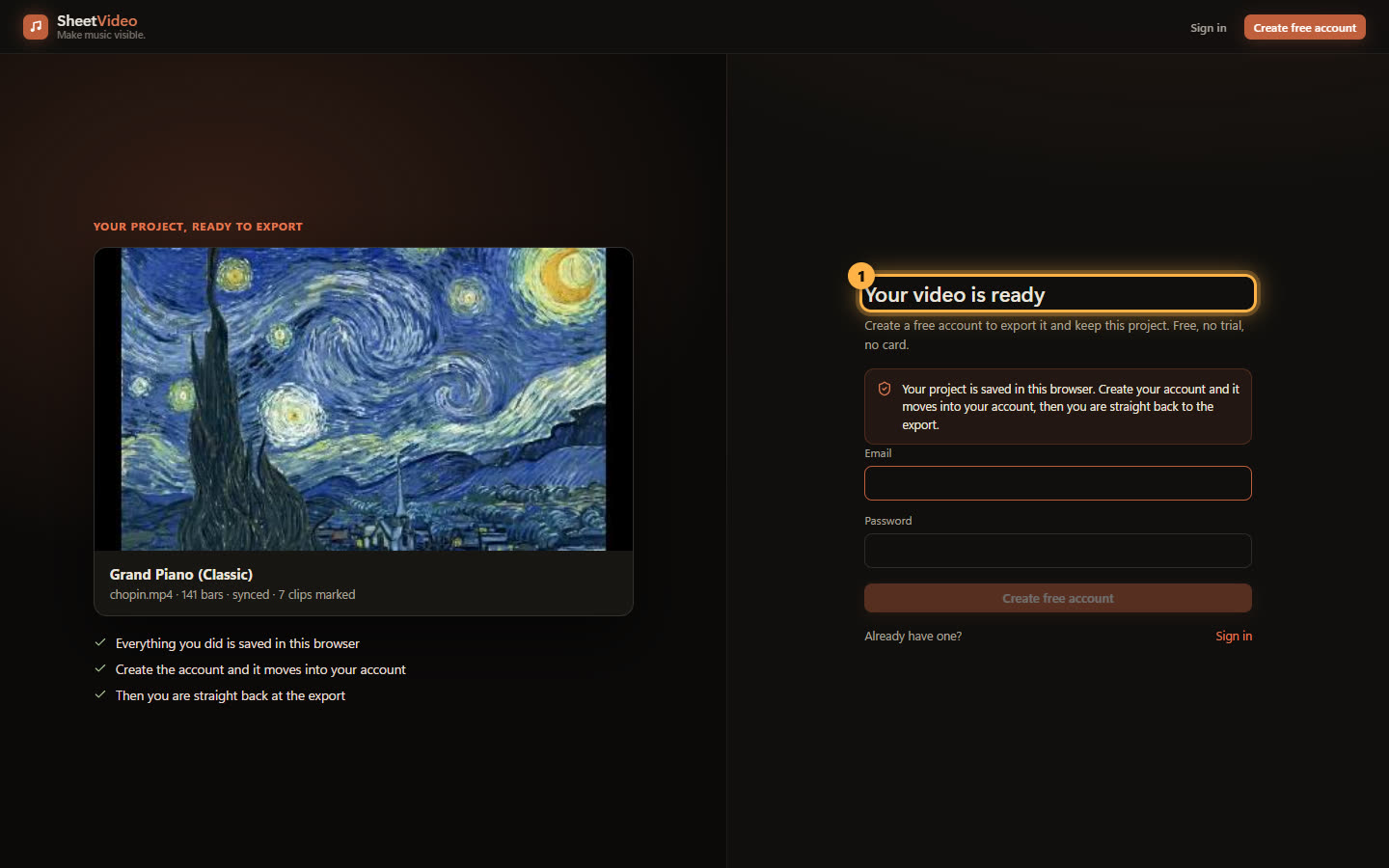
Exporting needs a free account, and this is where it is asked for: your video is ready, create an account to export it and keep the project. Free, no trial, no card.
Everything you did as a guest moves into the account, and you land straight back in the project with the export running. Without an account a browser keeps one project; an account keeps as many as you like, on any device.