How to do it, click by click
Every picture below is the real SheetVideo editor, with what to click ringed and numbered. The example is a recording of Chopin’s Nocturne in E-flat, Op. 9 No. 2.
1Bring the score
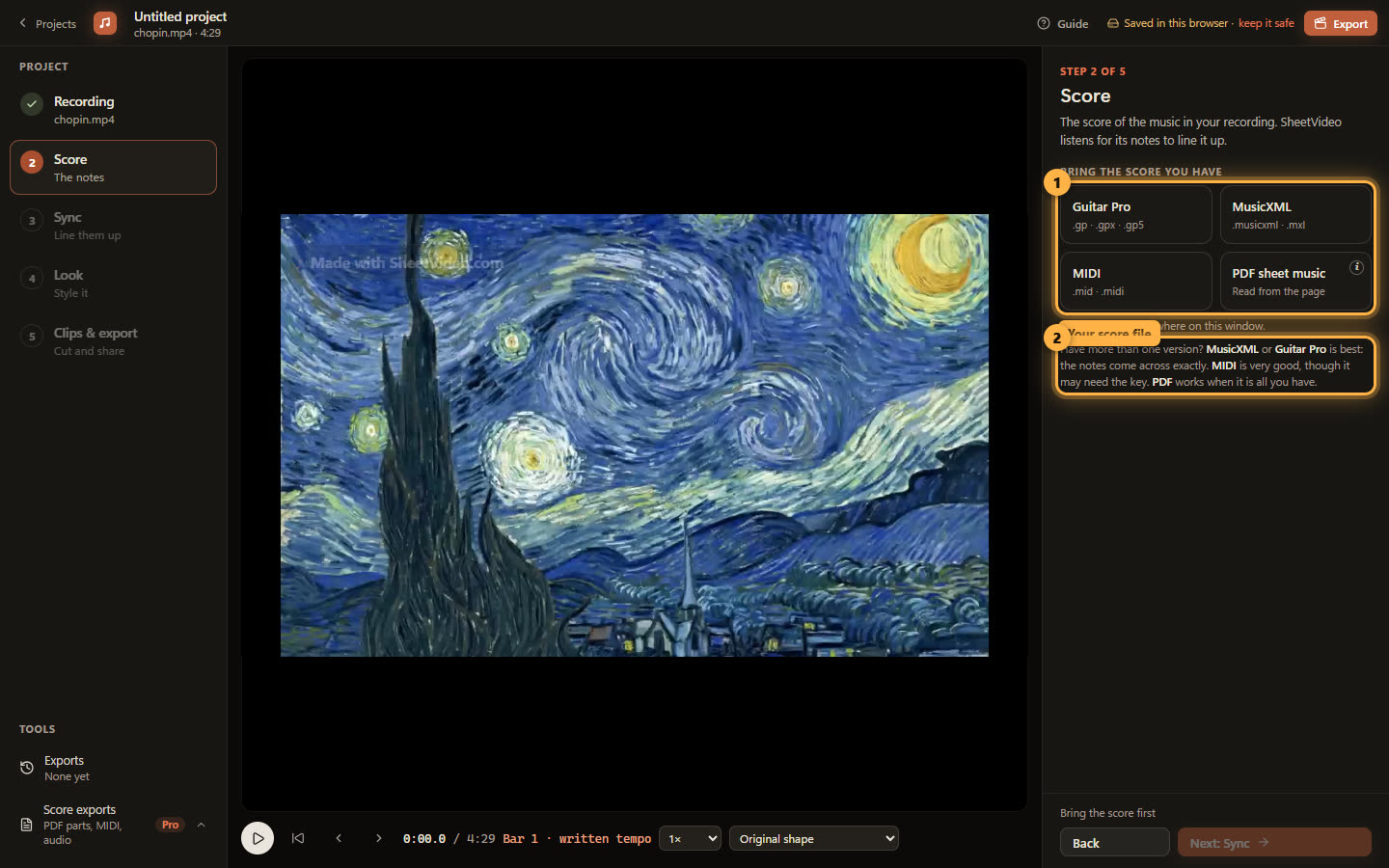
Step 2 asks for the notes you played: SheetVideo listens for them in the recording, and they are what ends up on the video. Here it is a MIDI file of the Nocturne: click MIDI and pick the .mid. Dropping the file on the window works too.
The score decides how good the sync can be. MusicXML and Guitar Pro carry the notes and the bars exactly. MIDI is very good when it was written in a notation program, and weaker when it was played in or made in a quick online editor. A PDF reads well when it was exported from a notation program.
2MusicXML and Guitar Pro: the notes exactly
A MusicXML (.musicxml, .mxl) from MuseScore, Sibelius, Finale or Dorico, or a Guitar Pro file (.gp, .gpx, .gp5), carries everything the sync and the video need: the notes, the bars, the time signature, the key, and for guitar the strings and frets. If you have one of these, use it.
3MIDI: good when it was written, weak when it was played
A MIDI exported from a notation program is very good: the notes sit on the beat and the bars are real. It often has no key signature, and SheetVideo asks for one, with its guess picked.
A MIDI played in on a keyboard, converted from audio, or made in a quick online editor is another thing. Its notes can all sit a little off the grid — we have seen a whole file shifted by a seventh of a bar — and its meter can be missing or wrong, so a piece in 6/8 comes out as odd-looking 4/4 with ties everywhere. The sync then has to match your playing to notes that do not line up with bars, and both the sync and the notation on the video suffer. If the score looks strange on the Score step, find a better file before blaming the sync.
4Say which key it is in (MIDI only)
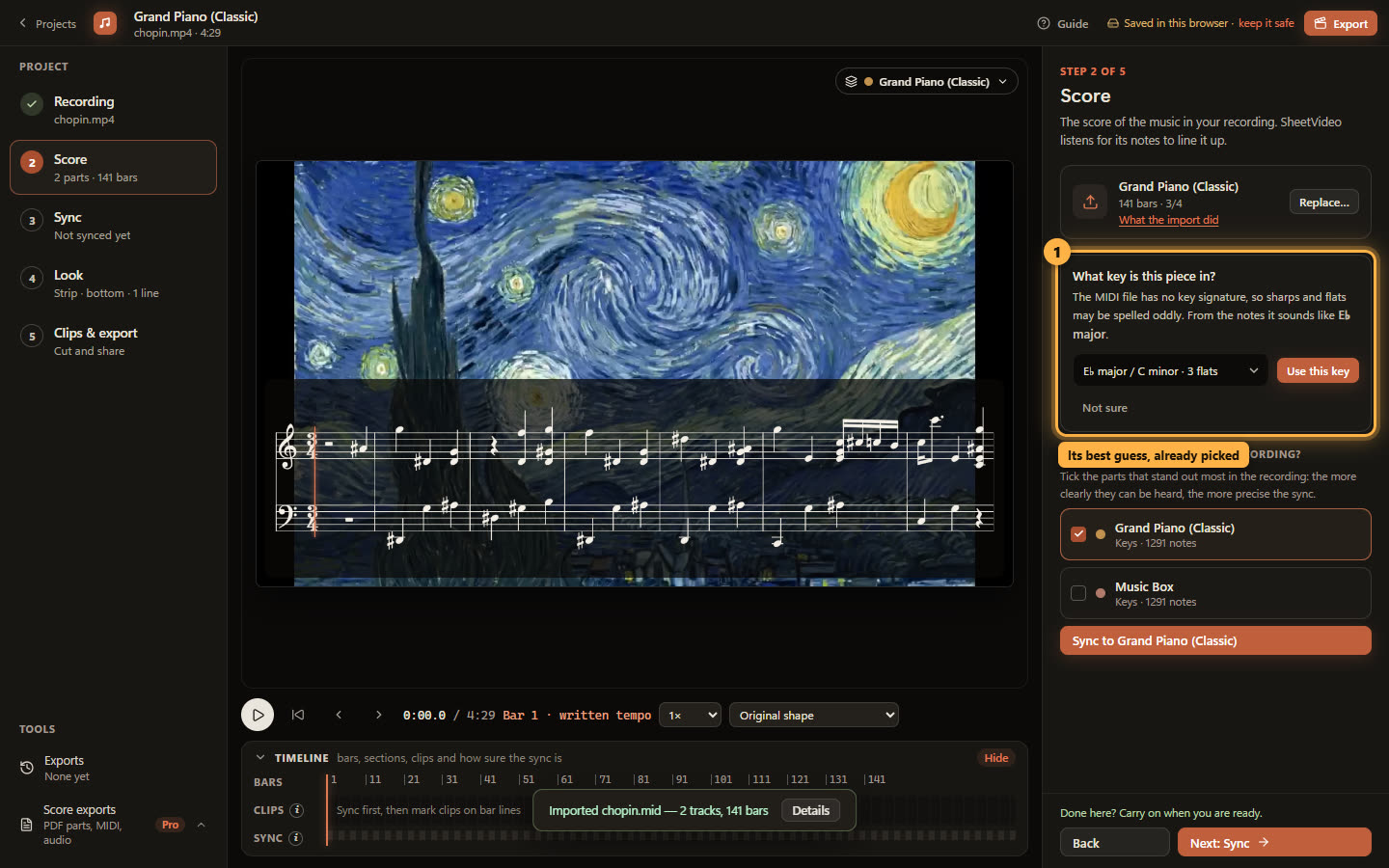
A MIDI file is performance data: it often has no key signature, and then every E♭ is spelled as a D♯. When that happens the Score step asks one question, with the key the notes suggest already picked — E♭ major for the Nocturne.
Click Use this key, pick another if you know better, or Not sure to leave it. Nothing else about the song needs setting now.
5Check what the PDF reader found
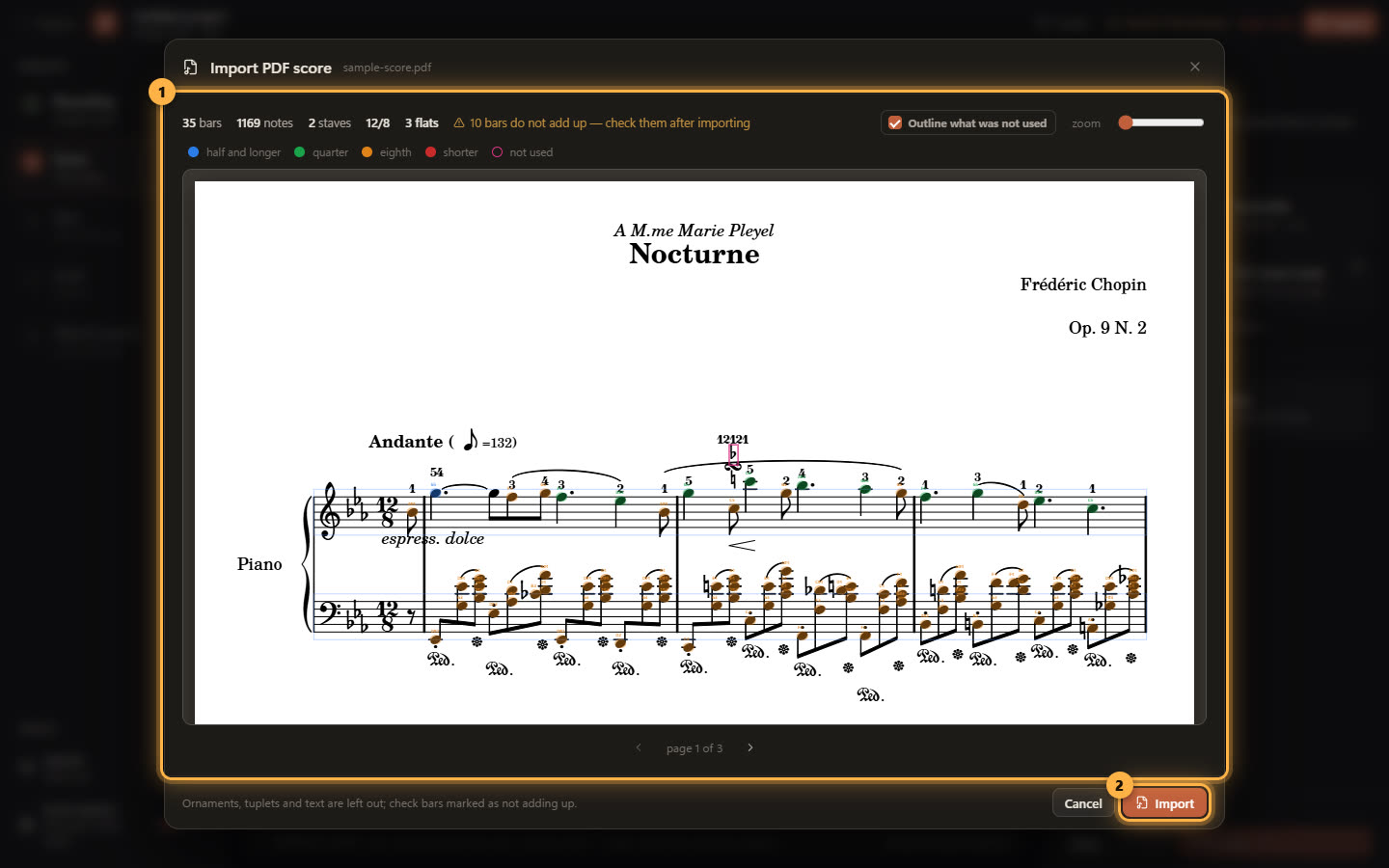
The PDF opens in a reader before anything is imported. For the Nocturne it found 35 bars on two staves in 12/8 with three flats — the key and the time signature are read from the page. Every note is coloured by the duration it was read as, so a wrong one stands out.
The summary says how many bars it is confident about. The rest are worth checking: the reader leaves out ornaments, tuplets and text, and the Nocturne has plenty of all three. Click Import; you can check those bars later.
The pictures after this one were taken with the Nocturne’s MIDI version. The steps are the same whichever file the score came from.
6PDF: good when it was exported, weak when it was scanned
A PDF exported from a notation program, or a modern publisher’s edition, reads well: its notes are set in a music font, which SheetVideo reads back into notes directly. Ornaments, tuplets and text are left out, so a bar with them may be marked as worth checking.
A scan of a printed page, a photo, or handwriting is read from shapes rather than from the font, and reads far less reliably. If there is an engraved edition or a MusicXML of the same piece, use that.
7Say what you can hear
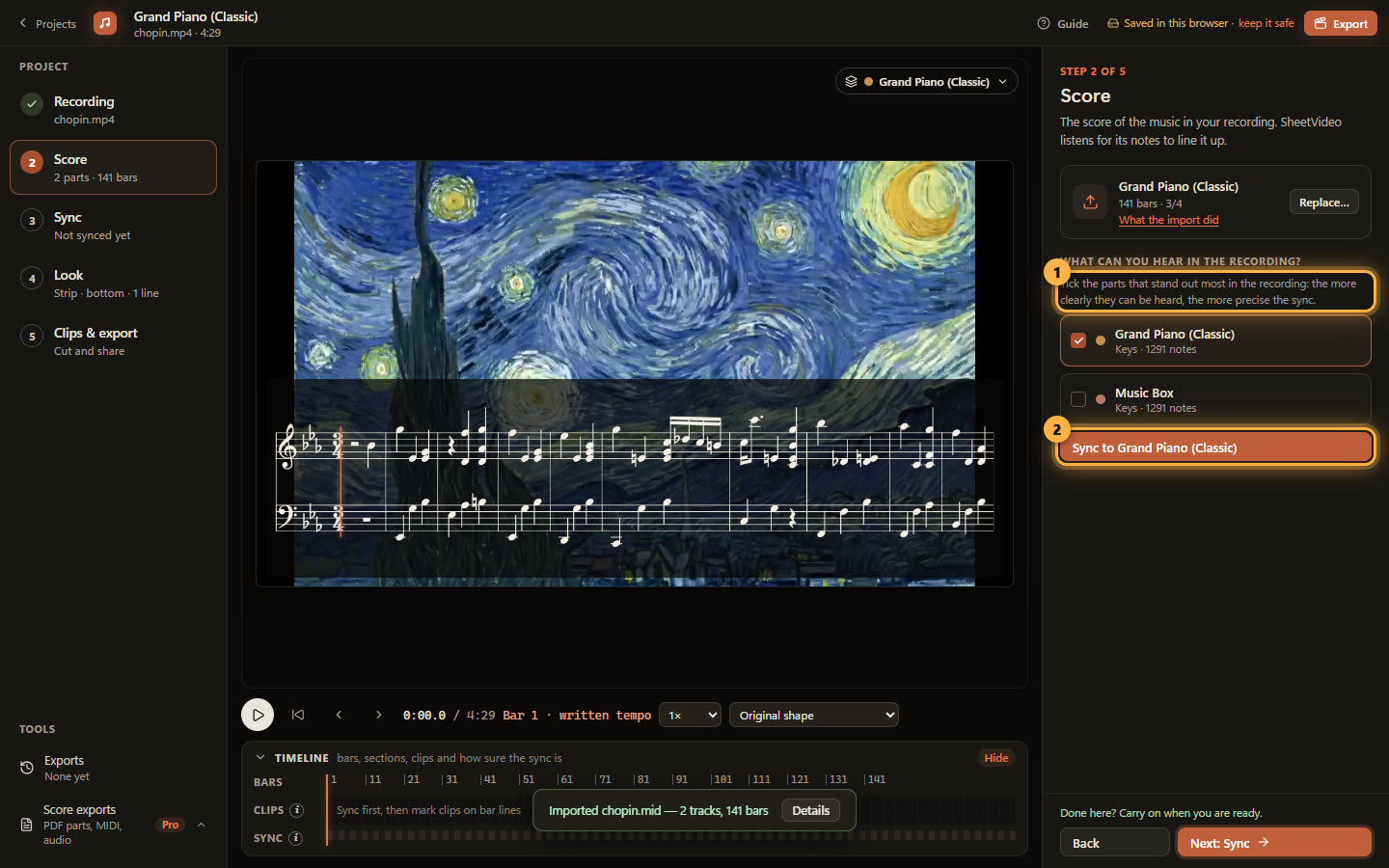
A score with one part — or a piano’s two hands, which count as one — goes straight on. This MIDI has a second part, Music Box, that only doubles the piano, so SheetVideo asks what you can hear in the recording, with the likely parts ticked.
Tick the parts that stand out most in the recording: the more clearly they can be heard, the more precise the sync. Here that is Grand Piano alone. Click Sync to Grand Piano.