How to do it, click by click
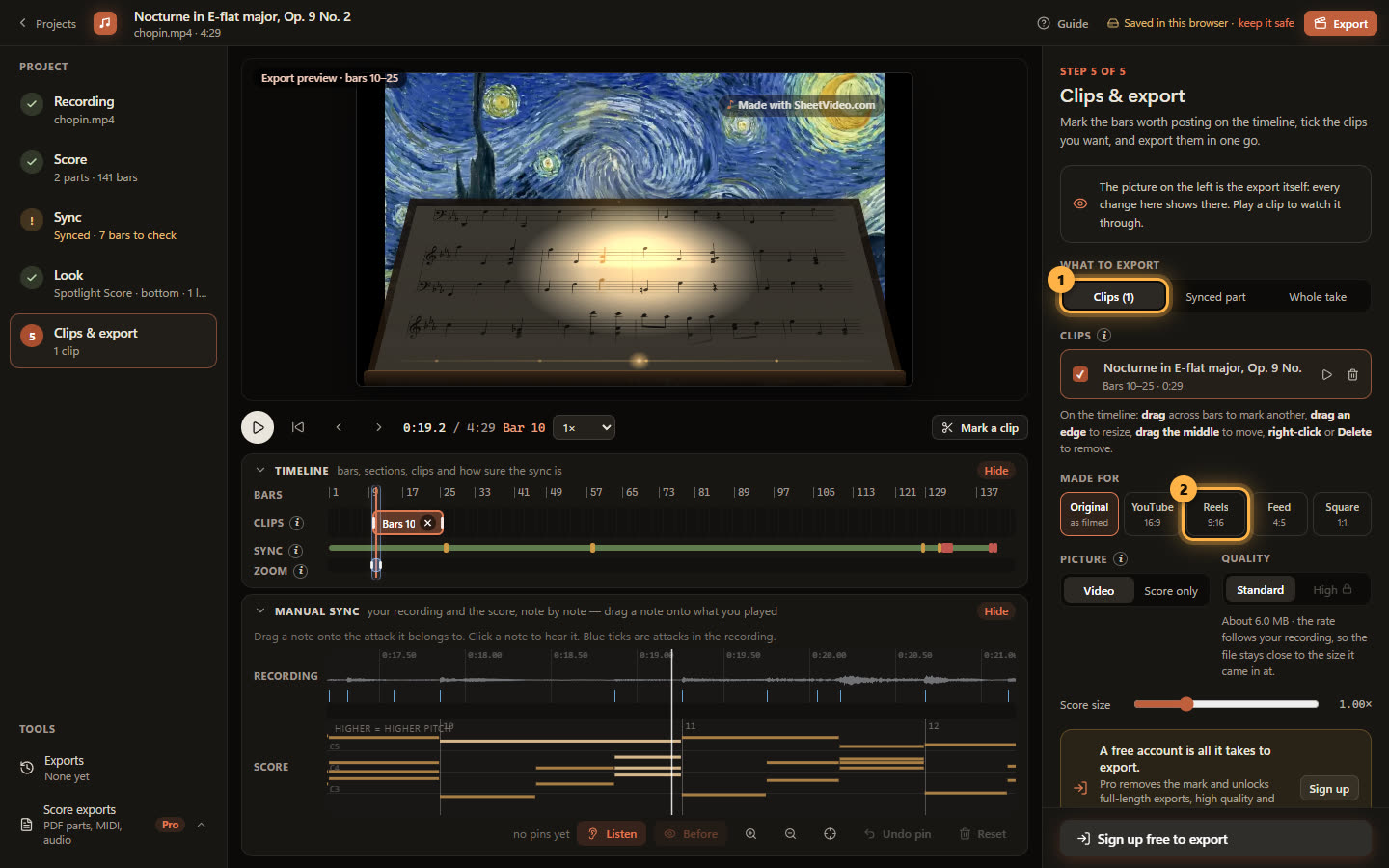
Every picture below is the real SheetVideo editor, with what to click ringed and numbered. The example is a recording of Chopin’s Nocturne in E-flat, Op. 9 No. 2.
1Start a project and add the recording
Open SheetVideo and start a new project — there is no account to make first. The steps down the left are the whole job: Recording, Score, Sync, Look, and Clips & export.
Step 1 is the recording. Click Choose a video… and pick the video of your performance. MP4, MOV and WebM all work, upright phone clips as well as landscape, and so does an audio file on its own.
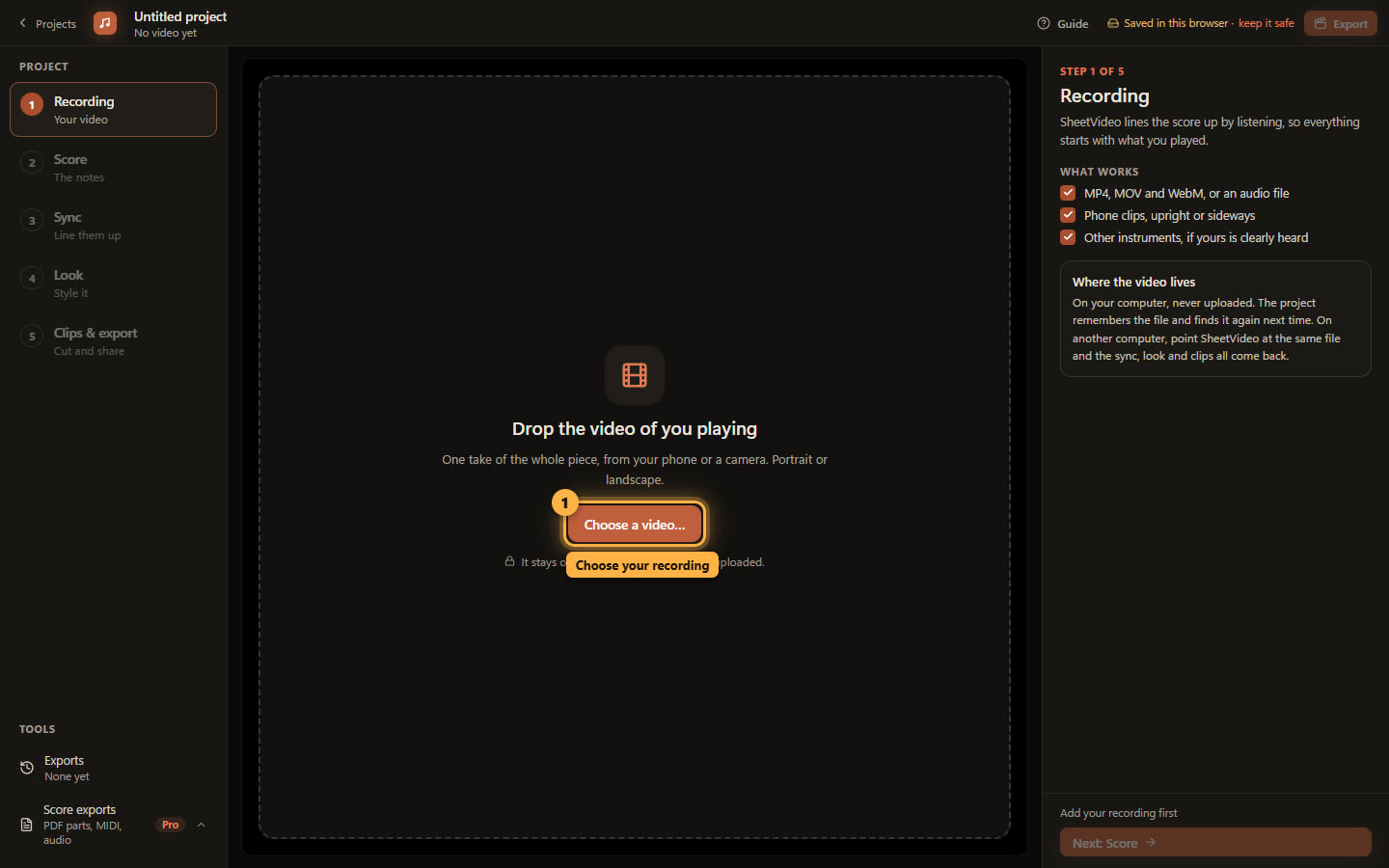
Step 1: Choose a video… The file stays on your computer — nothing is uploaded. 2Check the take, then move on
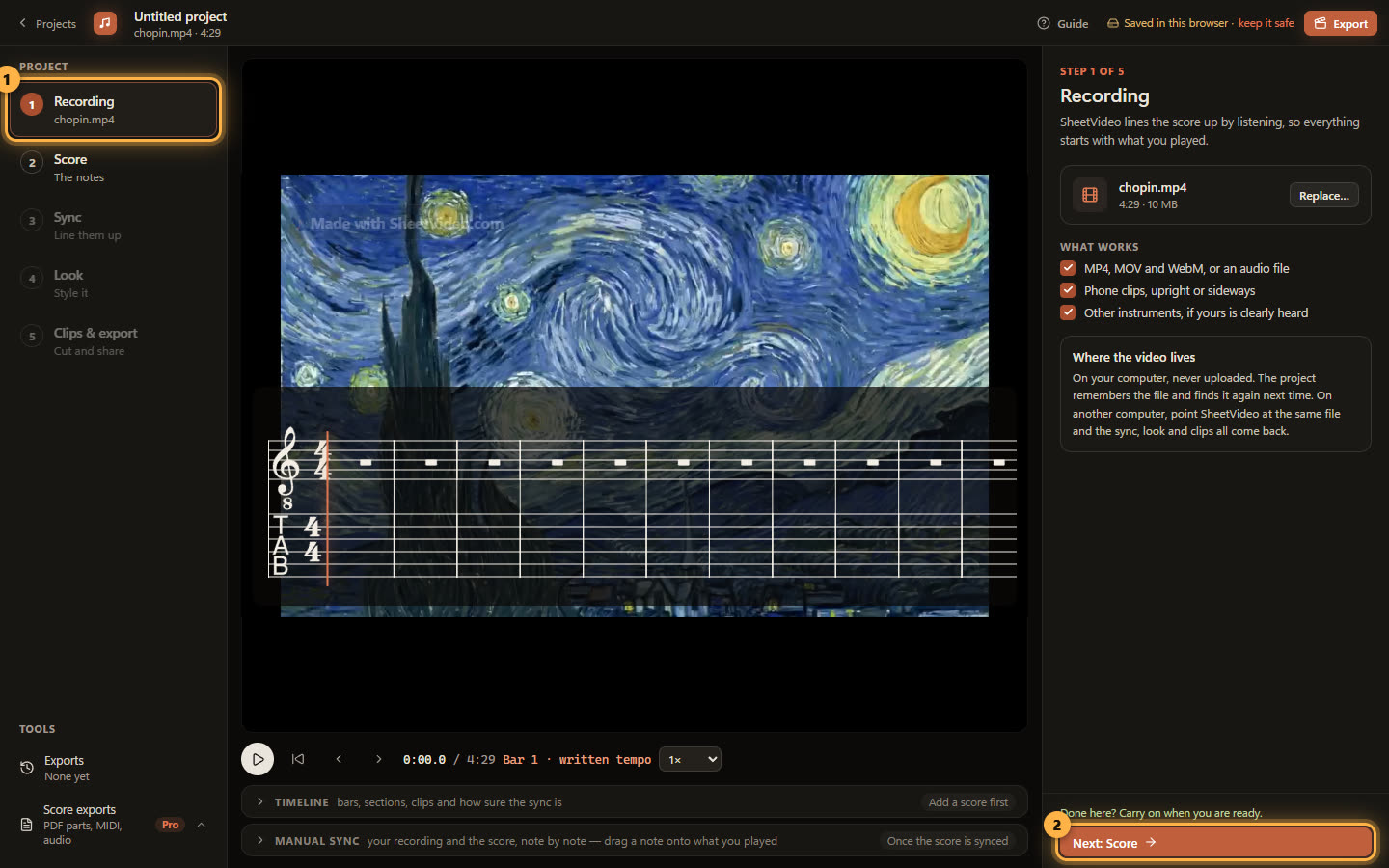
The video opens in the middle of the window and the Recording step turns green. You can play it and scrub it already; there is nothing to set here.
Talking, tuning or silence before the first note does not matter — the sync finds where the music starts on its own. Click Next: Score.
3Bring the score
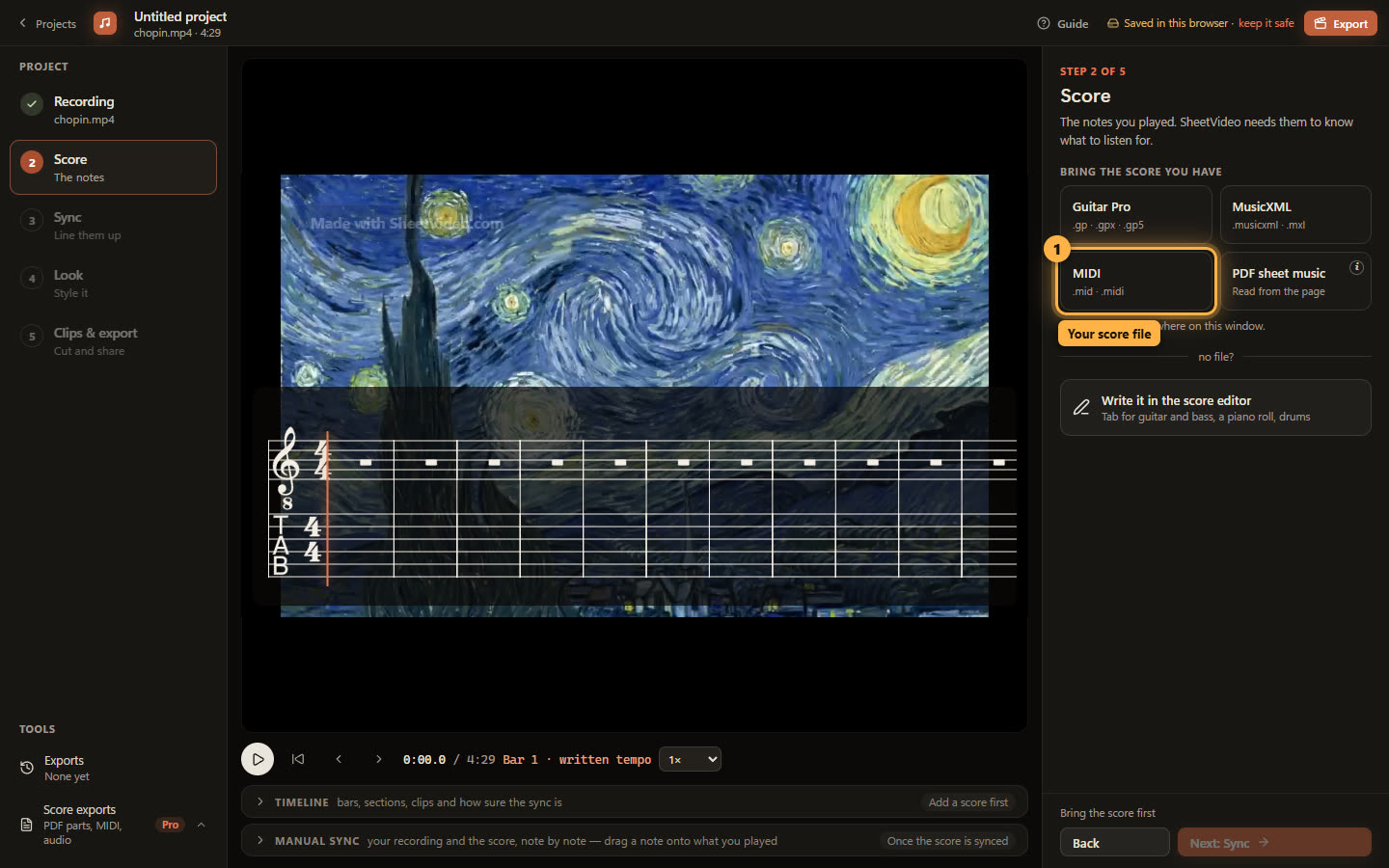
Step 2 asks for the notes you played. SheetVideo needs them to know what to listen for — and they are what ends up drawn on the video.
Click MIDI and pick the .mid file. You can also drop the file anywhere on the window. No file at all? “Write it in the score editor” opens tab, a piano roll and a drum grid.
4Give the score its name and key
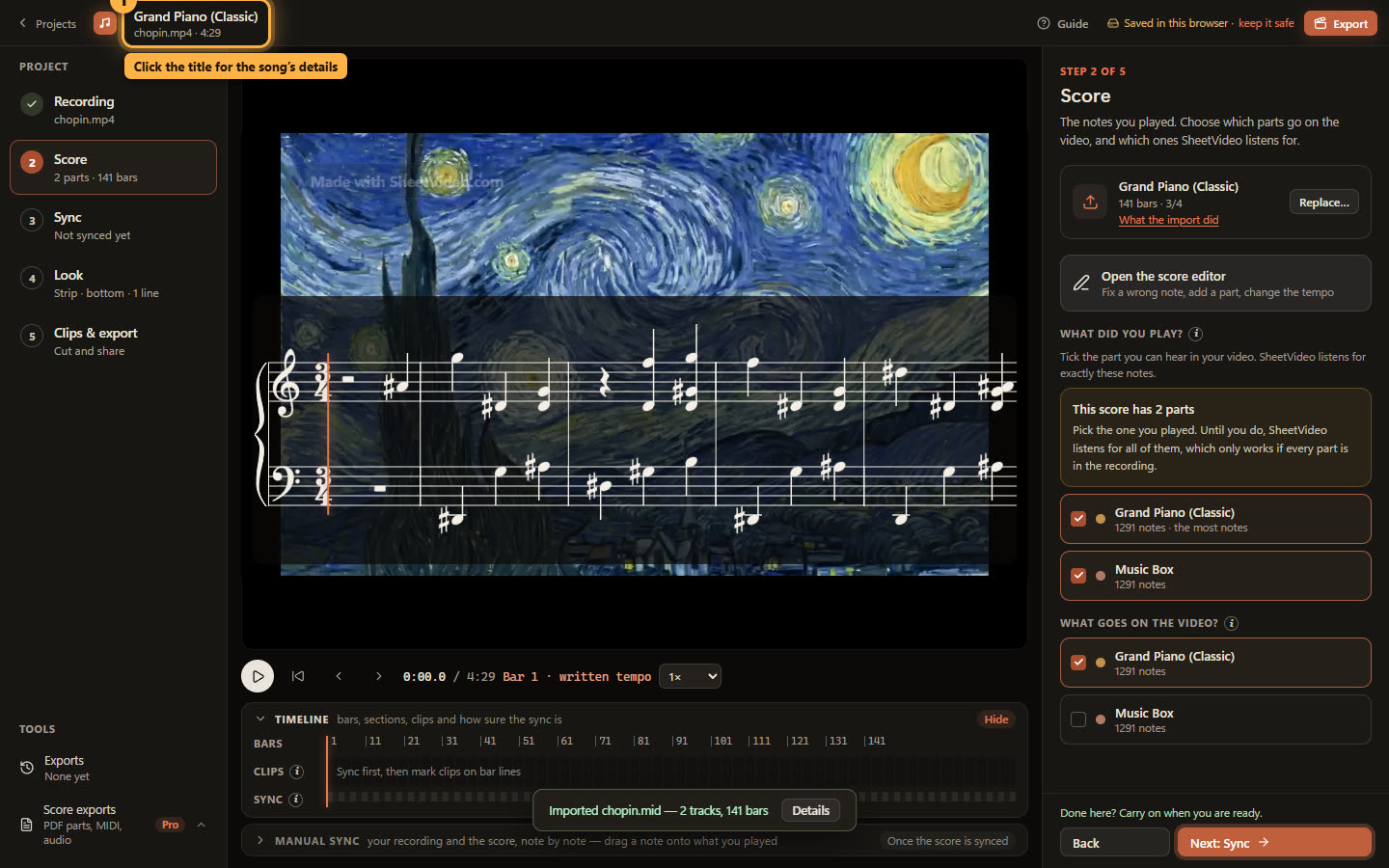
The Nocturne’s MIDI file comes in as 141 bars in two parts, drawn straight over the video. A MIDI file is performance data, though: it has no title, and this one has no key signature either, so every E♭ is spelled as a D♯.
Click the project’s title at the top of the window to open the song’s details.
5Set the title and key signature
Type the title and the composer, and set the key signature — E♭ major for the Nocturne. The notation redraws with three flats as soon as you pick it.
Leave the tempo alone. The sync follows the recording, so the tempo written in the file only matters before you sync.
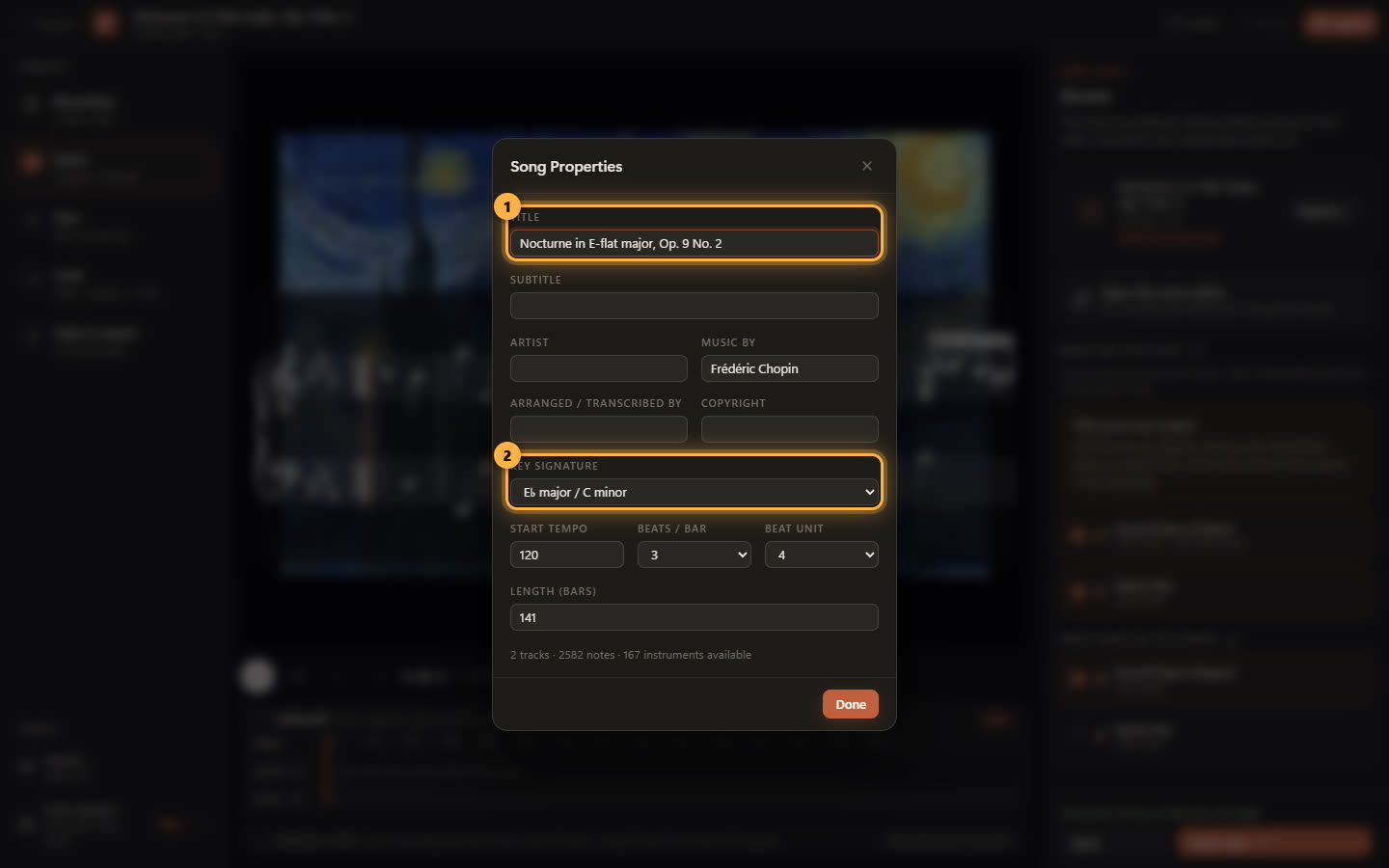
The same dialog has the subtitle, artist, arranger and copyright lines for the video’s credits. 6Tell it which part you played
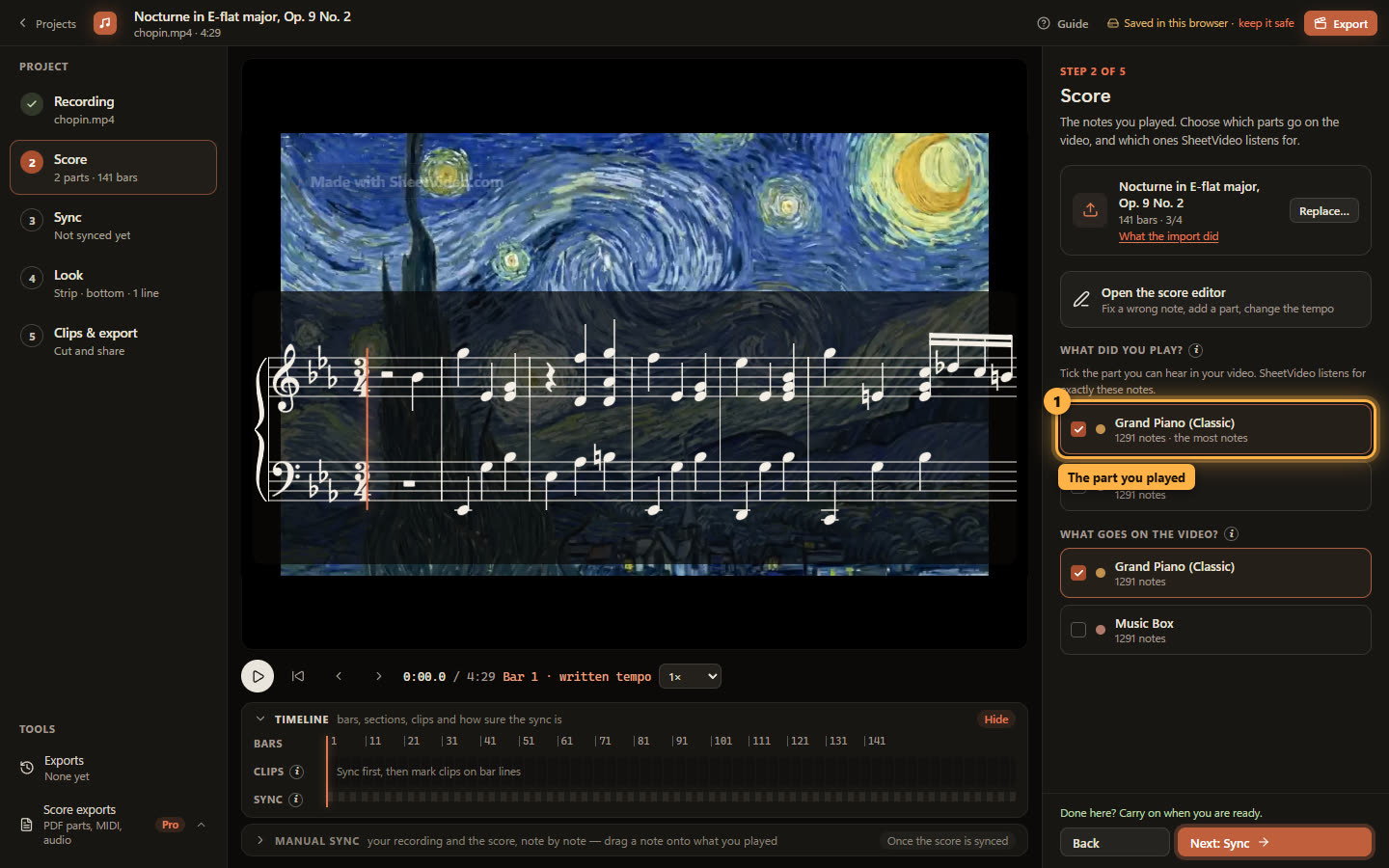
“What did you play?” is the most important choice on this step. SheetVideo listens for exactly the notes of the parts ticked here, so a part that is not in your recording — a backing track, a doubled line, somebody else’s part — makes it listen for notes that never sound.
This MIDI has a second part, Music Box, that only doubles the piano. It is not in the recording, so only Grand Piano is ticked. “What goes on the video?” below it is a separate choice: you can sync on one part and show another, or show several.
7Press Sync score to video
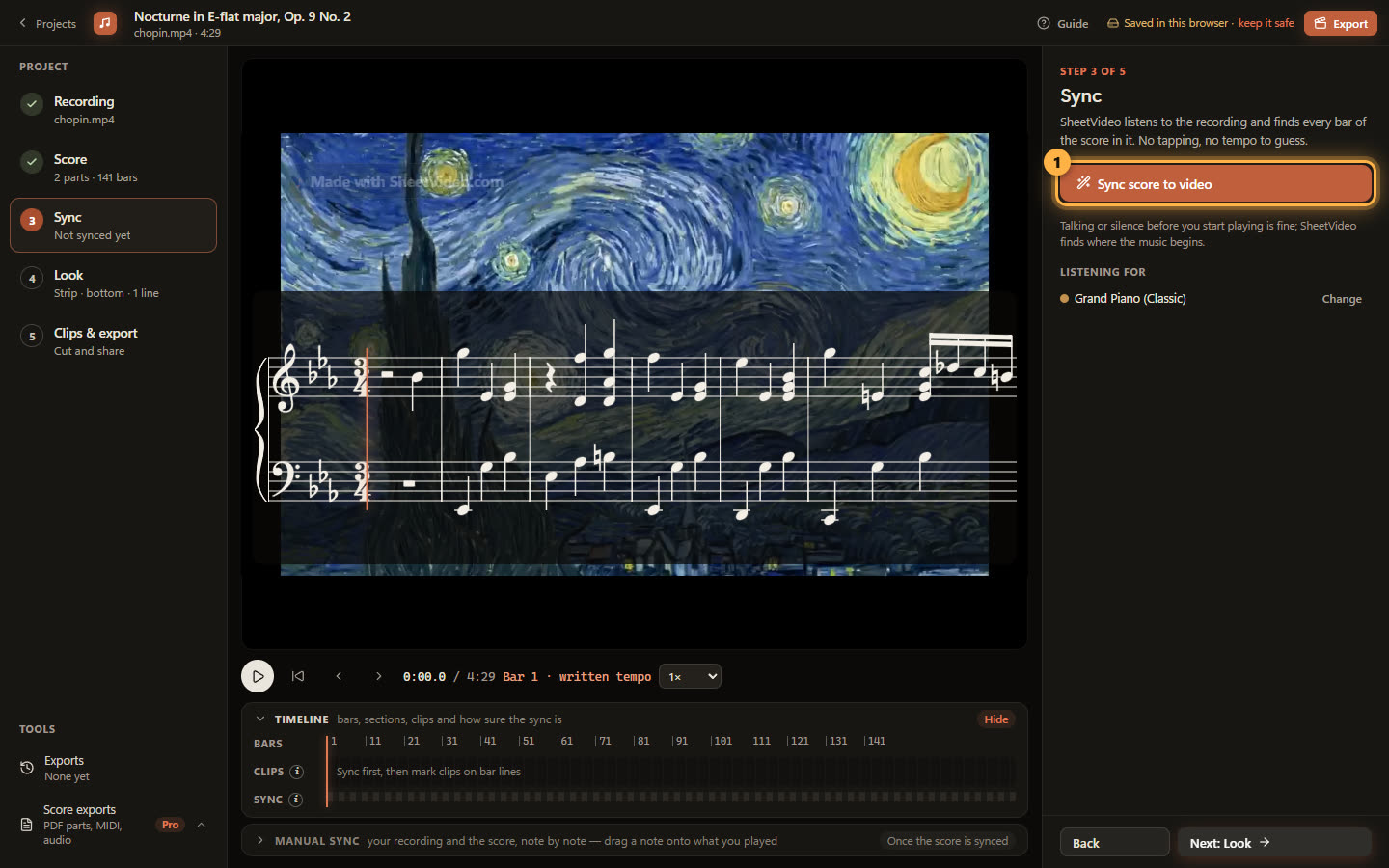
Step 3 is one button. Click Sync score to video.
Under the button it says what it is listening for — the parts you ticked on the Score step. If that is wrong, Change takes you back to them.
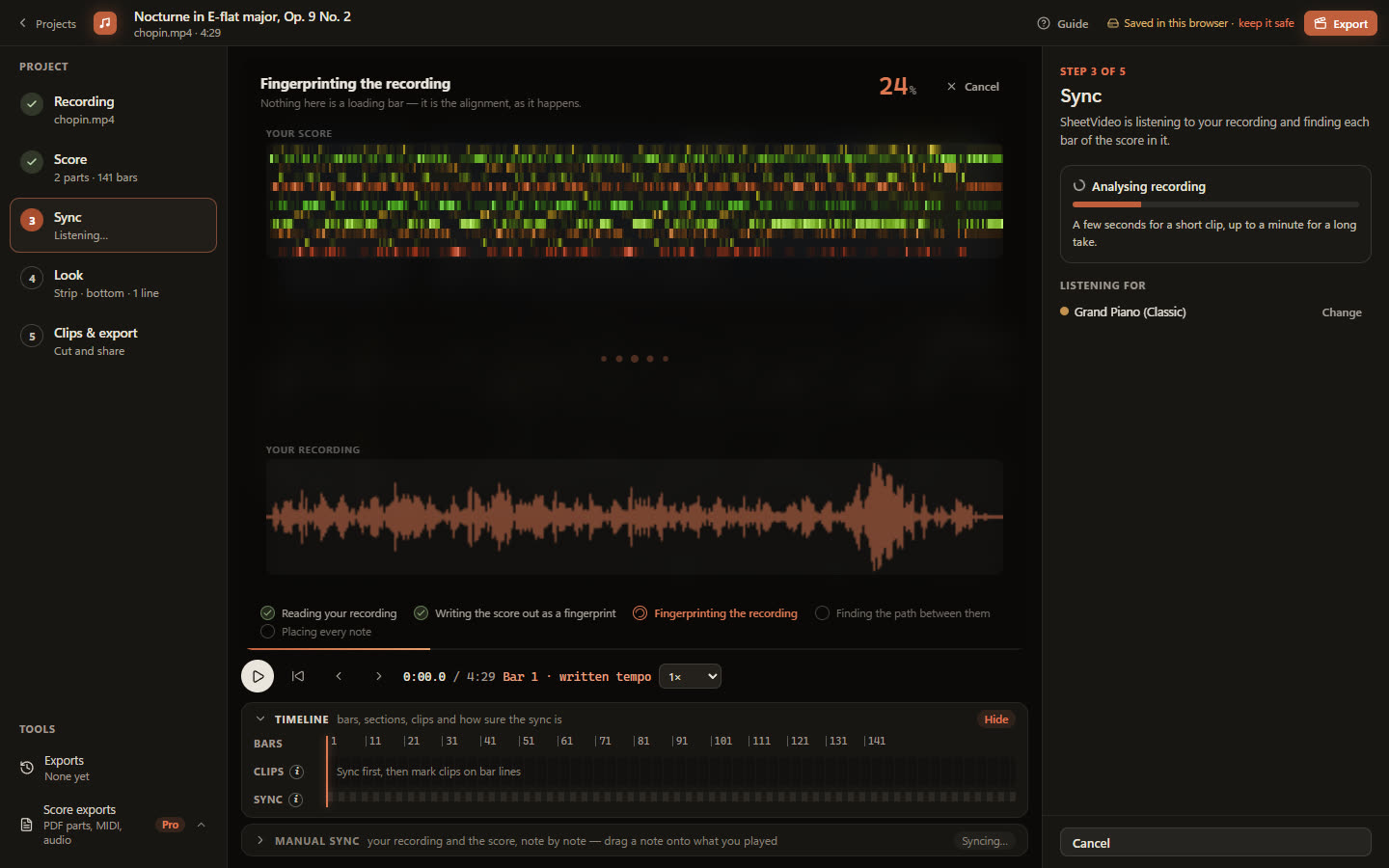
8Watch it listen
SheetVideo reads the recording, writes the score out as a fingerprint of which pitches sound when, fingerprints the recording the same way, and finds the path between the two. You can watch it happen: the score on top, the recording below.
It takes a few seconds for a short clip and up to a minute for a long take. Everything runs on your computer.
9Look at what it flagged
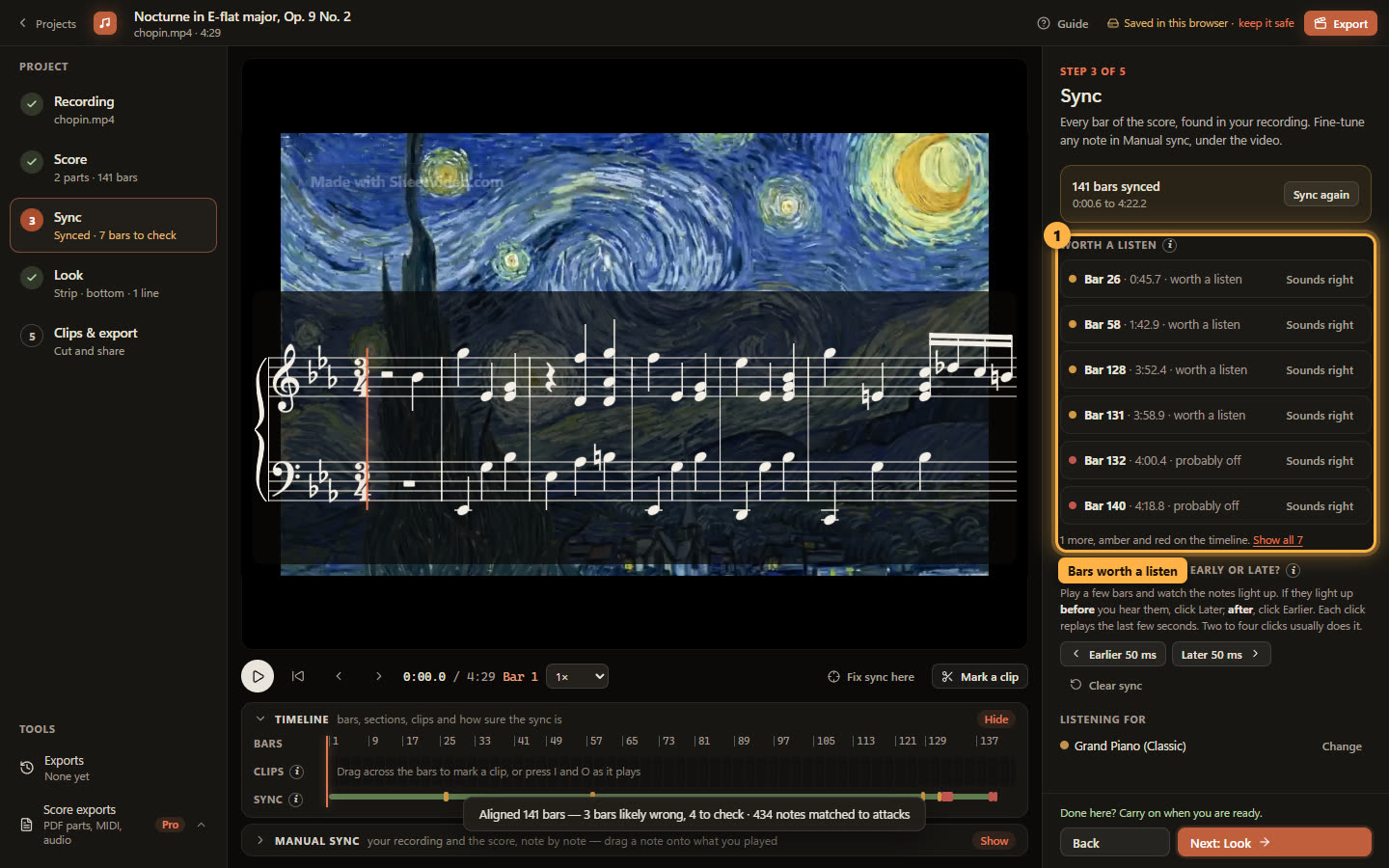
When it finishes, every bar has a place in the recording. The timeline under the video shows it: green where the sync is sure, amber and red where a bar is worth a listen.
The same bars are listed on the right with their times. Click one to jump there and listen; if it sounds right, click Sounds right and it drops off the list. In the Nocturne most of them sit in the closing bars, where the cadenza is played very freely.
10If everything is a touch early or late
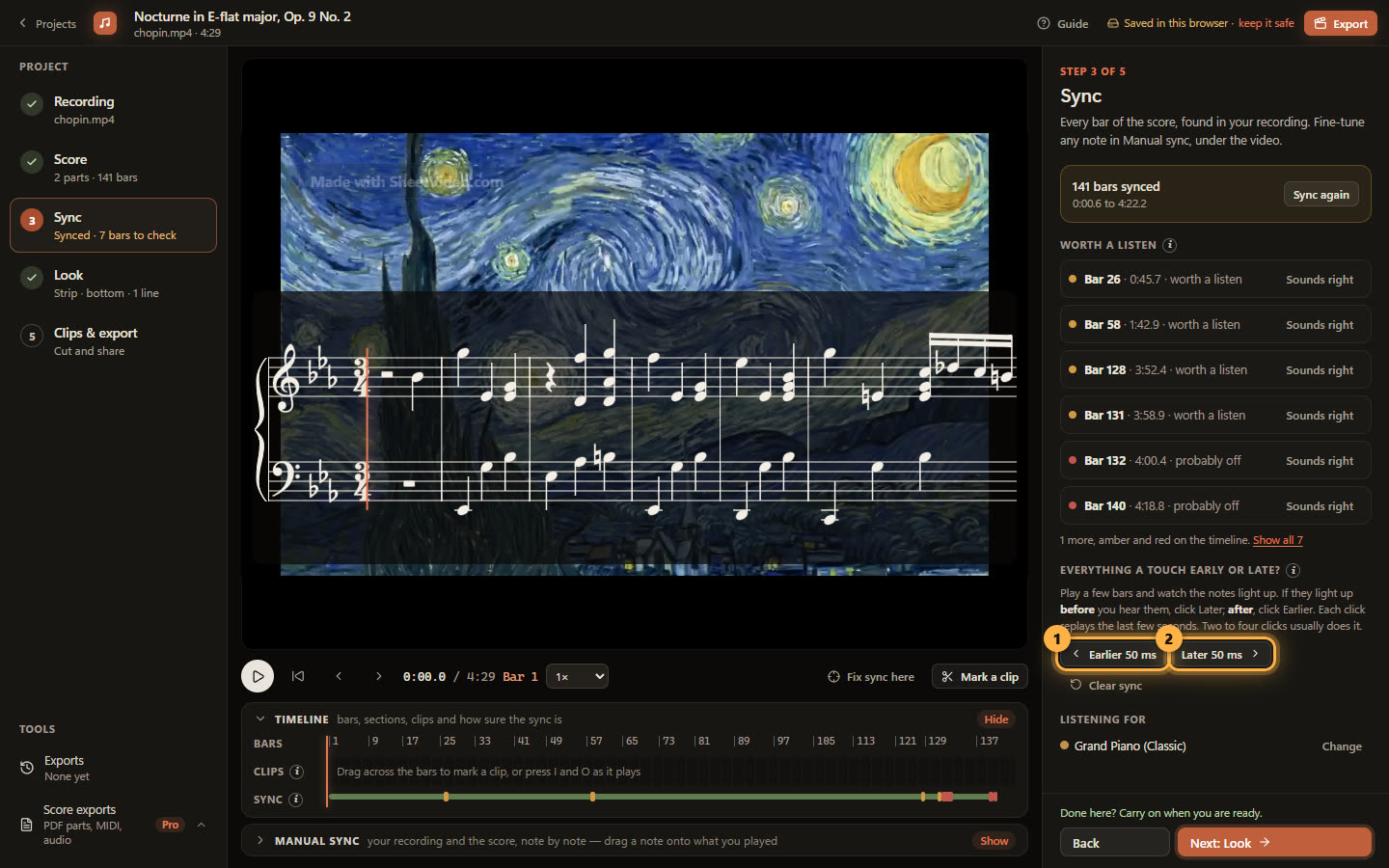
Play a few bars and watch the notes light up. If they light up before you hear them, click Later 50 ms; if after, Earlier. Each click replays the last few seconds, so two or three clicks usually settle it. This shifts the whole take and keeps every bar’s shape.
11Fix one bar by hand
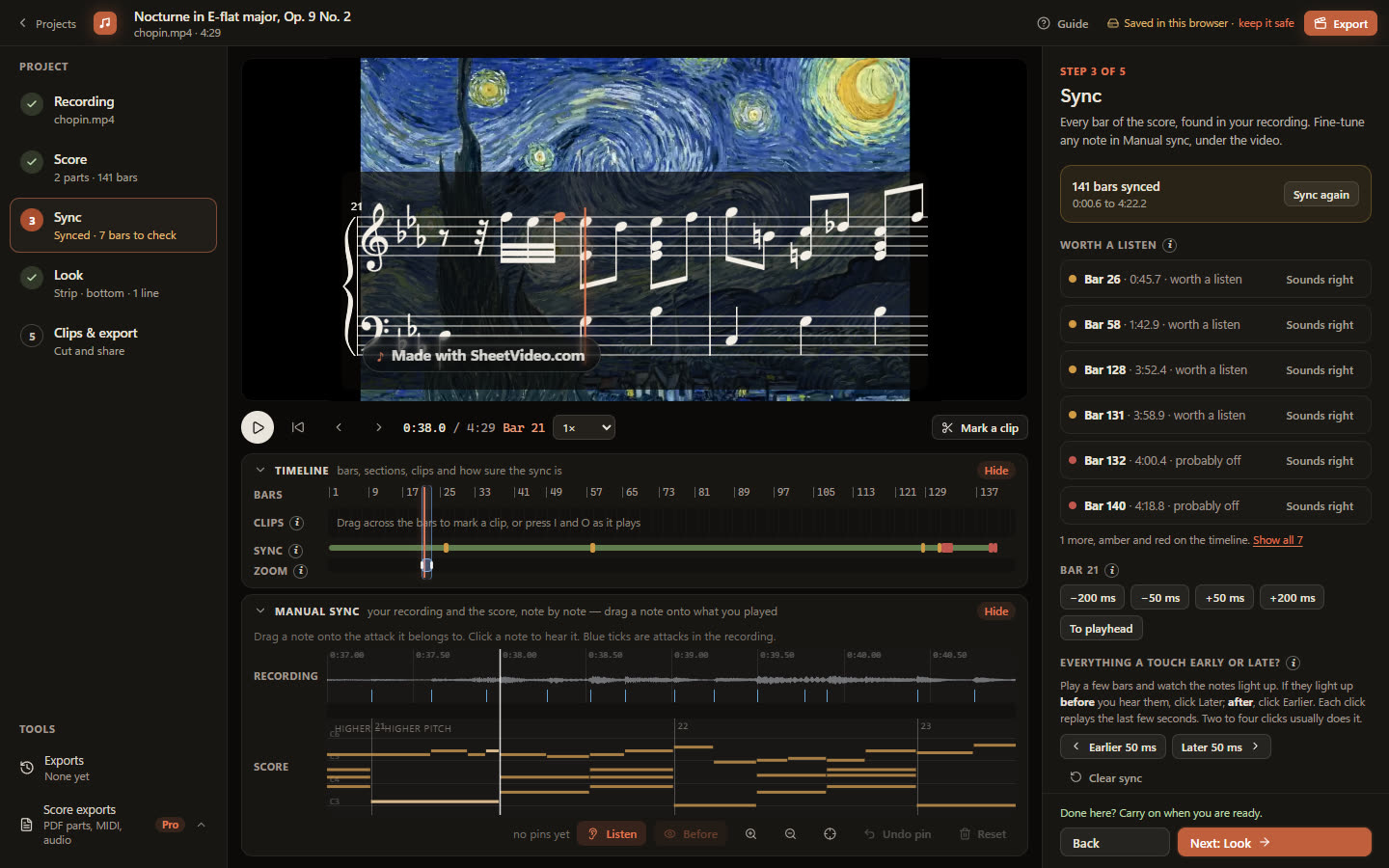
Stop on a bar that is off and click Fix sync here. Manual sync opens under the video: the recording’s attacks across the top, the score’s notes underneath.
Drag a note onto the attack it belongs to and only that stretch moves — the bars either side stay where they are. For a whole bar there are ±50 ms and ±200 ms nudges on the right, and To playhead to snap it to where you have stopped.
12Choose how the score looks
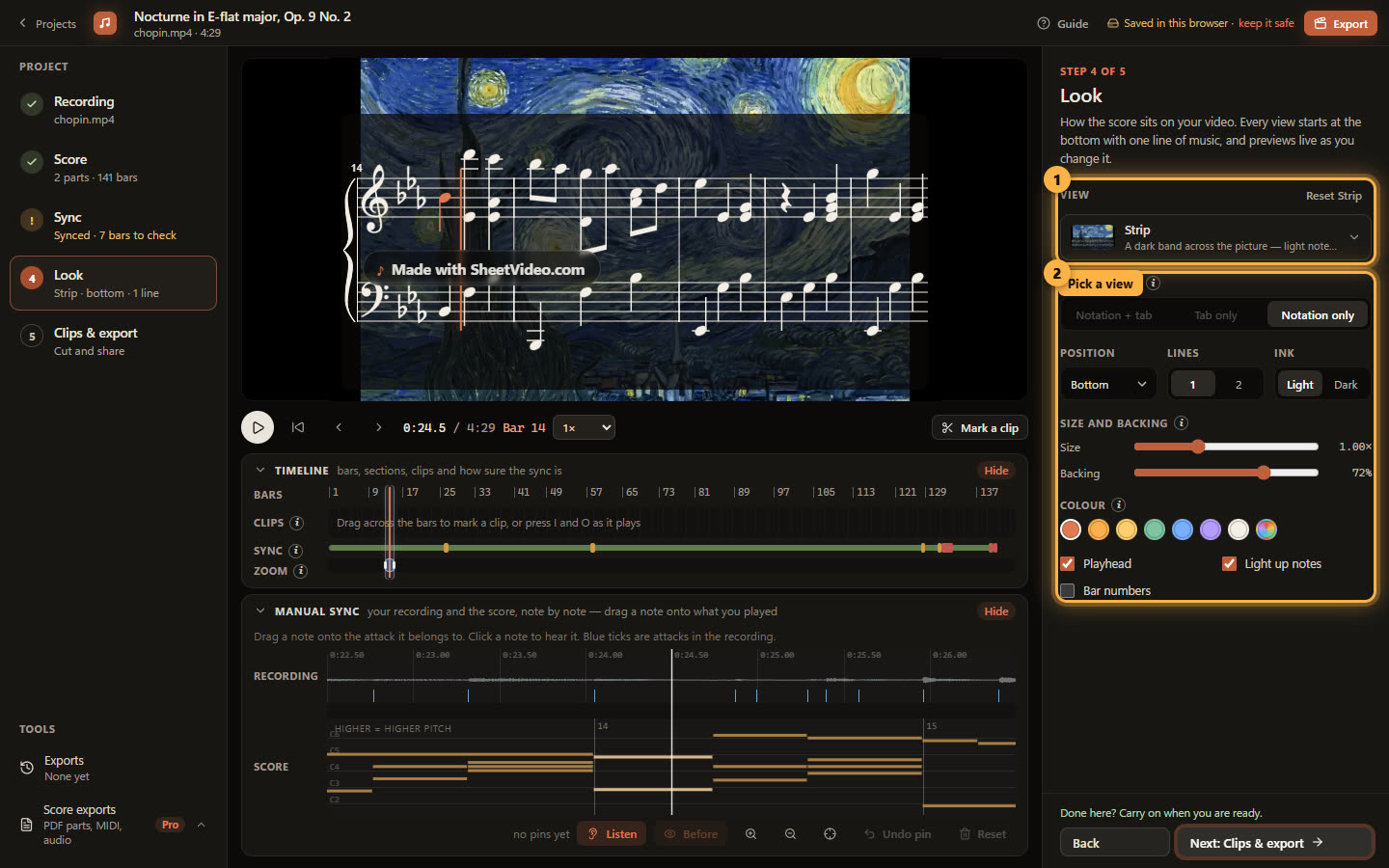
Step 4 is the look. Every project starts on Strip: a dark band along the foot of the picture with light notes, built to read on a phone.
Under the view are the settings it offers — notation, tab or both; top, centre or bottom; one line or two; light or dark ink; size, backing, colour; the playhead, the lit note and bar numbers. The video previews every change as you make it.
13Pick what to export and its shape
Step 5. What to export: your clips, the synced part, or the whole take. Made for sets the shape: Original (as filmed), YouTube 16:9, Reels 9:16, Feed 4:5 or Square 1:1.
Picture chooses between your video and Score only — your recording’s sound with the score large on a stage of its own. The picture on the left is the export itself, so what you see is what you get.