How to do it, click by click
Every picture below is the real SheetVideo editor, with what to click ringed and numbered. The example is a recording of Chopin’s Nocturne in E-flat, Op. 9 No. 2.
1Make a video: pick My recording + the score
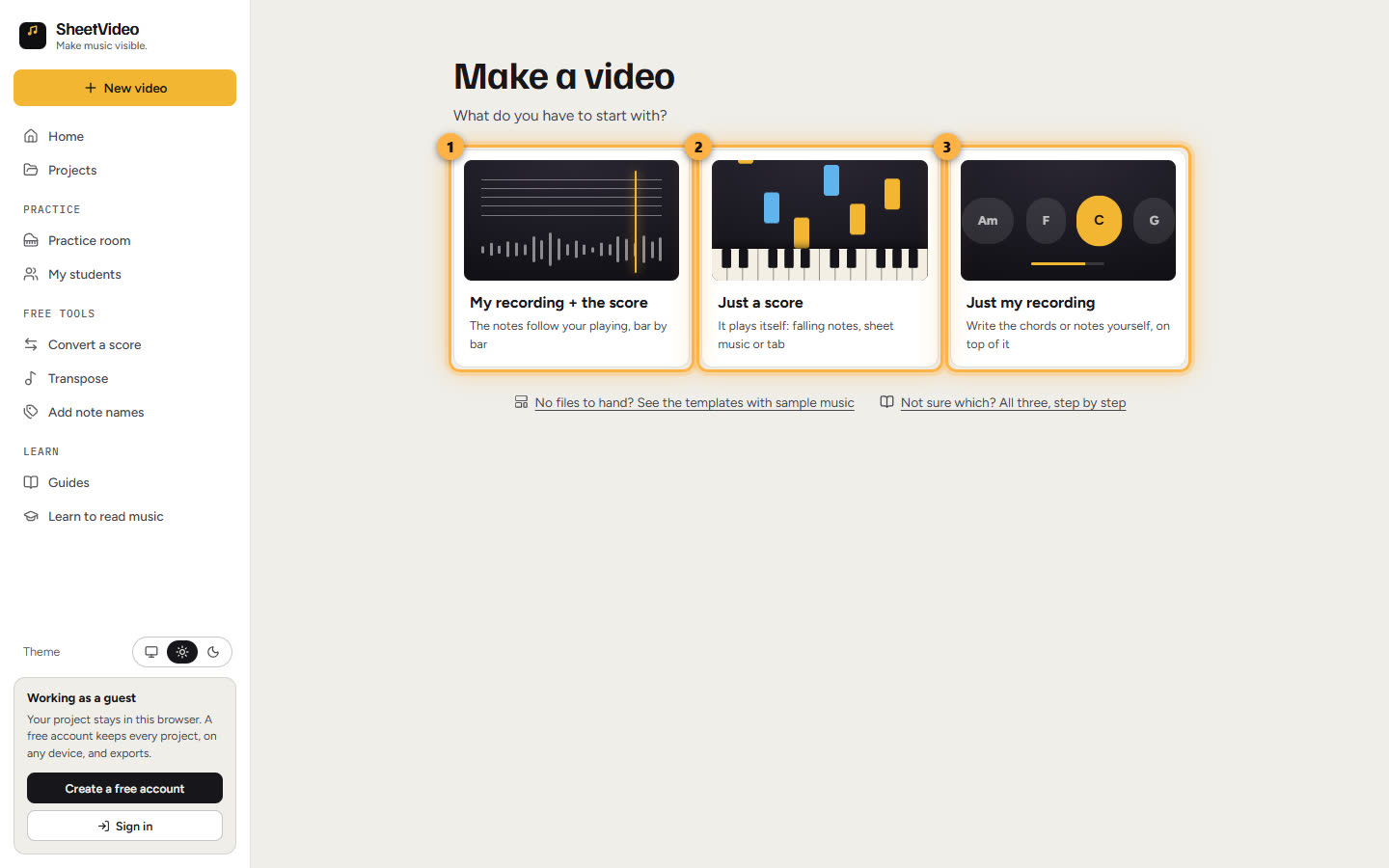
Open SheetVideo and click New video. Make a video asks what you have to start with: My recording + the score, Just a score, or Just my recording. Each card shows the kind of video it makes. For your own performance with its sheet music or tab on it, pick the first one.
The button on this page opens it already set up for this kind of video: the look, the instrument and the shape. Nothing is final: once your video is open, every one of them is a click away.
2Add your recording and your score
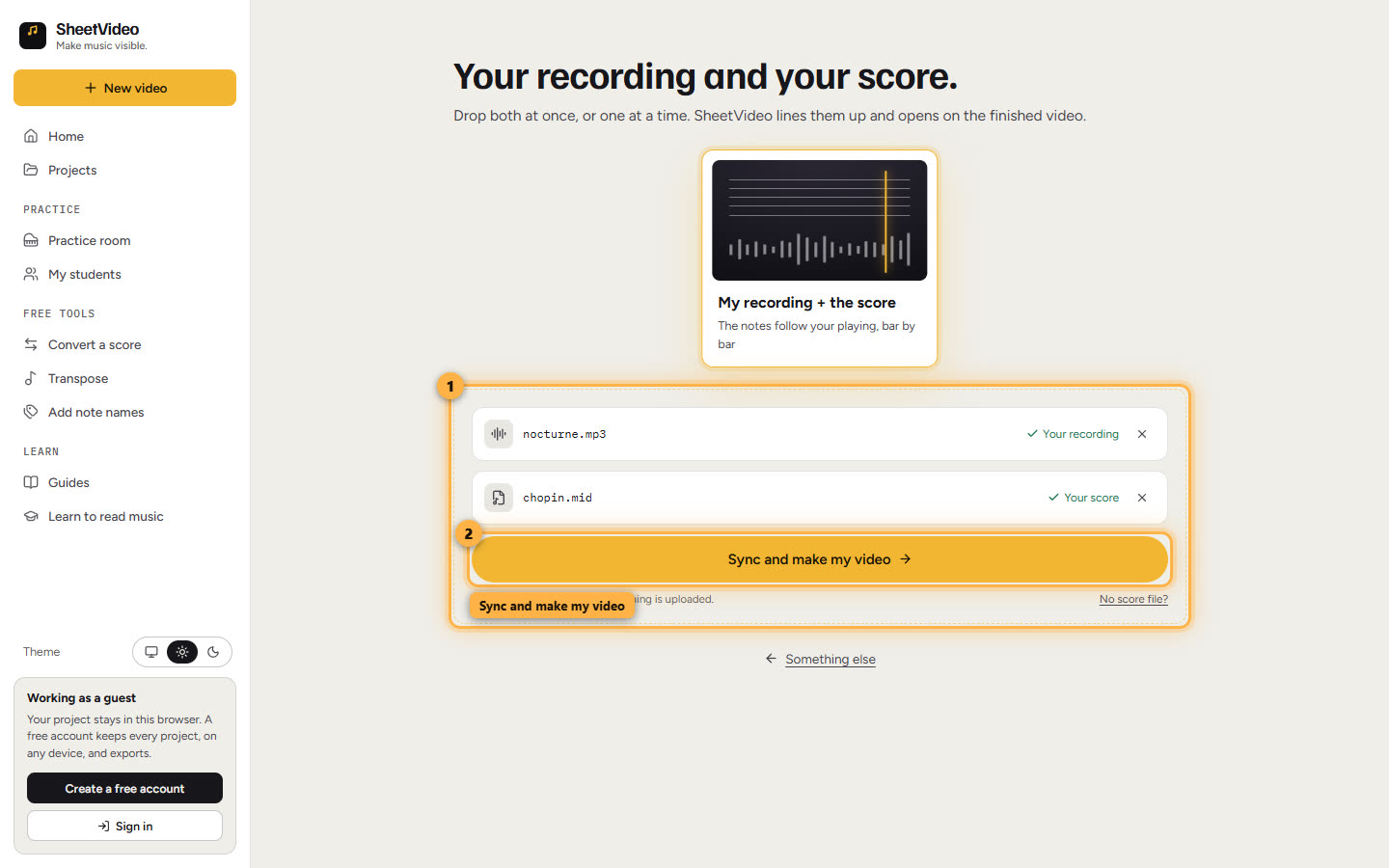
Click Choose next to Your recording and pick the video of your performance, or drop it on the box. A video works, upright or landscape (MP4, MOV, WebM), and so does just the sound (MP3, WAV, M4A). Talking, tuning or silence before the first note is fine: there is nothing to trim.
Then the score you played from: a PDF, MIDI, MusicXML or Guitar Pro file. Both can go in at once, dropped together. Click Sync and make my video. Both files stay on your computer, nothing is uploaded, and there is no account to make first.
3Say what you can hear
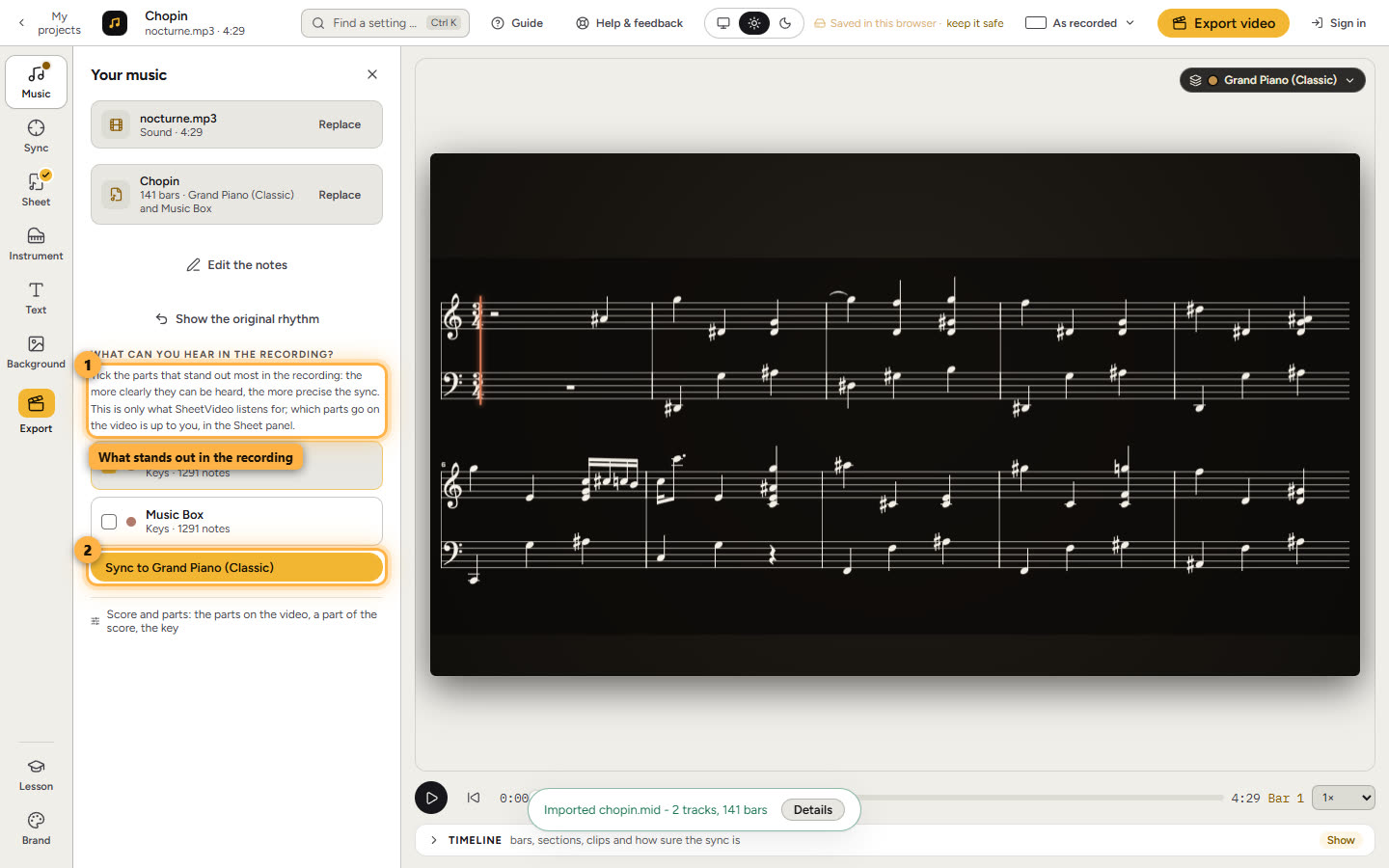
A score with one part - or a piano’s two hands, which count as one - goes straight on. This MIDI has a second part, Music Box, that only doubles the piano, so the Music panel asks what you can hear in the recording, with the likely parts ticked.
Tick the parts that stand out most in the recording: the more clearly they can be heard, the more precise the sync. Here that is the piano alone. Click Sync to Grand Piano.
4It syncs by itself
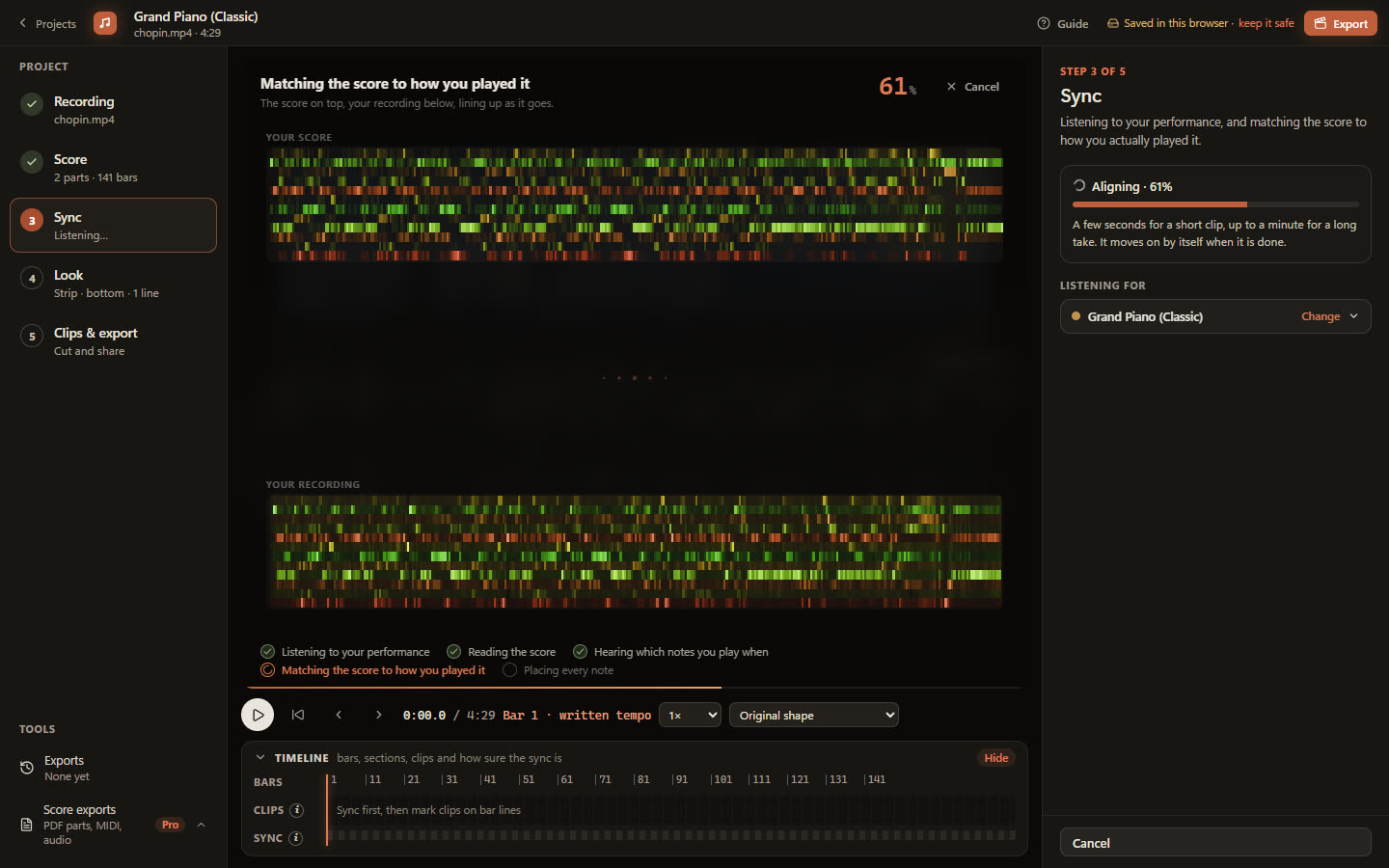
There is no button to press. SheetVideo listens to the recording and matches the score to how you actually played it, rubato and all: the score on top, your recording below, lining up as it goes.
A few seconds for a short clip, up to a minute for a long take; the four-and-a-half-minute Nocturne takes well under a minute. Everything happens on your computer.
5Your video, made
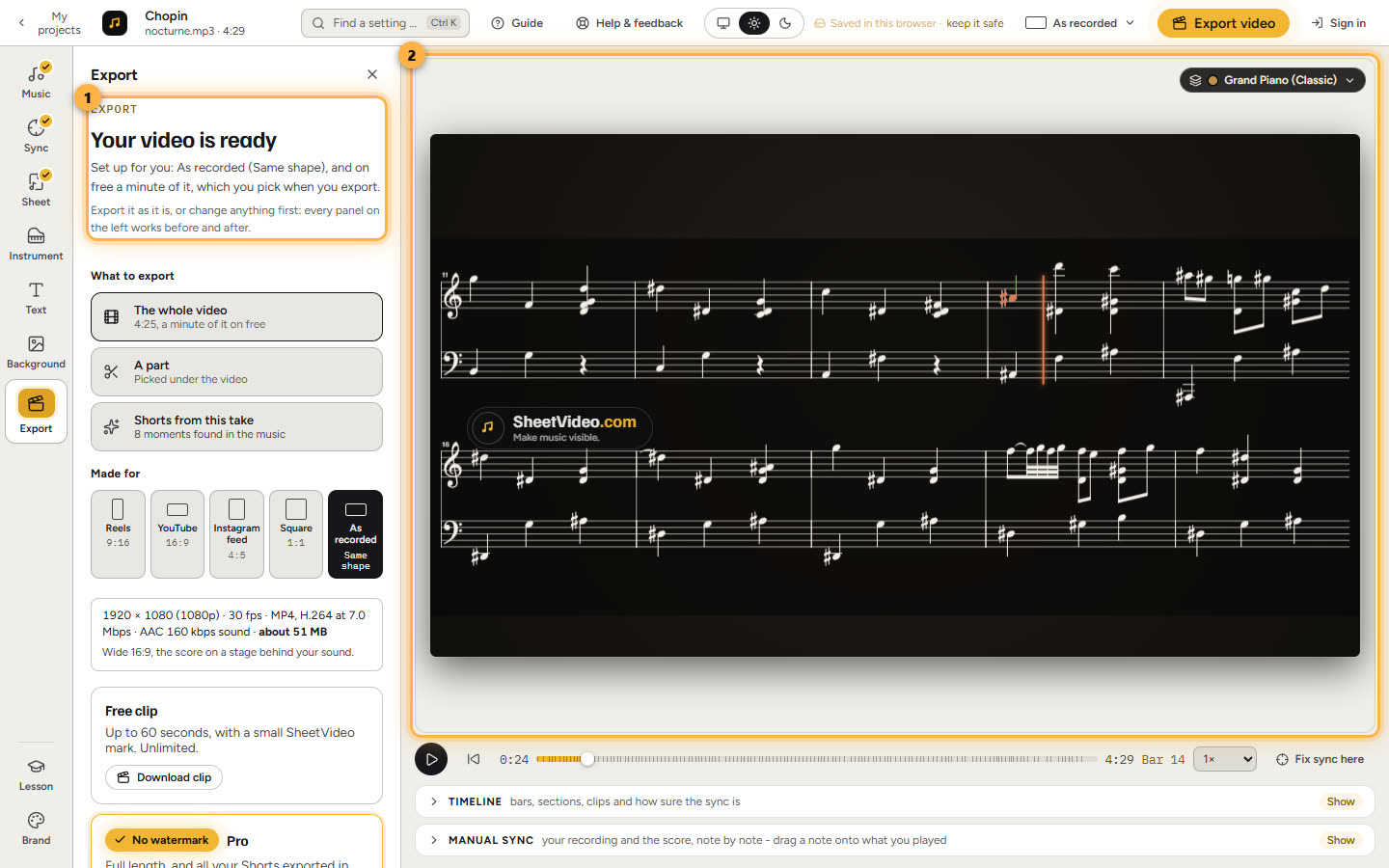
When the sync is done the picture is your video, exactly as it will export. Press play to watch the notes light up as they are played.
Down the left is the rail: Music, Sync, Sheet, Instrument, Text, Background and Export, with Lesson and Brand at its foot. Each opens a panel beside the video, and every change shows on it at once. The Music panel says how the sync went, and whether any bars are worth a listen; the steps below go through the others one by one.
On your very first video SheetVideo takes a shortcut: the Export panel opens by itself on Your video is ready, saying what was set up for it, so the first video is one click away. Every panel still works before you export, and after.
6What goes behind the music
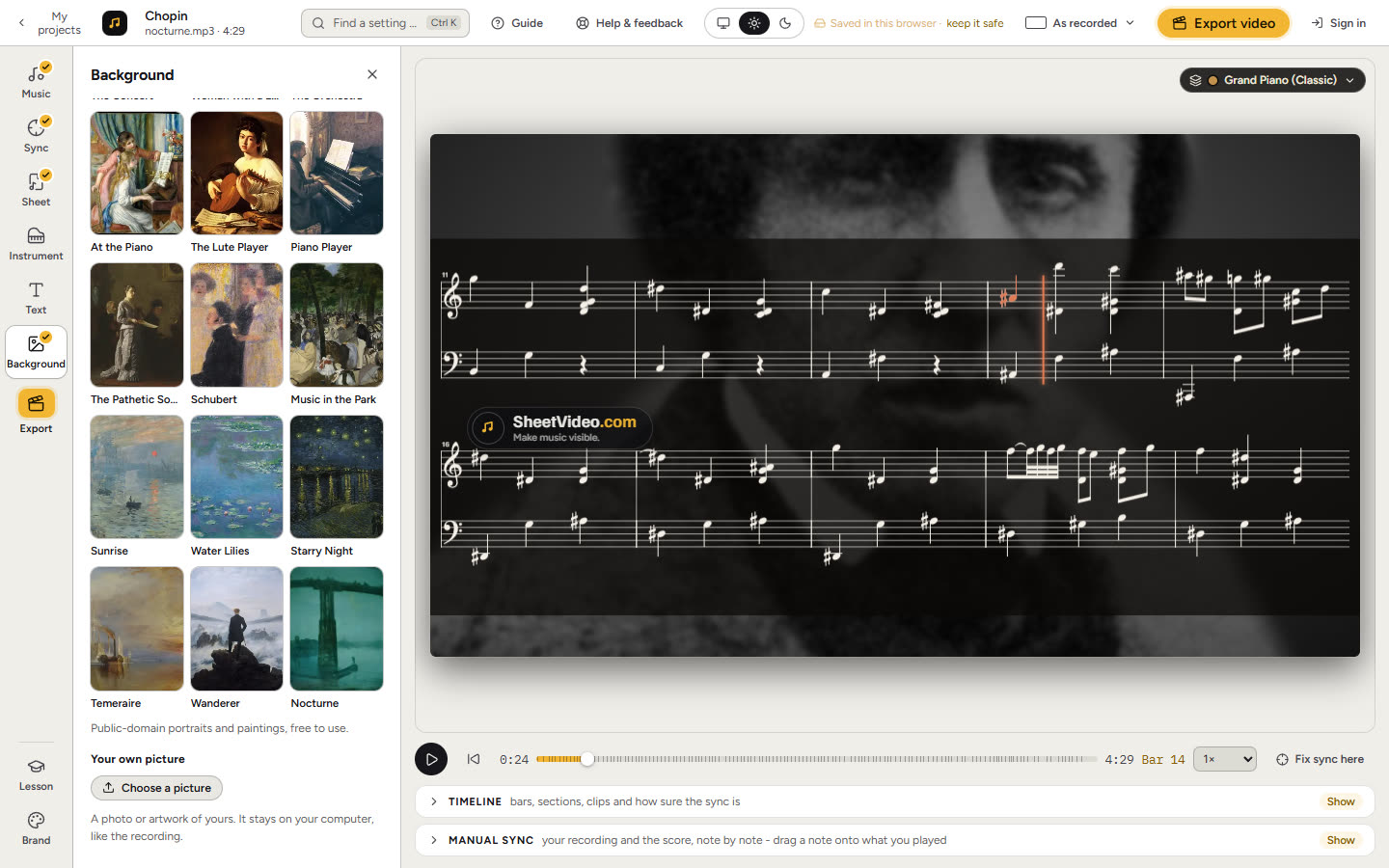
Background decides what is behind the score: Your video (you playing), Plain (a dark stage, the music large), or Image. A recording that is sound only has no video to show, so it is Plain or an image.
Image shows public-domain paintings and portraits to pick from, and Your own for a photo or artwork of yours - here a portrait of Chopin. It stays on your computer like the recording.
7Change the look any time
The look is two choices, each one click: Sheet for how the sheet music is drawn (or no sheet at all), and Instrument for what plays along under it. Your music, the sync and your text stay as they are, and the picture previews every change before you export.
Starting a new video for the same kind of look? The buttons on these guides open Make a video already set up for it, and the templates under the three cards have finished looks to start from.
8How the sheet music looks
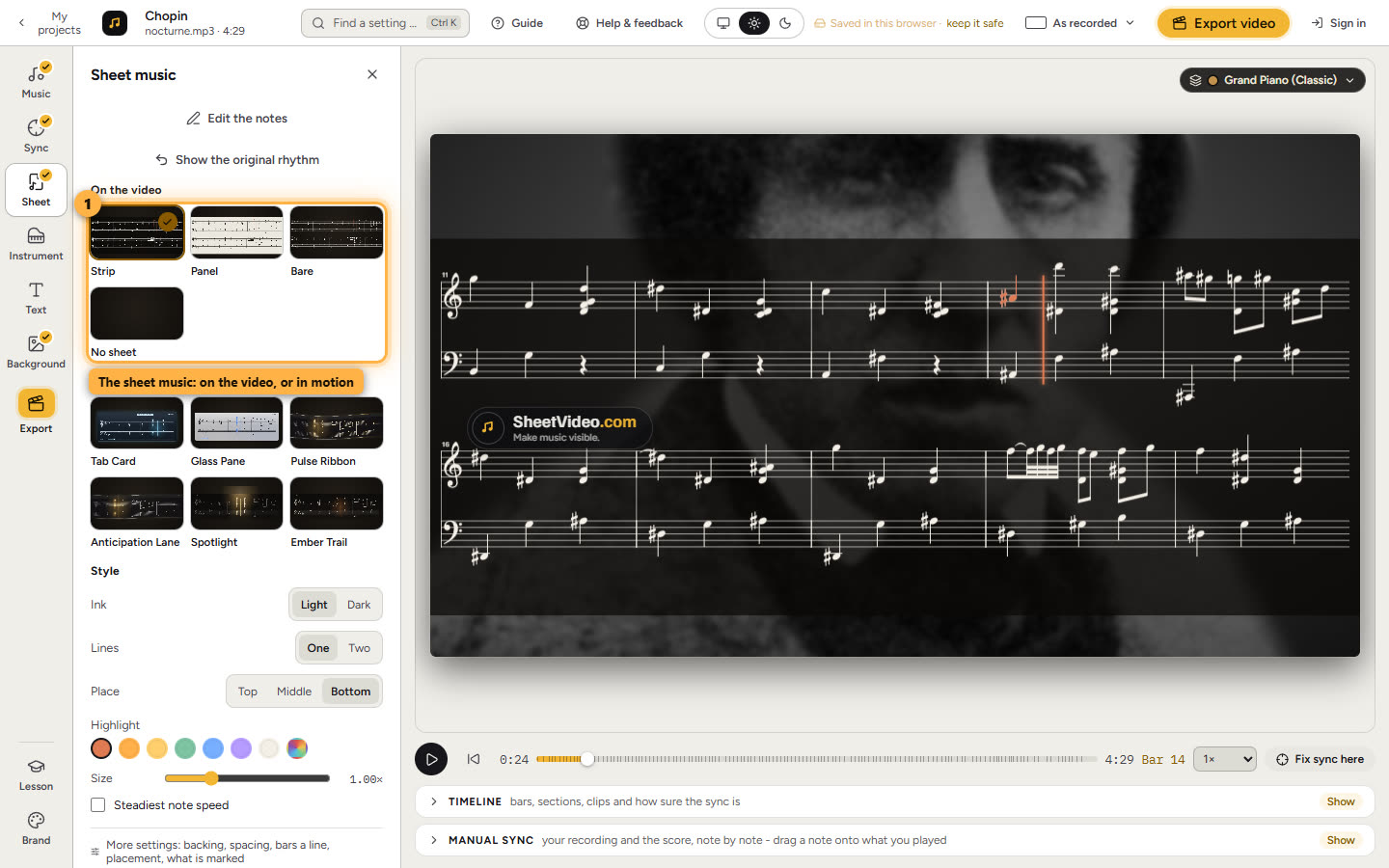
Sheet picks how the notes are drawn: on the video (Strip, Panel, Bare), in motion (views that move with the music, like Spotlight and Glass Pane), or No sheet. Under them: light or dark ink, one line or two, where it sits, the highlight colour and the size.
Every setting holds the rest - spacing, bars a line, the backing behind the notes, placement. The picture previews every change.
9The instrument that plays along
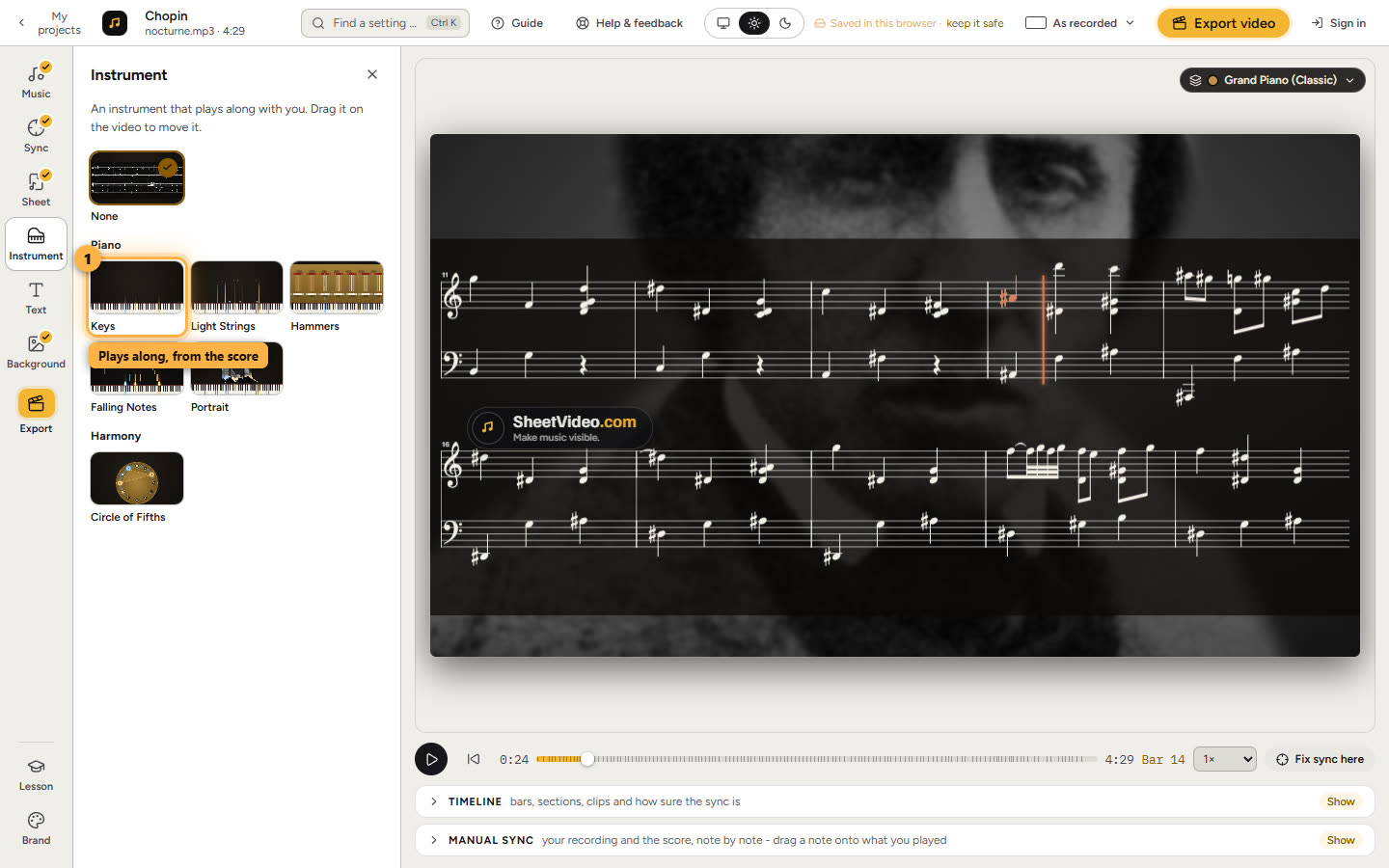
Instrument picks what plays along with you, note for note from the score. The ones offered can play your part: keyboards for piano (Keys, Light Strings, Hammers, Falling Notes, Portrait), a fretboard for guitar and bass, and the circle of fifths for anything with pitches.
Each has its looks - for the keys Grand, Upright, Synth, Chalk, Chart and Neon. Drag it on the video to put it anywhere.
10The shape, any time
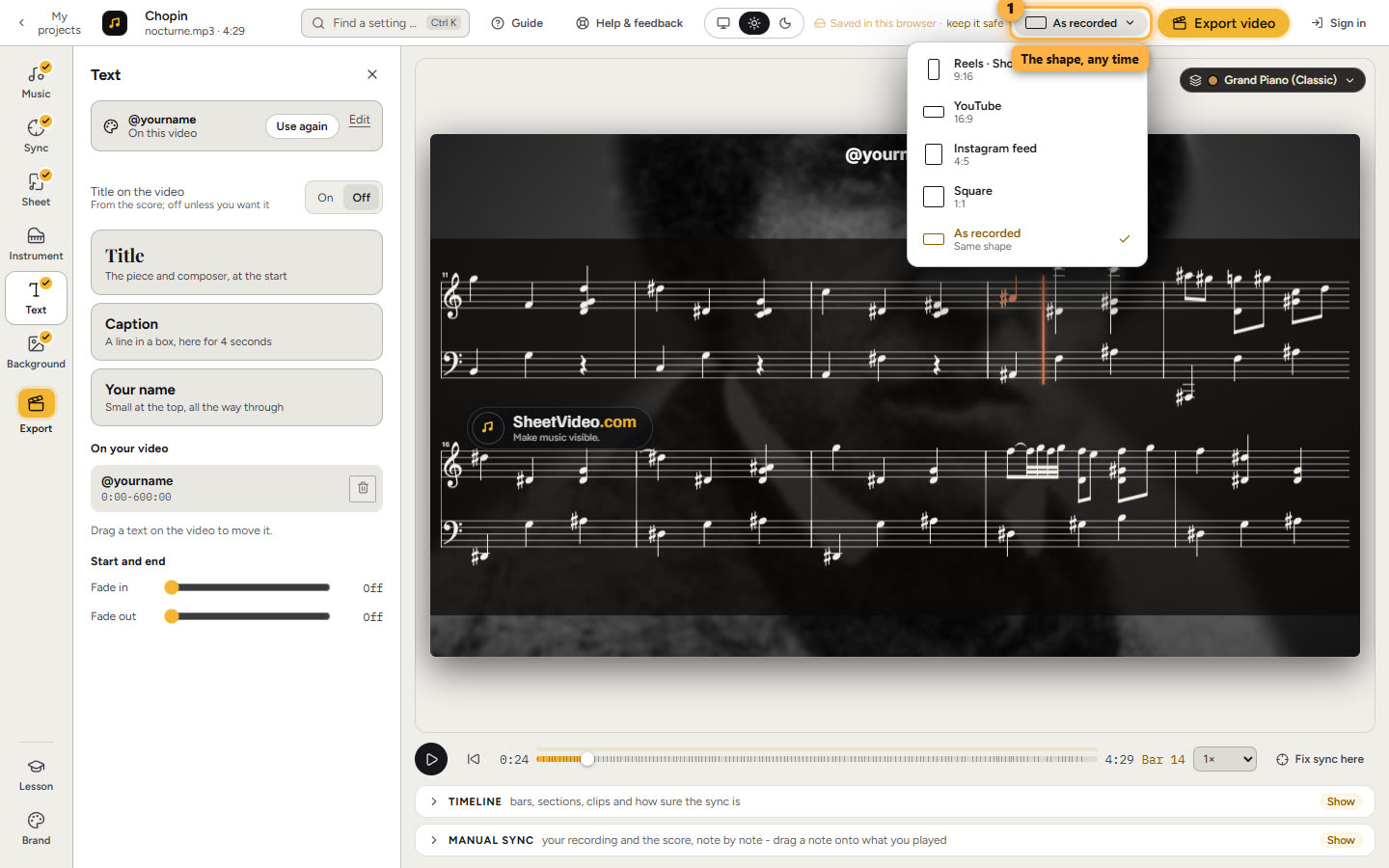
The shape menu at the top changes where the video is going: Reels, Shorts and TikTok, YouTube, the Instagram feed, square, or as recorded. The score and the instrument are laid out again for it; a landscape video is never stretched.
11Export it
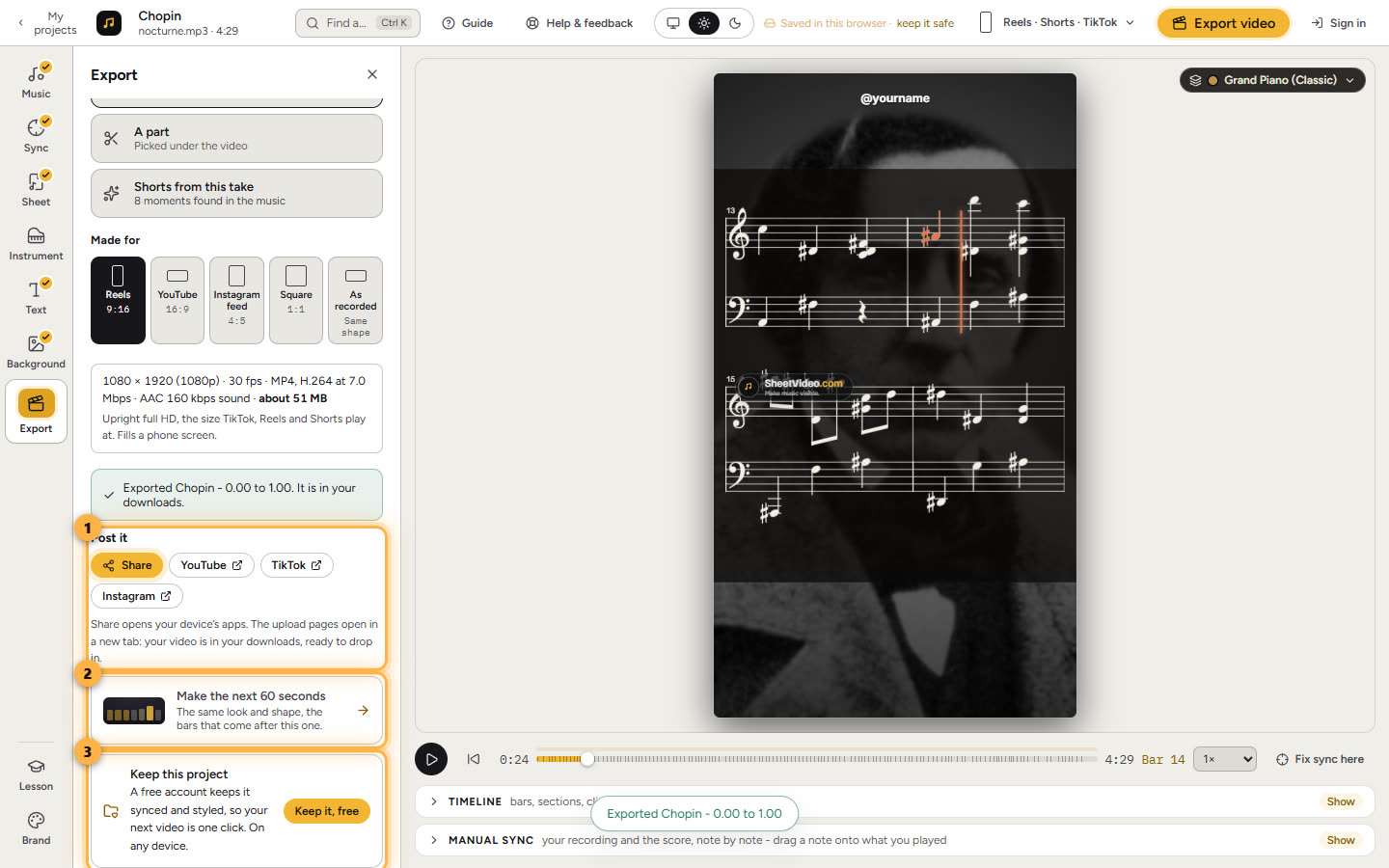
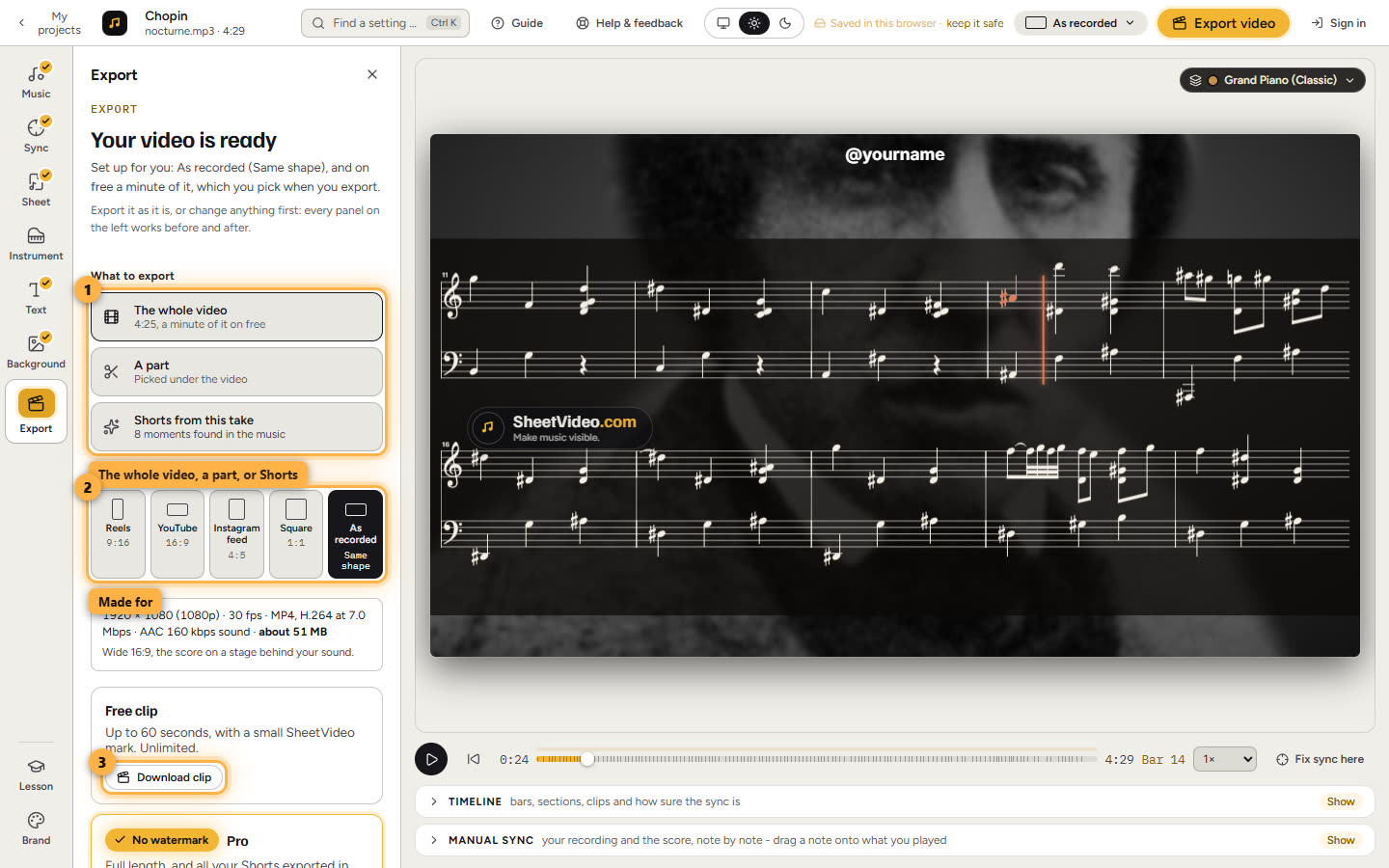
Click Export, on the rail or at the top right. What to export: The whole video, A part of it, or Shorts from this take. Under Made for, pick where it is going: Reels, Shorts and TikTok (9:16), YouTube (16:9), the Instagram feed (4:5), square, or as recorded.
A free export is up to 60 seconds with a small SheetVideo mark: Download clip, and on a longer take slide the window to the minute you want. Pro exports the whole take with no mark. The video is made on your computer, nothing is uploaded.
12Post it, and keep the project
When the file is saved, Post it is right under it: Share opens the apps on your phone or computer, and YouTube, TikTok or Instagram open their upload page in a new tab. On a free export of a longer take, Make the next 60 seconds exports the minute after it, in the same look.
A free account keeps the project, synced and styled, so the next video from it is one click, on any device. Free, no card: your project moves into it as it is. Without one, a browser keeps one project. The videos themselves never leave your computer.