How to do it, click by click
Every picture below is the real SheetVideo editor, with what to click ringed and numbered. The example is a recording of Chopin’s Nocturne in E-flat, Op. 9 No. 2.
- Way 1 of 3
My recording + the score
For your own performance with its sheet music or tab on it. The score follows you: every bar lands where you played it, at your tempo, with your pauses.
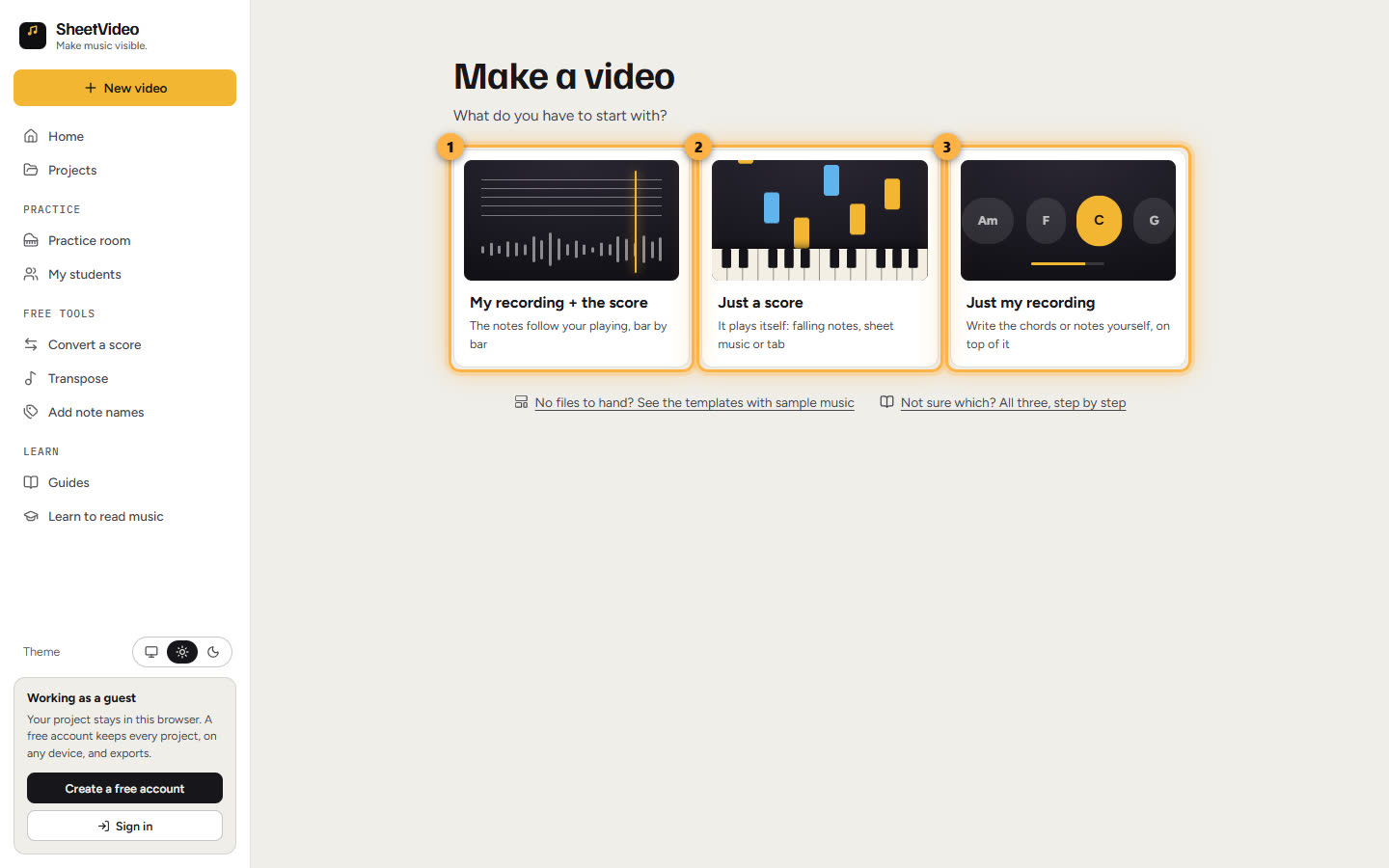
Start with a recording and a score1Pick My recording + the score, and add both files
On Make a video, pick the first card. The other two step away, and the place for your two files opens under it. Drop both at once, or one at a time with Choose.
The recording can be a video or just the sound: a phone clip, a camera take, an MP3 or a WAV. The score can be MusicXML, Guitar Pro, MIDI or a PDF exported from a notation program. Both stay on your computer: nothing is uploaded.
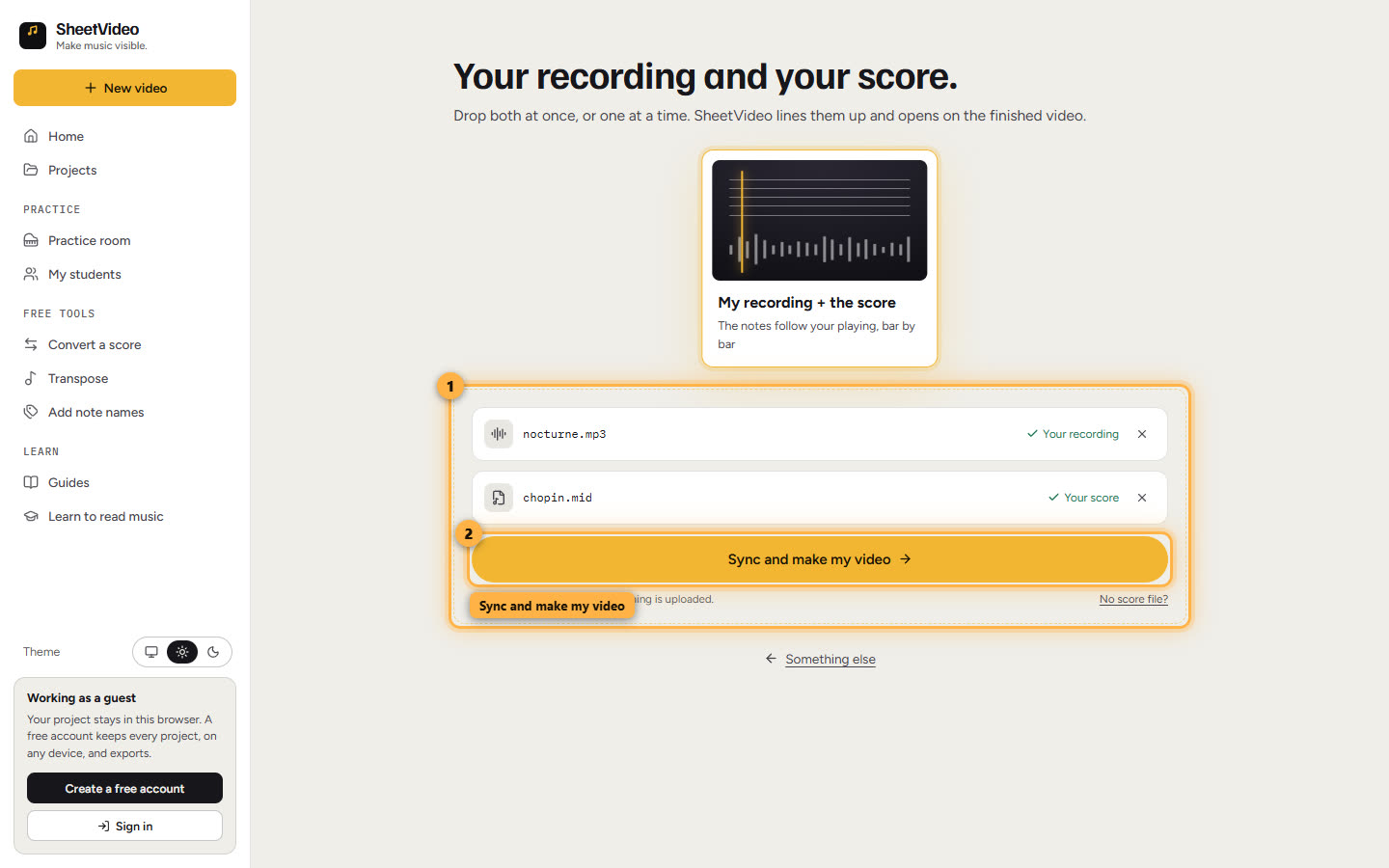
2Sync and make my video
A score with one part, or a piano’s two hands, asks nothing more. With several parts, SheetVideo ticks the likely ones and asks which you can hear in the recording: keep the ones that stand out. Then it lines your score up with your take, on your computer.
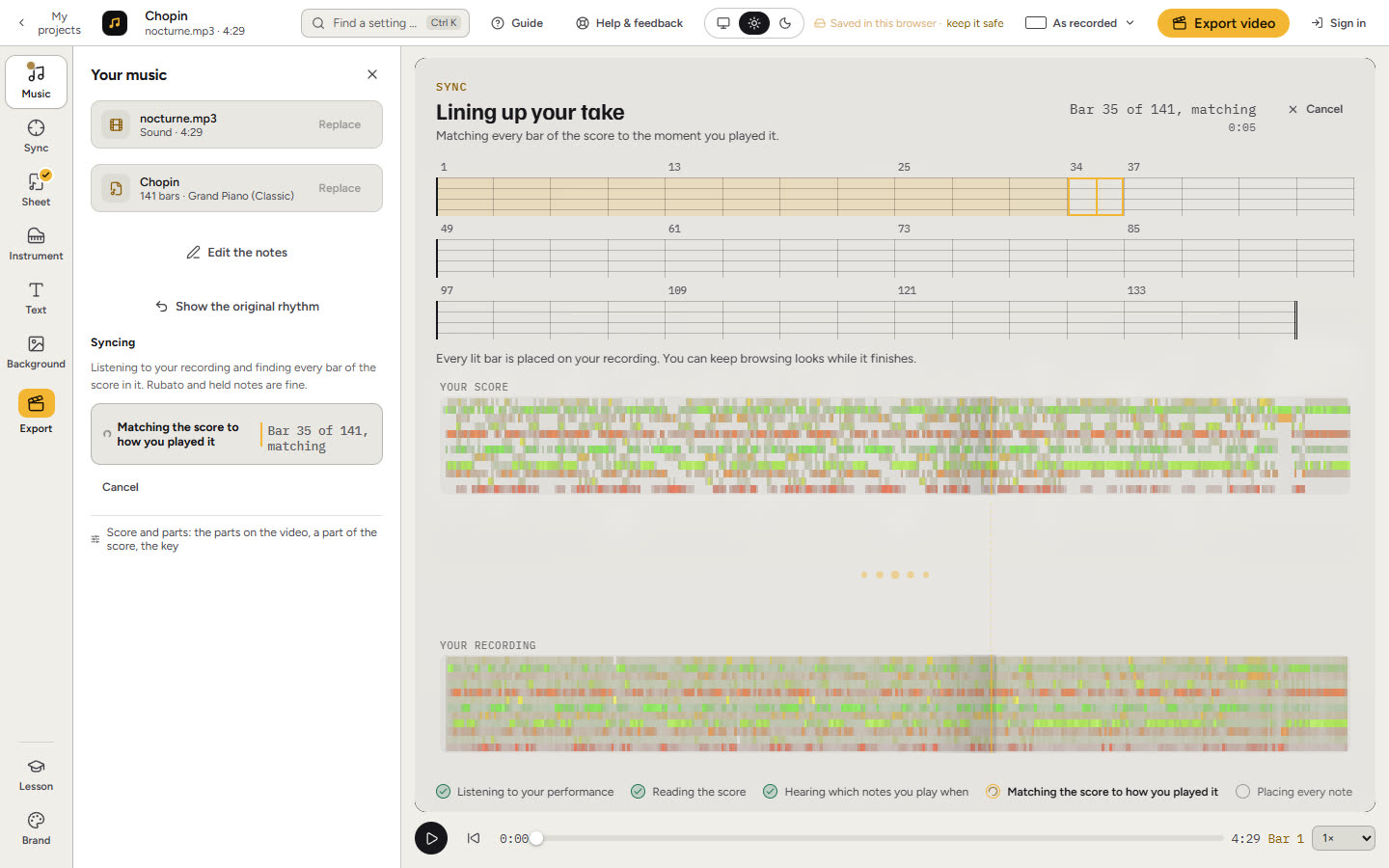
3It opens on the finished video, ready to export
When the sync is done, the video is made in the look you picked, and the Export panel opens on Your video is ready, with what was set up for it. Play it to see each bar light up as you play it. Anything can still be changed first: the look, the instrument, text, the background, your brand.
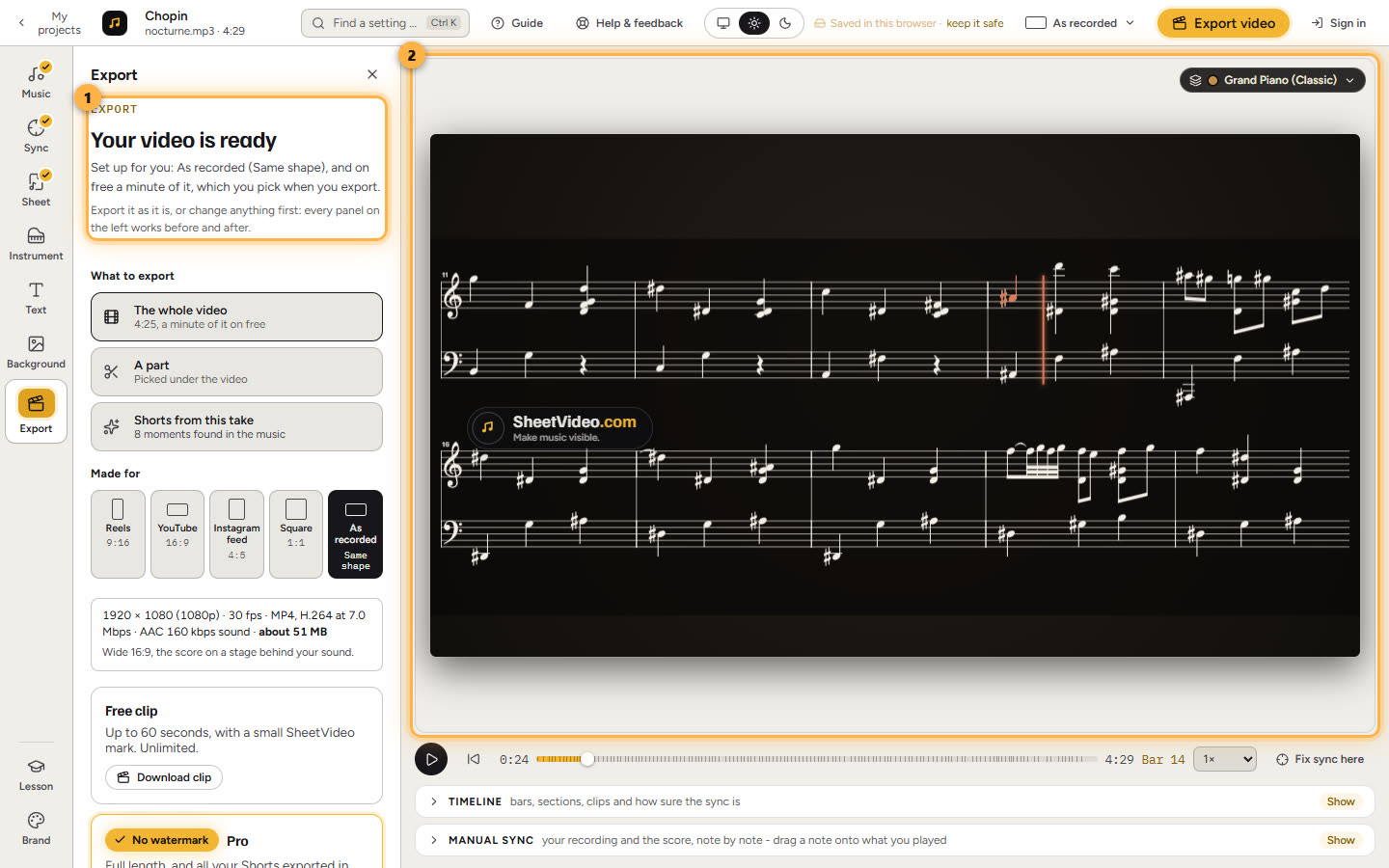
4Pick the shape, and the minute
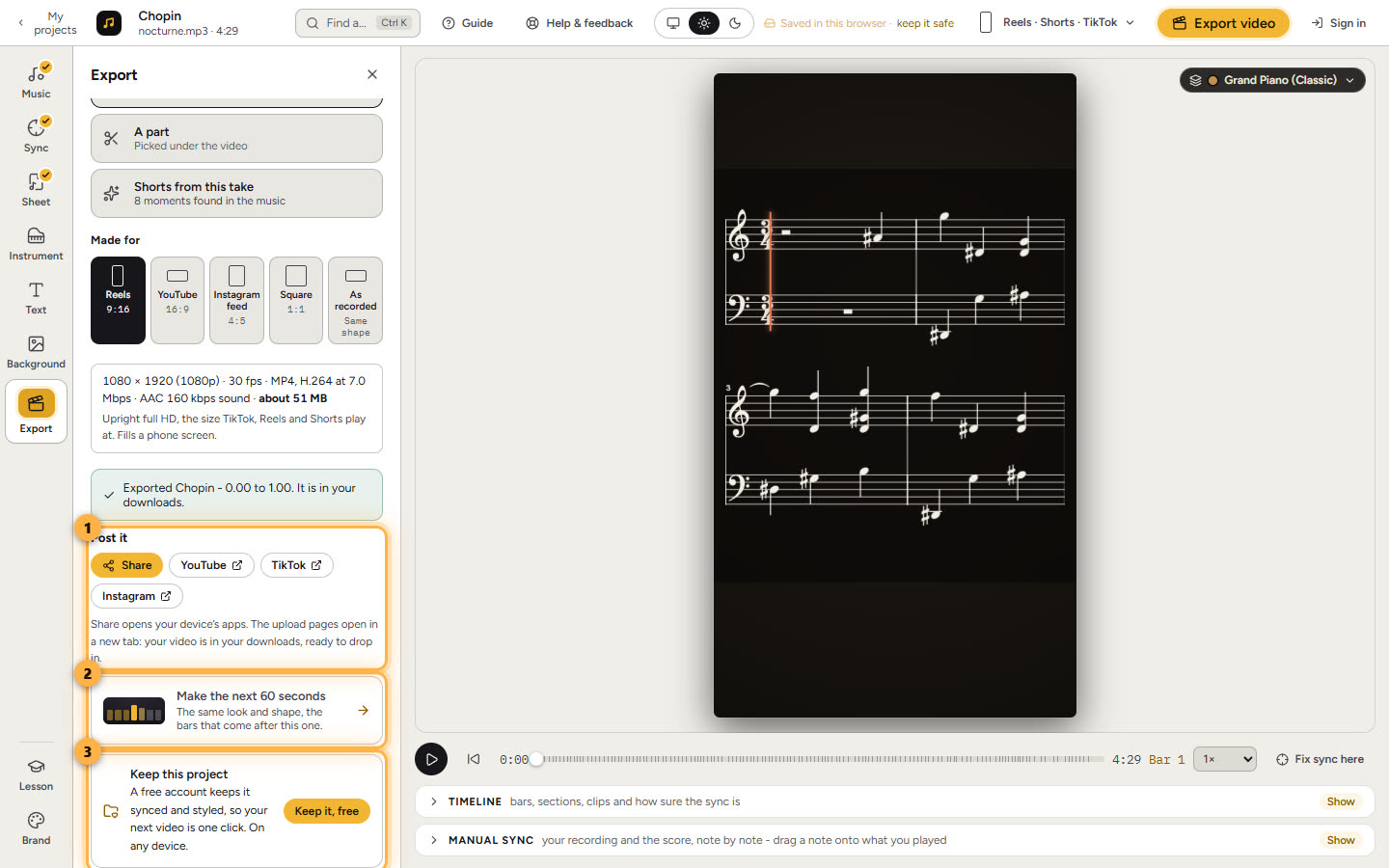
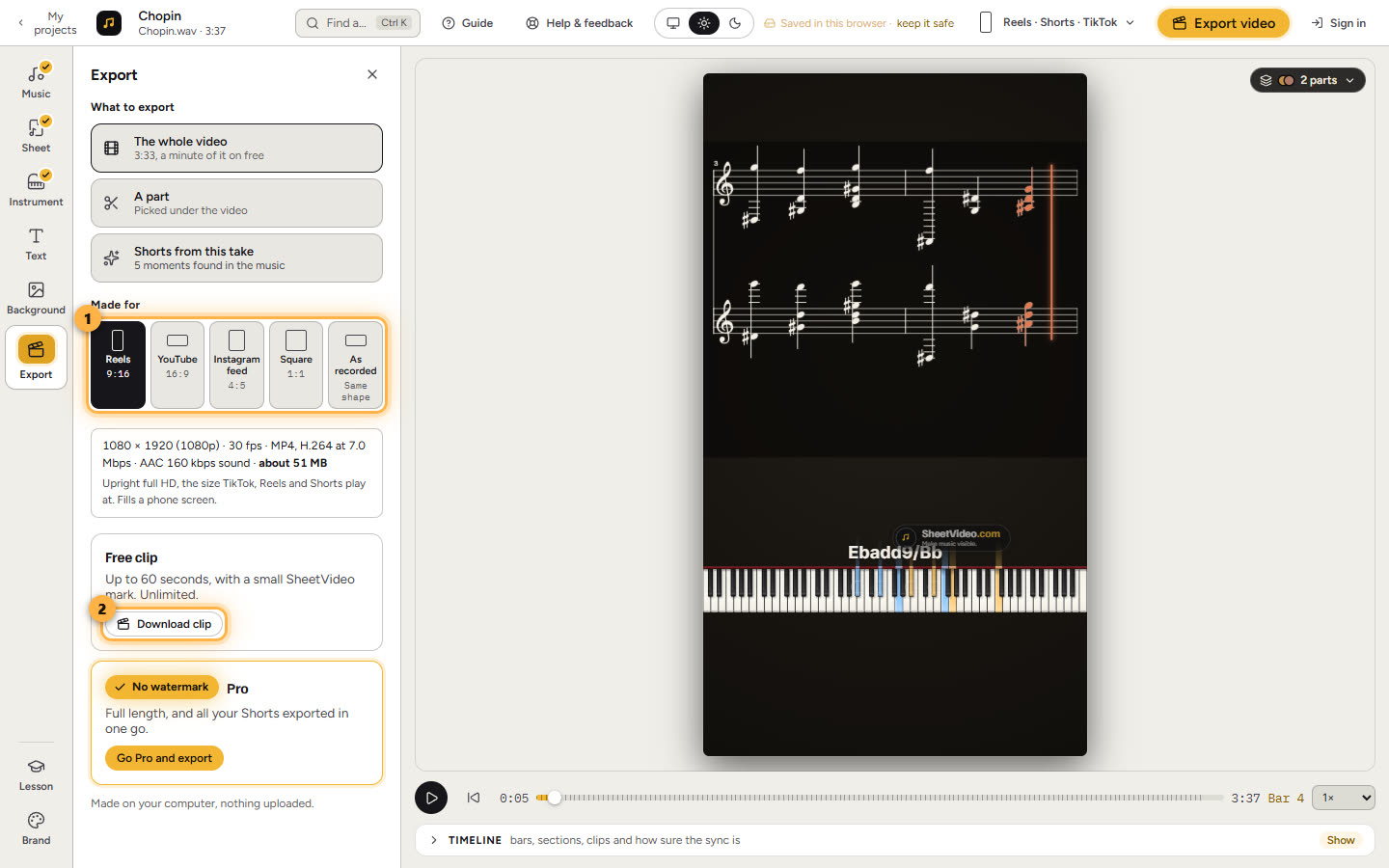
Under Made for, pick where it is going: Reels, Shorts and TikTok upright, YouTube wide, Instagram feed 4:5, square, or the shape you recorded. Then Download clip. A free export is up to a minute: on a longer take, slide the window to the minute you want and play it to check.
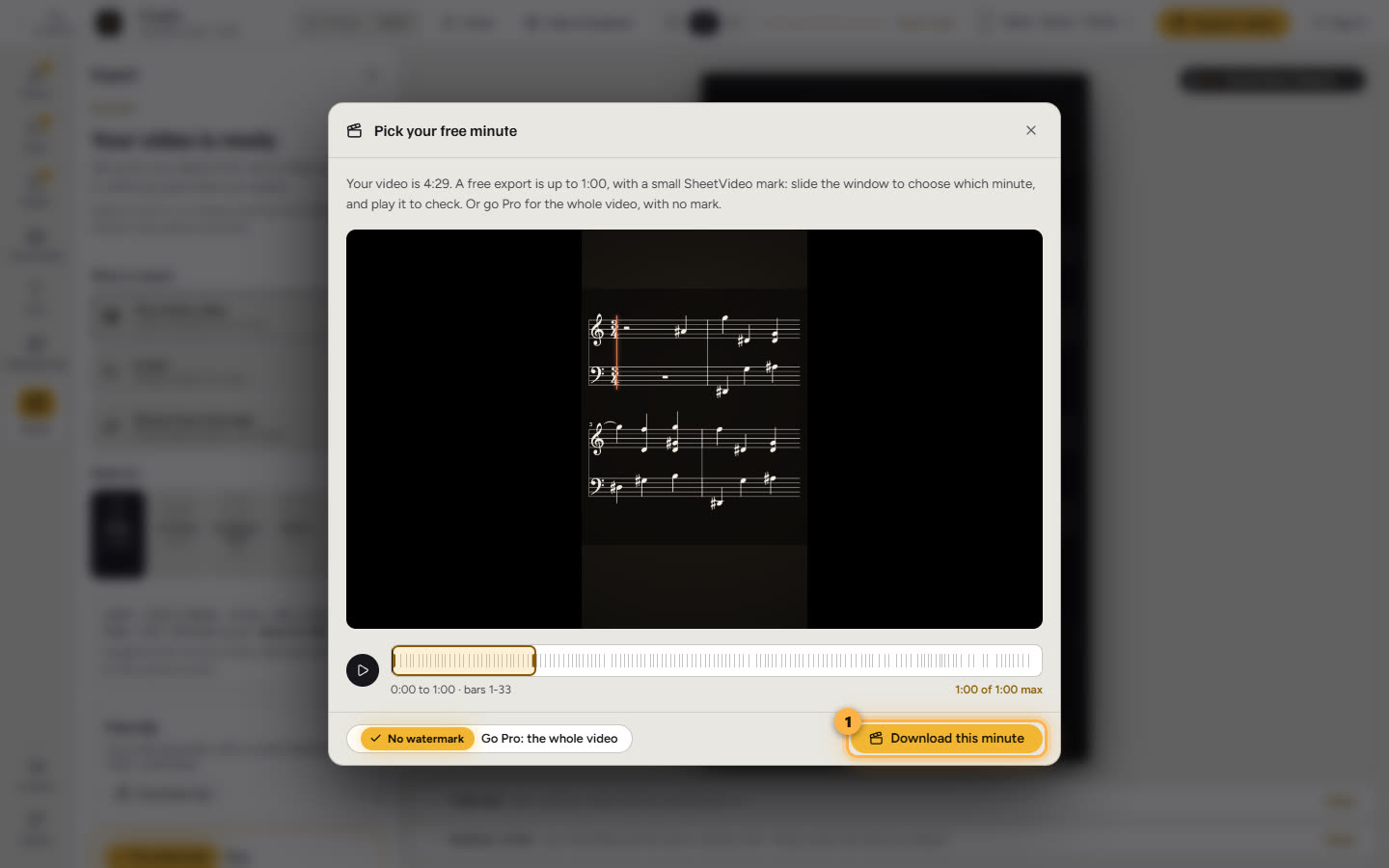
5Post it
When it is saved, Post it is right under it: Share opens your device’s apps, and YouTube, TikTok or Instagram open their upload page in a new tab. Make the next 60 seconds exports the minute after this one, in the same look and shape. Without an account, Keep this project saves it to a free one, so the next video is one click.
- Way 2 of 3
Just a score
For a score that plays itself: a piano tutorial with falling notes, a sheet music video, a play-along. No recording, and nothing to sync.
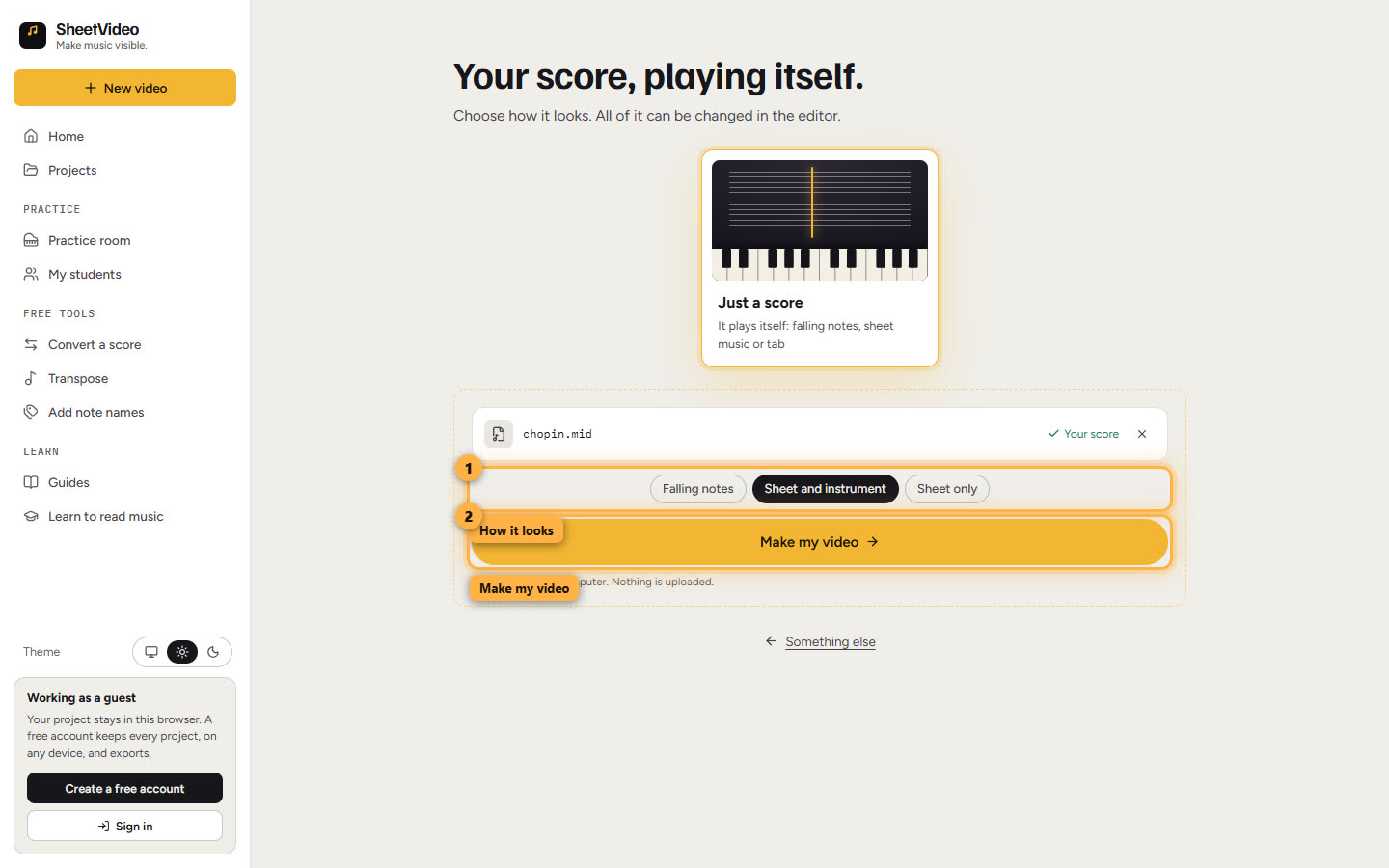
Start with just a score6Pick Just a score, then the look
Pick the second card and add the score. Then choose how it looks: Falling notes (the notes fall onto a keyboard), Sheet and instrument (the sheet music with an instrument under it) or Sheet only. The card shows the look as you pick it.
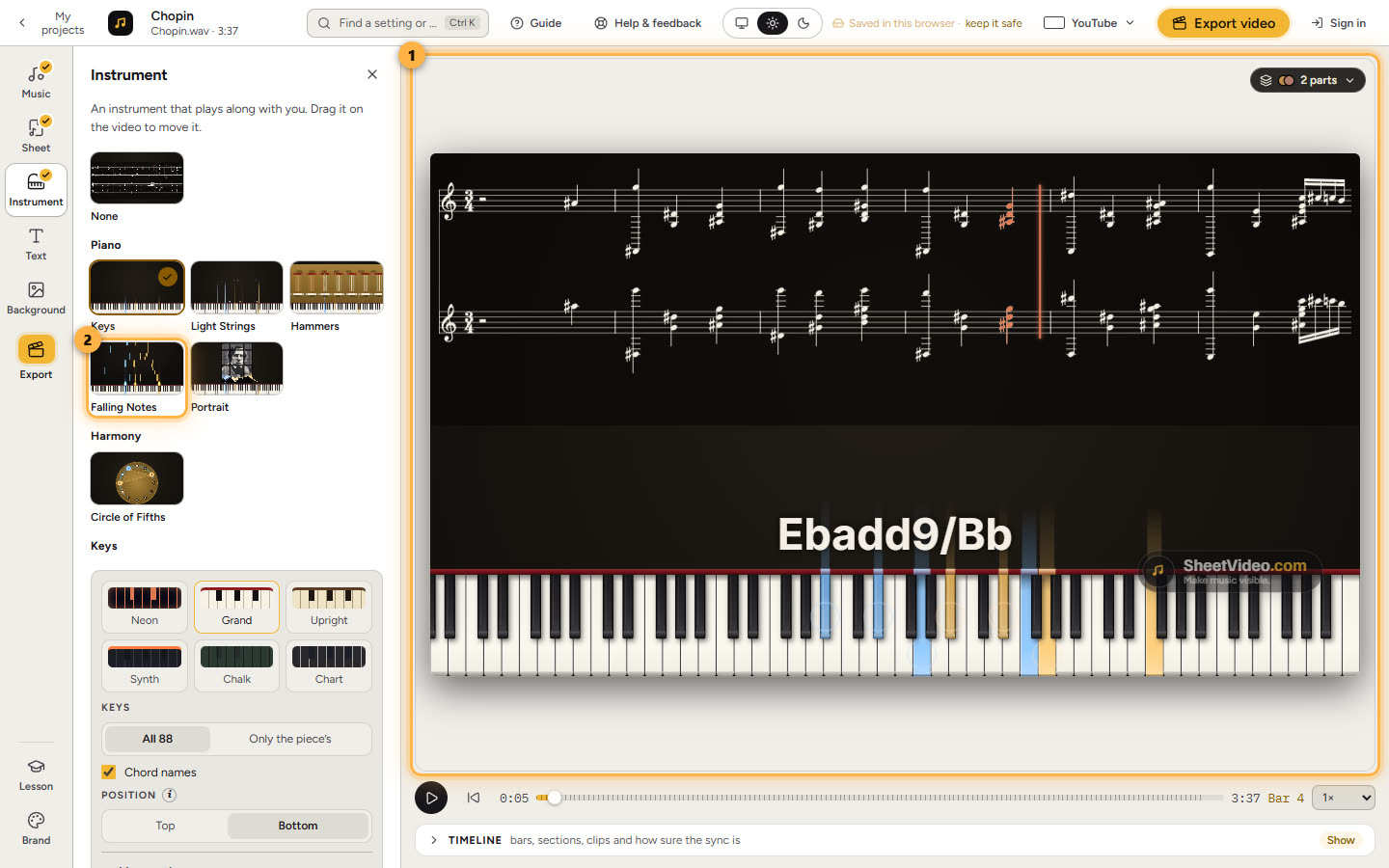
7It plays itself
Make my video opens the editor on the finished video. It plays at the tempo written in the score, and every note shows as it sounds. Change the look whenever you like: Sheet adds or hides the sheet music, Instrument swaps what plays along.
8Export in any shape
In Export, pick the shape under Made for: upright for a Short or a Reel, wide for YouTube, square or 4:5 for a post, all from the same project. Then Download clip.
- Way 3 of 3
Just my recording
For a take with no score file: a song of your own, a cover you play by ear, chords you know by heart. You write what the video shows, as it plays.
Start with just a recording9Pick Just my recording, then your instrument
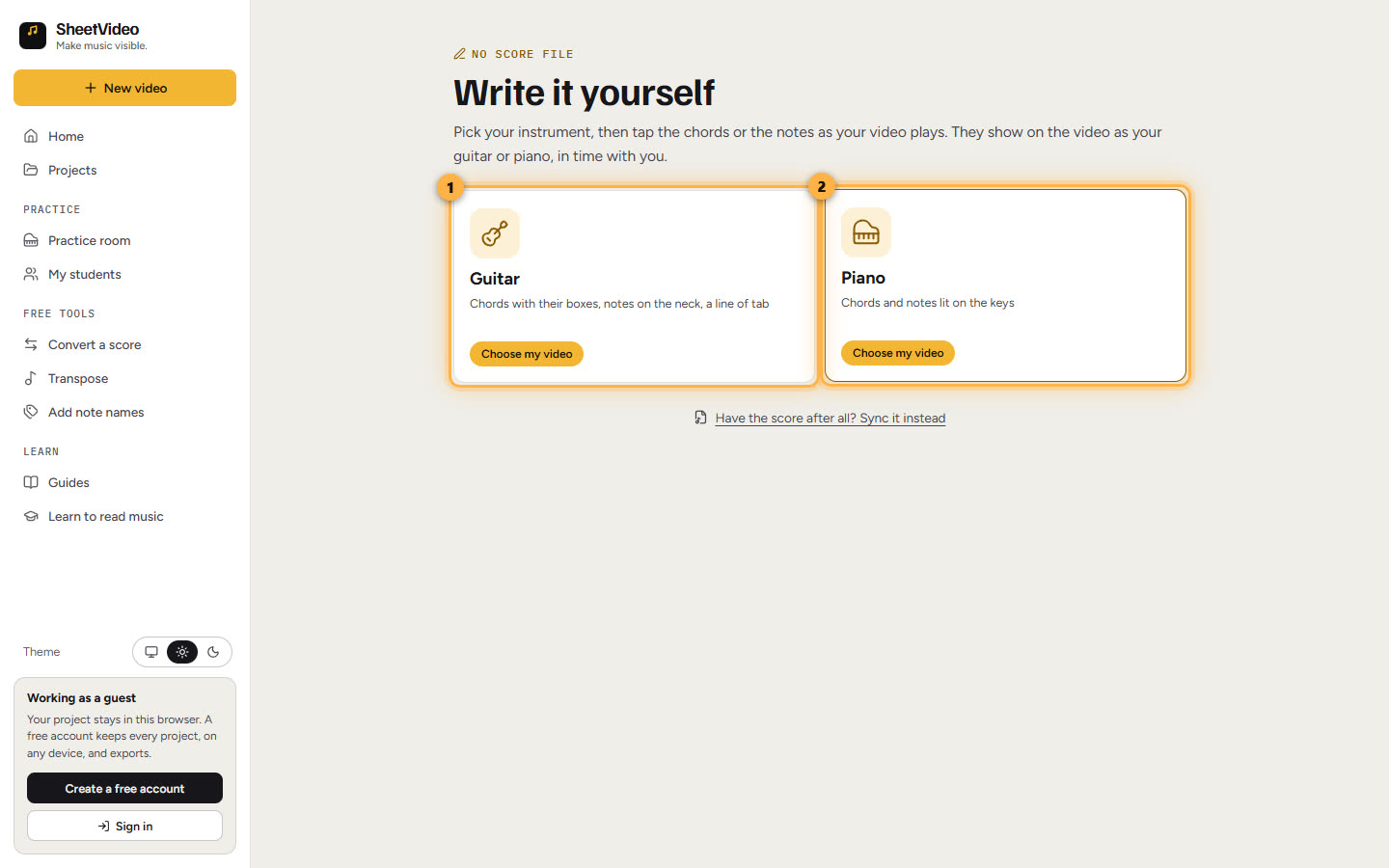
Pick the third card. SheetVideo asks what you play: Guitar (chords with their boxes, notes on the neck, a line of tab) or Piano (chords and notes lit on the keys). Then choose your video, or just its sound.
10Press play, and press each chord as it changes
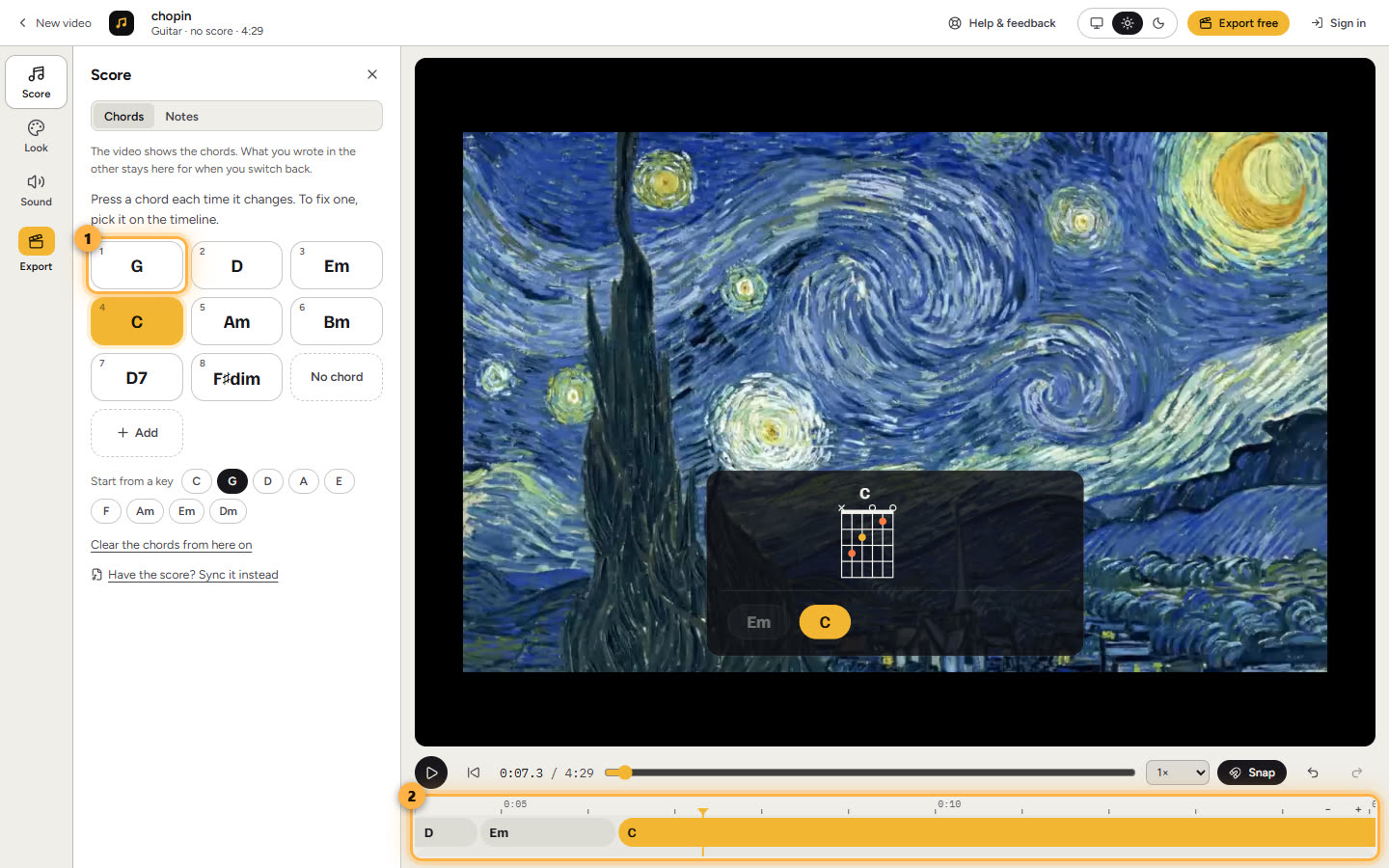
The editor opens with a pad of chords beside the video. Keep them, add your own, or start from a key. Press play, then press a chord each time you hear it change. The number keys work too, and a slower speed makes it easy.
Want the melody instead? Switch What the video shows to Notes and tap them on the neck or the keys under the video.
11Fix any on the timeline, then export
Every chord sits on the timeline under the video: pick one to change it, move it or remove it. When it looks right, export it in the shape you want.