How to do it, click by click
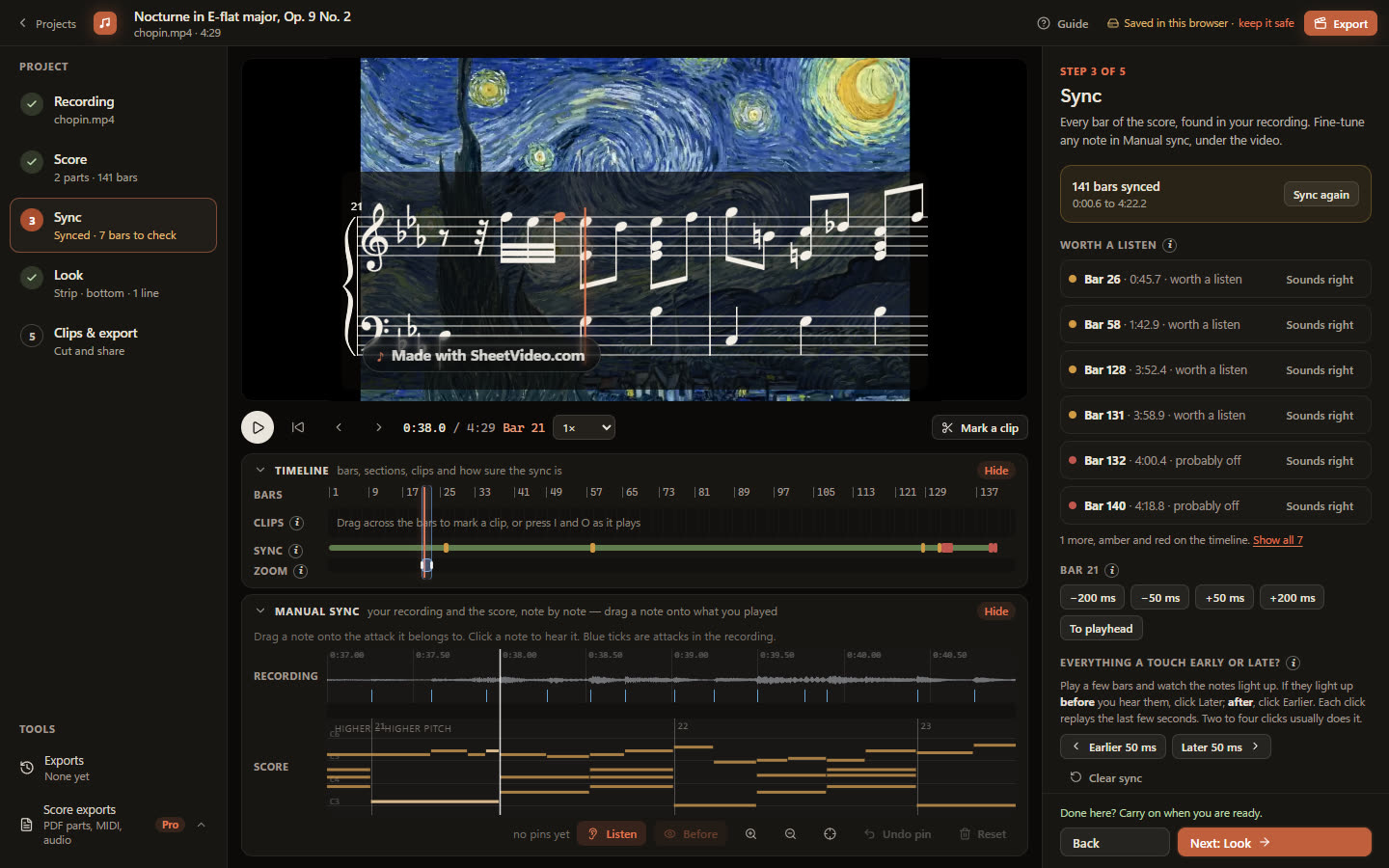
Every picture below is the real SheetVideo editor, with what to click ringed and numbered. The example is a recording of Chopin’s Nocturne in E-flat, Op. 9 No. 2.
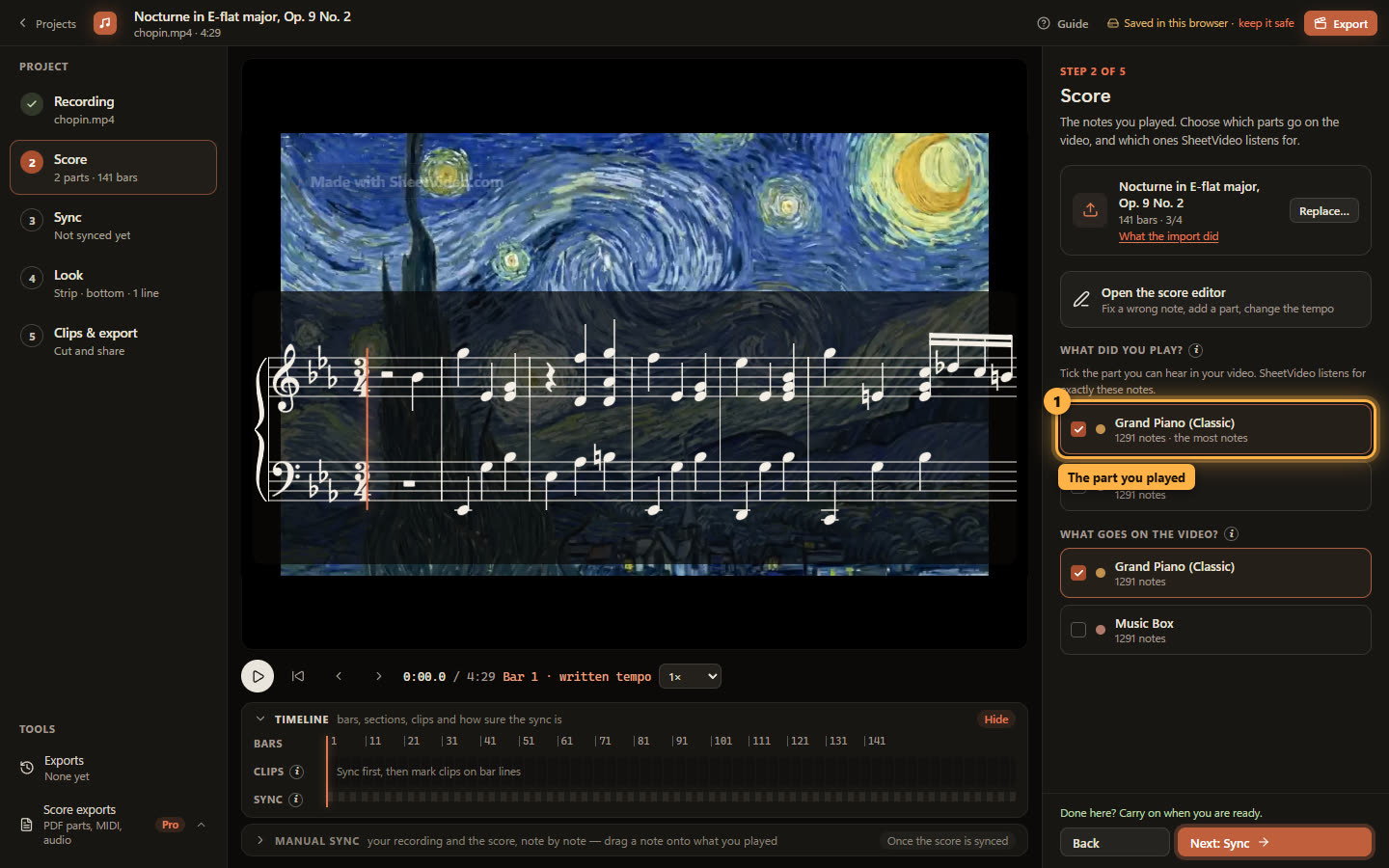
1Tell it which part you played
“What did you play?” is the most important choice on this step. SheetVideo listens for exactly the notes of the parts ticked here, so a part that is not in your recording — a backing track, a doubled line, somebody else’s part — makes it listen for notes that never sound.
This MIDI has a second part, Music Box, that only doubles the piano. It is not in the recording, so only Grand Piano is ticked. If a whole stretch keeps landing wrong, this is the first thing to check: sync on the part you played, alone.
2Press Sync score to video
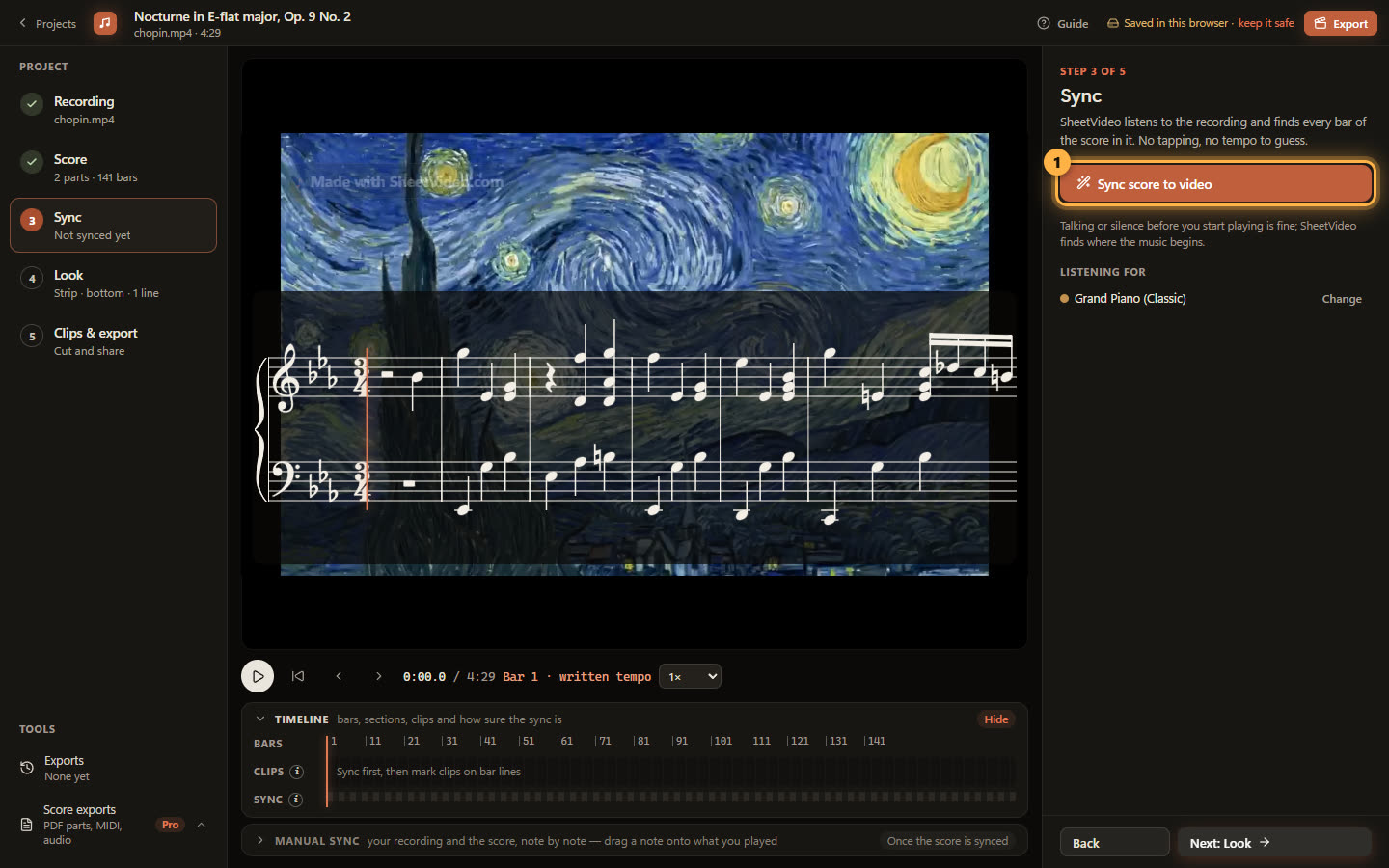
Step 3 is one button. Click Sync score to video.
Under the button it says what it is listening for — the parts you ticked on the Score step. If that is wrong, Change takes you back to them.
3Look at what it flagged
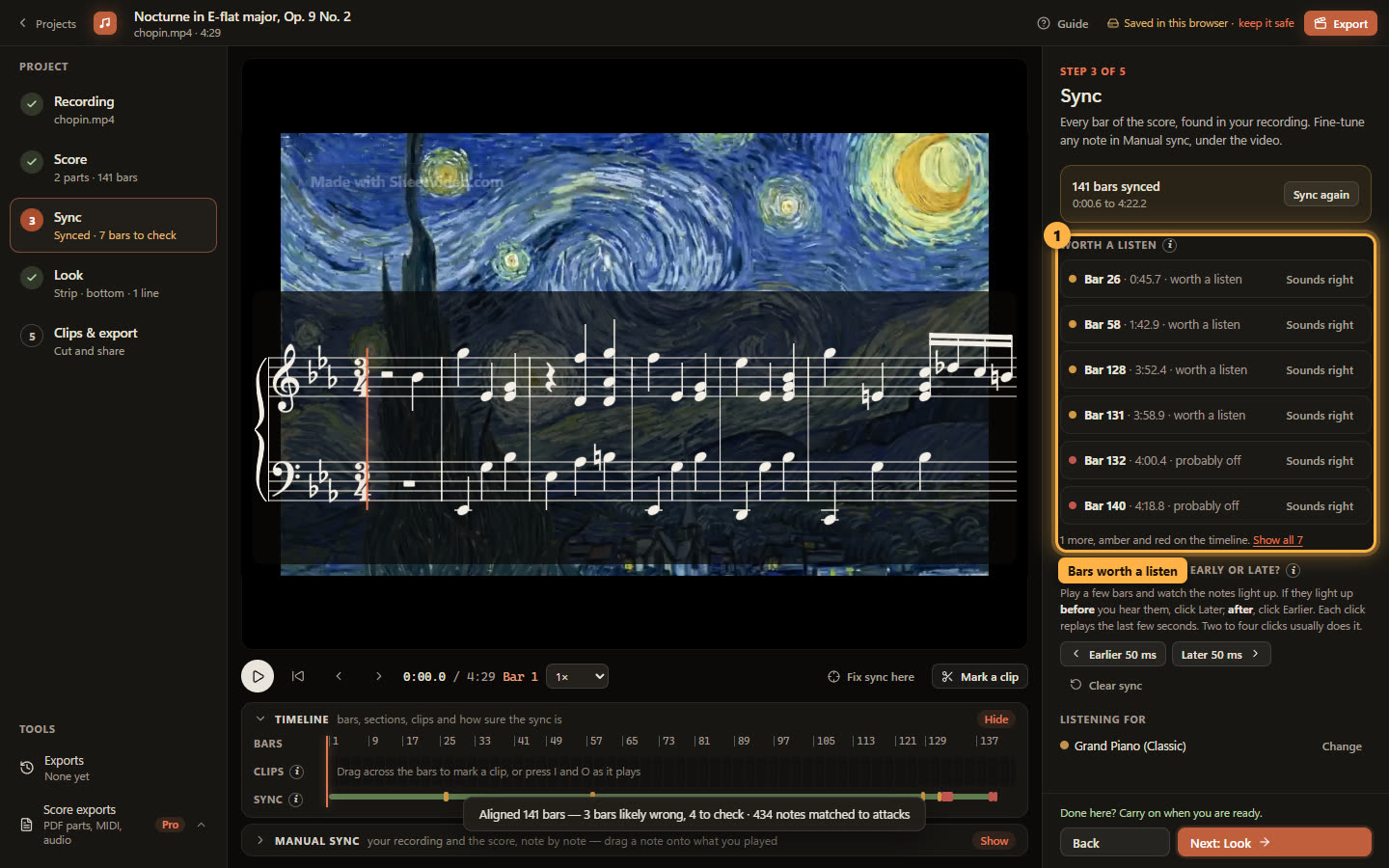
When it finishes, every bar has a place in the recording. The timeline under the video shows it: green where the sync is sure, amber and red where a bar is worth a listen.
The same bars are listed on the right with their times. Click one to jump there and listen; if it sounds right, click Sounds right and it drops off the list. In the Nocturne most of them sit in the closing bars, where the cadenza is played very freely.
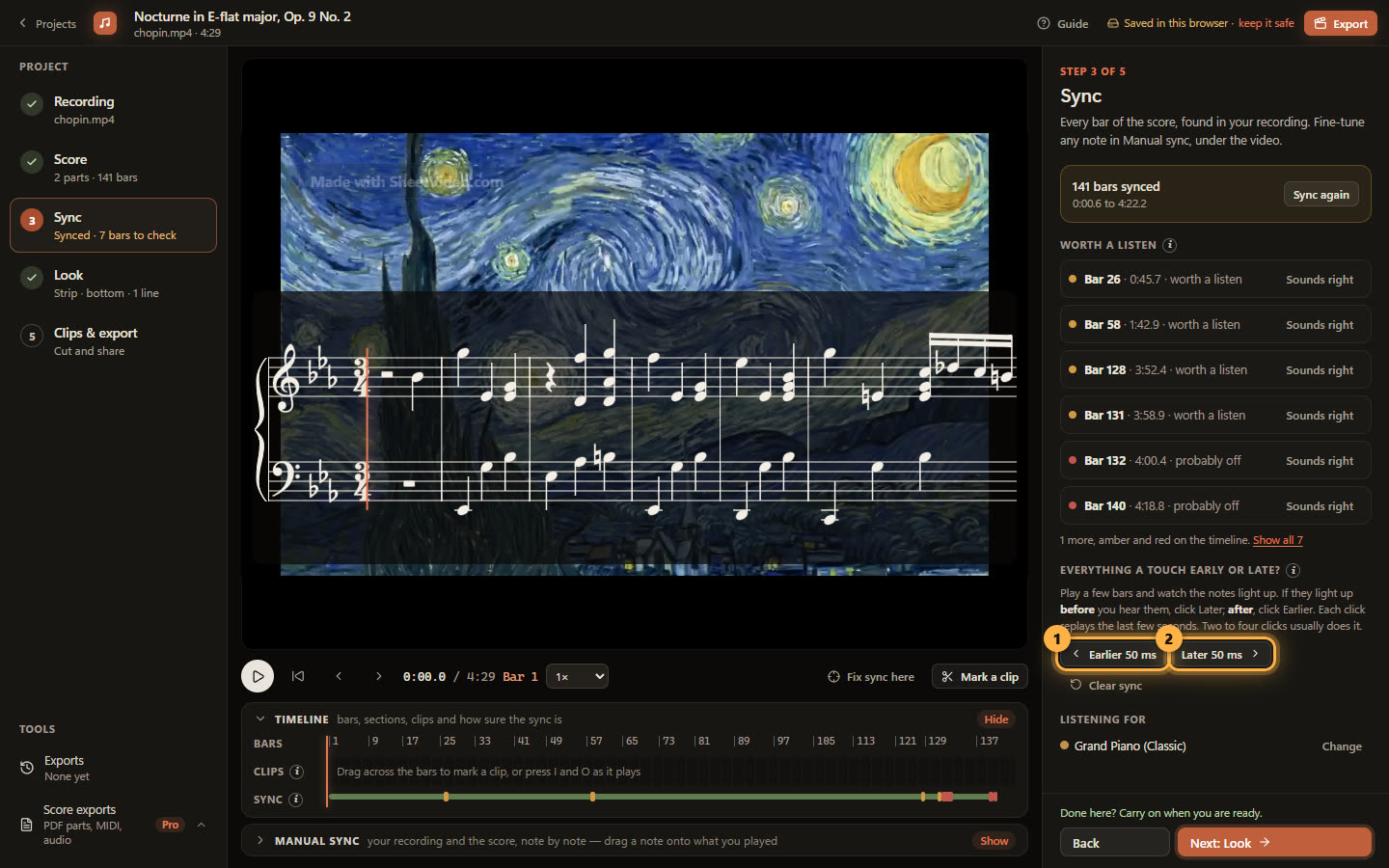
4If everything is a touch early or late
Play a few bars and watch the notes light up. If they light up before you hear them, click Later 50 ms; if after, Earlier. Each click replays the last few seconds, so two or three clicks usually settle it. This shifts the whole take and keeps every bar’s shape.
5Fix one bar by hand
Stop on a bar that is off and click Fix sync here. Manual sync opens under the video: the recording’s attacks across the top, the score’s notes underneath.
Drag a note onto the attack it belongs to and only that stretch moves — the bars either side stay where they are. For a whole bar there are ±50 ms and ±200 ms nudges on the right, and To playhead to snap it to where you have stopped.